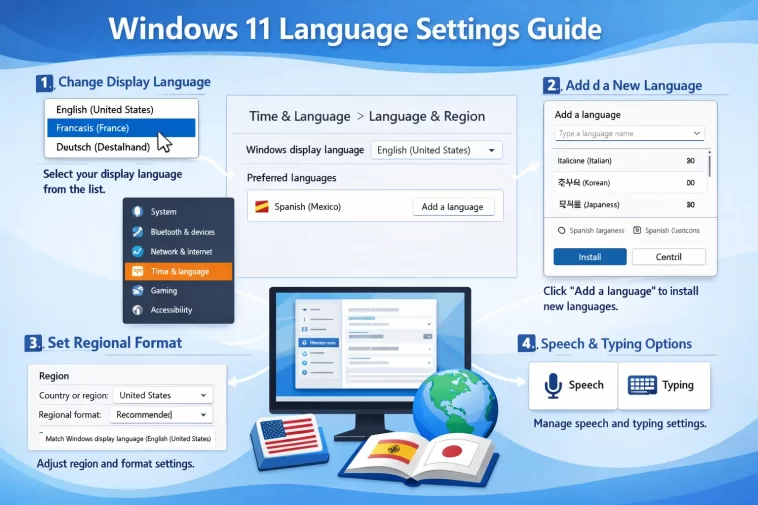
If you’ve just set up a new PC or switched regions, figuring out where everything is in Windows 11 can be frustrating. The language settings have moved around compared to Windows 10, and there are a few different options that can confuse people.
This Windows 11 language settings guide covers everything you need to know — how to add a new language, change the display language, set up keyboard input, and fix common issues. Whether you’re switching your entire system to a new language or just adding a second keyboard layout, this guide has you covered.
Where to Find Language Settings in Windows 11
Getting to language settings in Windows 11 is straightforward once you know where to look.
- Click the Start button and open Settings
- Go to Time & Language
- Click Language & Region
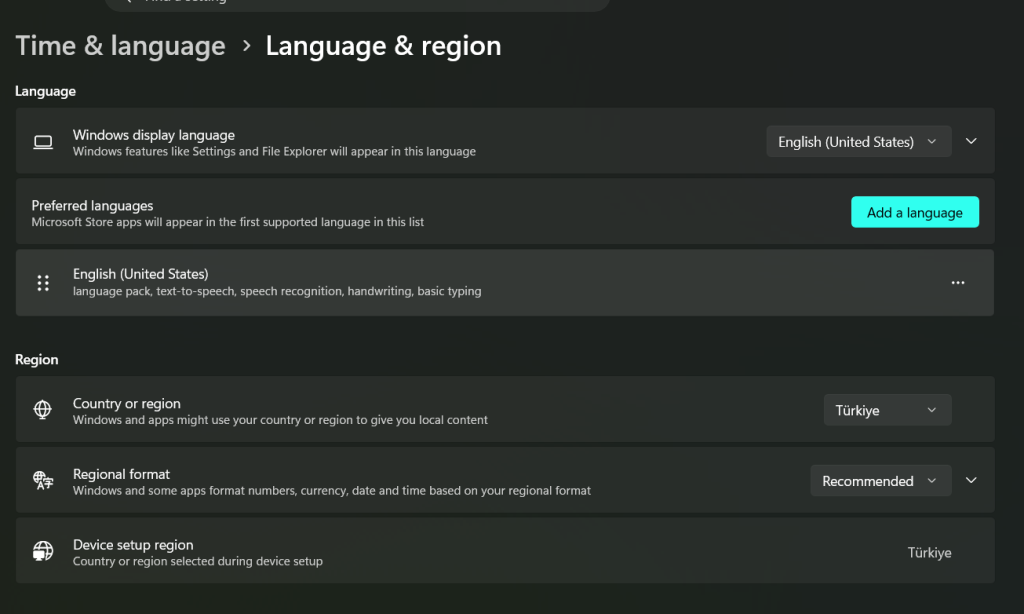
This is your main hub for all language-related settings. From here you can add languages, change your display language, and adjust regional formats.
How to Change the Display Language in Windows 11
The display language controls what language Windows uses for menus, settings, and system messages.
Step-by-Step Instructions
- Open Settings → Time & Language → Language & Region
- Under Preferred languages, check if your desired language is already listed
- If it is, click the three dots next to it and select Set as Windows display language
- If it’s not listed, click Add a language first (see next section)
- Once selected, Windows will ask you to sign out to apply the change
- Sign back in and your display language will be updated
Some languages require a language pack to be downloaded before they can be used as the display language. Windows will handle this automatically when you add the language.
How to Add a New Language in Windows 11
Adding a language is useful if you want to type in multiple languages, use a different keyboard layout, or prepare the system for another user.
Steps to Add a Language
- Go to Settings → Time & Language → Language & Region
- Click Add a language next to “Preferred languages”
- Type the language name in the search box (e.g., “Spanish,” “French,” “Turkish”)
- Select the language from the results and click Next
- Choose which features to install:
- Language pack — for display language support
- Text-to-speech — for voice features
- Speech recognition — for voice input
- Handwriting — for tablet/touchscreen use
- Click Install
Windows will download and install the selected components. This may take a few minutes depending on your internet speed.
How to Change the Keyboard Input Language
Adding a language also adds a keyboard layout for that language. You can switch between input languages at any time without changing the display language.
Switching Keyboard Input
Once you have multiple languages installed, a language bar will appear in the taskbar (bottom right, near the clock). It shows the current input language, usually as a two-letter code like ENG, TUR, or ESP.
To switch keyboard input:
- Click the language indicator in the taskbar and select a language, or
- Press Windows key + Spacebar to cycle through installed keyboards
This is especially useful if you type in two languages regularly. Your display language stays the same, but your keyboard layout switches instantly.
Adding a New Keyboard Layout to an Existing Language
- Go to Settings → Time & Language → Language & Region
- Click the three dots next to the language you want to modify
- Select Language options
- Under Keyboards, click Add a keyboard
- Choose the layout you want and click it to add
How to Remove a Language in Windows 11
If you’ve added a language you no longer need, it’s easy to remove.
- Go to Settings → Time & Language → Language & Region
- Find the language you want to remove under Preferred languages
- Click the three dots next to it
- Select Remove
Note: You cannot remove the language that is currently set as your Windows display language. You’ll need to switch to a different display language first.
How to Change Regional Format Settings
Regional format settings control how Windows displays dates, times, currency, and numbers. These are separate from the display language and can be set independently.
- Go to Settings → Time & Language → Language & Region
- Scroll down to the Regional format section
- Click the dropdown under Regional format and choose your preferred region
- Click Change formats to customize date, time, and number formats individually
This is useful if you want your system in English but prefer date formats from a different country (for example, DD/MM/YYYY instead of MM/DD/YYYY).
How to Set Up Windows 11 in a Different Language During Setup
If you’re setting up a new PC or doing a clean install of Windows 11, you can choose your language at the very beginning of the setup process.
On the first setup screen, you’ll see options for:
- Language to install — the display language for Windows
- Time and currency format — regional settings
- Keyboard or input method — your keyboard layout
Choose your preferences here and Windows will be configured in that language from the start. You can always change these later through Settings.
How to Use Multiple Languages on the Same Windows 11 Account
Windows 11 makes it easy to work in multiple languages simultaneously. Here’s how to set it up efficiently:
- Add all the languages you need under Preferred languages
- Set your primary display language at the top of the list
- Use Windows + Spacebar to switch keyboard input on the fly
- Adjust which language features are installed per language (you don’t need all features for every language)
If you share a PC with someone who uses a different language, consider creating separate user accounts. Each account can have its own language settings without affecting the other.
Windows 11 Language Settings for Specific Use Cases
Changing Language for Apps Only (Not the Whole System)
Windows 11 allows you to set a different language for individual apps — separate from the system display language.
- Go to Settings → Time & Language → Language & Region
- Scroll down to Windows display language
- Look for the option “Choose a language for non-Unicode programs”
For per-app language settings, some Microsoft Store apps support language preferences set in the app itself rather than through Windows Settings.
Setting Up a Bilingual Keyboard
If you frequently switch between two languages, you can streamline the process:
- Pin the language bar to your taskbar for quick access
- Use the Windows + Spacebar shortcut to switch instantly
- Consider using a physical keyboard with dual-language keycaps if you type heavily in both
Changing Language for a Specific User Account
Language settings in Windows 11 are per-user by default. If you change the display language on one account, it does not affect other accounts on the same PC.
Each user can go to their own Settings → Time & Language → Language & Region and configure independently.
Common Language Settings Problems and Fixes
Display Language Didn’t Change After Sign-Out
This usually means the language pack didn’t finish downloading.
- Go to Settings → Time & Language → Language & Region
- Click the three dots next to the language and select Language options
- Check if any language features show a download button — install them
- Sign out and back in again
Keyboard Layout Keeps Reverting
This is a known issue in Windows 11, especially after updates.
Fix:
- Go to Settings → Time & Language → Language & Region
- Click the three dots next to your primary language → Language options
- Remove any duplicate keyboard layouts
- Make sure the correct layout is listed first
You can also try going to Settings → Time & Language → Typing → Advanced keyboard settings and setting your preferred input method as the default.
Language Option Is Greyed Out or Missing
This can happen if your Windows edition has restrictions, or if your organization’s IT policy limits language changes.
- Make sure you’re signed in with an Administrator account
- Check Windows Update — some language packs require the latest updates
- If you’re on a work PC managed by IT, contact your administrator
Wrong Language Appearing in Some Apps
Some older or third-party apps don’t pick up the Windows display language automatically.
- Check the app’s own language or region settings
- For older programs, go to Control Panel → Clock and Region → Change date, time, or number formats → Administrative tab → Change system locale
Tips for Managing Language Settings Like a Pro
Here are a few extra tips that most guides don’t mention:
- Keep your preferred language list short — having too many languages installed can slow down some language-related features
- Download language packs over Wi-Fi — some full language packs are several hundred megabytes
- Use the “Set as Windows display language” button right after installing, before restarting — it confirms Windows has the pack ready
- Check keyboard layout carefully — many languages have regional variants (e.g., Spanish for Spain vs. Spanish for Latin America) with slightly different keyboard layouts
FAQ
How do I change the language on Windows 11 quickly? Go to Settings → Time & Language → Language & Region. Click the three dots next to your preferred language and select “Set as Windows display language,” then sign out and back in.
Can I use Windows 11 in two languages at the same time? You can have multiple keyboard input languages active at the same time and switch between them with Windows + Spacebar. However, only one language can be the display language at a time.
Why is my language pack not downloading? Check your internet connection and make sure Windows Update is working properly. Some language packs are delivered through Windows Update, so a paused or broken update process can block them.
Does changing the display language affect my files and documents? No. Changing the display language only affects the Windows interface — menus, settings, and system messages. Your files, documents, and apps are not affected.
Can I set a different language for just one app in Windows 11? Some apps support their own internal language settings. For system-level per-app language control, this feature is limited in Windows 11 compared to what was announced — check individual app settings for options.
How do I add a Turkish keyboard on Windows 11? Go to Settings → Time & Language → Language & Region → Add a language. Search for “Turkish,” select it, and install. Once added, you can switch to the Turkish keyboard layout using Windows + Spacebar.
Will changing my Windows language delete anything? No. Changing language settings never deletes files or installed programs. It only changes how the interface appears.
Final Thoughts
Managing language settings in Windows 11 is much easier once you know where everything lives. The key pages are all under Settings → Time & Language, and most changes only take a minute or two to apply.
Whether you’re switching your entire system to a new language, adding a second keyboard for bilingual typing, or just fixing a regional date format, this Windows 11 language settings guide gives you everything you need to get it done without frustration.
