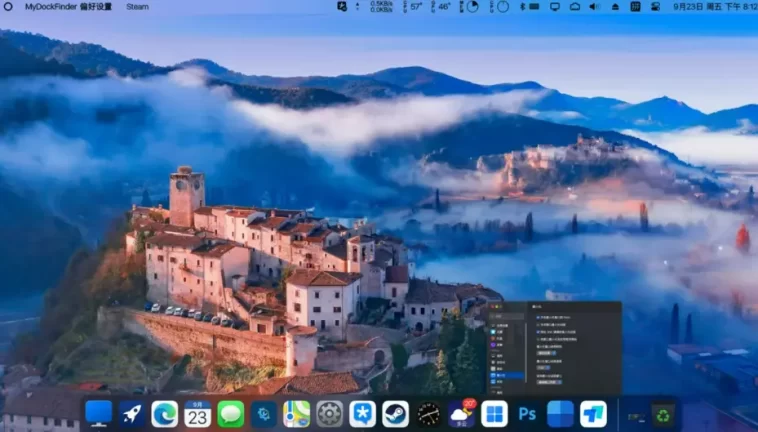
MyDockFinder is the secret weapon for anyone who loves their Windows PC’s power and versatility but secretly misses the beautiful, clean design of macOS. Let’s be honest: Apple’s desktop design, with its smooth animations, elegant Dock, and clean top menu bar, is incredibly appealing.
If you’ve ever wished your Windows machine could give you that same sophisticated, streamlined experience without making the switch to a completely new operating system and ecosystem, then this guide is for you. We’re going to dive deep into MyDockFinder, a powerful and surprisingly lightweight application that can transform your Windows desktop into a Mac-like paradise, complete with that iconic Dock and Finder bar.
Forget those complicated, buggy transformation packs you might have tried years ago. MyDockFinder is different. It’s a focused, modern, and continuously updated tool that simply replaces the parts of Windows you might not like (hello, busy taskbar!) with the macOS elements you do. Ready to give your PC the ultimate style upgrade? Let’s get started.
🛠️ Why Even Try to Make Windows Look Like a Mac?
Before we jump into the technical stuff, it’s worth asking: why bother? Windows works fine, right? Yes, it does. But here are the main reasons why so many people are looking for a Mac-like makeover, and why MyDockFinder is the perfect solution:
1. A Cleaner, Less Cluttered Desktop
The standard Windows taskbar can get overwhelming fast. Notifications, system tray icons, the Start button, pinned apps, open windows—it’s a lot of visual noise crammed into one strip.
The macOS design philosophy focuses on minimalism. The Dock only shows what you need, and the menu bar neatly tucks away settings and system information at the top of the screen. This instantly makes your desktop feel more organized and calm.
2. Smooth, Beautiful Animations
One of the first things people notice when they switch to a Mac is the fluidity. The way an icon “jumps” when you click it, the smooth minimizing of a window into the Dock, or the lovely dynamic blur effects. Windows animations often feel clunky or just… fast.
MyDockFinder brings genuine, high-quality macOS-style animations to Windows. This isn’t just a pretty visual; it genuinely makes using your computer feel more responsive and enjoyable.
3. Centralized System Control (The Finder Bar)
On a Mac, the top menu bar (the “Finder Bar”) is your go-to for system settings, Wi-Fi, battery, and media controls. Windows spreads this out between the taskbar’s system tray and the Action Center.
MyDockFinder introduces a similar top bar that centralizes all your essential system controls, like volume, brightness, and network status, giving you a consistent, easy-to-access control center right where you’d expect it.
4. Productivity with the Dock
The macOS Dock, which MyDockFinder perfectly replicates, is a productivity powerhouse. It not only holds your most-used apps but also shows a badge for unread messages, offers a quick-preview of open folders (the “Stacks” feature), and makes switching between applications a breeze with its famous magnification effect. It’s far more flexible and visually informative than the standard Windows taskbar.
🚀 Getting Started: Installing and Setting Up MyDockFinder
So, you’re convinced. You want that sleek, Mac-like feel on your Windows 10 or Windows 11 machine. Here is the simple, step-by-step process for getting MyDockFinder up and running.
Step 1: Where to Get It
The most popular and safest way to get MyDockFinder is through the Steam Store. While there are often free versions floating around online, the Steam version is regularly updated, fully supported, and avoids any potential headaches with malware or incomplete features. It’s a small, one-time purchase that is well worth the investment for the quality you get.
- Open Steam on your Windows PC.
- Search for “MyDockFinder.”
- Purchase and Install the application just like you would any game.
Step 2: First Launch and Basic Setup
Once installed, launch the program. You’ll immediately notice the transformation. Your default Windows taskbar might disappear (or you may need to manually hide it later—MyDockFinder gives you a setting for this!), and the familiar Mac-style Dock will appear at the bottom, along with a new Finder-style bar at the top of your screen.
When it first runs, MyDockFinder will ask you about some basic settings. You can usually leave the defaults, but pay attention to these key areas:
- Auto-Start: Make sure you set it to launch automatically when Windows starts. You don’t want to lose your beautiful Mac theme every time you reboot!
- Language: The developers are constantly improving translations, but make sure the language is set to English if needed.
Step 3: Populating Your New Dock
This is the fun part! You need to put your most-used programs on the new Dock.
- Drag and Drop: The easiest way is to find a program shortcut on your desktop, in your Start menu, or even the
.exefile in your File Explorer, and simply drag it onto the Dock. It will snap into place. - Adding System Items: Right-click an empty space on the Dock. You’ll usually find options to add special items like the Recycle Bin, My Computer, or even a weather forecast widget.
- Rearrange: Simply click and drag the icons on the Dock to put them in the order you like best.
Step 4: Customizing the Finder Bar
The top bar, which looks like the Mac’s menu bar, contains a lot of utility.
- MyFinder Button: On the far left, you’ll see the “MyFinder” menu. This acts like the Apple logo menu, giving you quick access to Shut Down, Restart, Sleep, and system settings.
- System Controls: On the right side, you’ll see icons for Wi-Fi, Volume, Battery, and the Clock. Right-clicking these often gives you extra controls, just like on macOS.
- CPU/Memory Monitor: A popular feature is the ability to display real-time CPU and memory usage right in the top bar. This is incredibly useful and looks much cleaner than the Windows Task Manager. You usually have to enable this in the MyDockFinder settings.
🌟 The Deep Dive: Hidden Features and Customization
Where MyDockFinder truly shines is its level of customization. You can tweak almost every element to make it look exactly how you want.
The Dock’s Visual Effects
MyDockFinder is famed for its smooth animations, and you have control over them:
- Magnification Effect: This is the signature Mac look—icons grow larger as your cursor passes over them. You can adjust the size of the magnification to be subtle or dramatic.
- Window Minimization: The way open windows “swoosh” down into the Dock is beautiful. You can usually choose from a few different animation styles (like the famous “Genie Effect” or “Scale Effect”).
- Dynamic Blur: This is a fantastic feature. The Dock and the top Finder bar can use a real-time, dynamic blur effect (called “Mica” or “Acrylic” in Windows terms, or simply “blur” in macOS) that makes the background peek through. You can often adjust the intensity of this blur for maximum visual appeal.
Folders and Stacks
This is a massive productivity boost. You can turn any folder into a “Stack” on your Dock:
- Drag a folder (like your “Downloads” folder) onto the Dock.
- Right-click on the new folder icon.
- Look for a setting to change the Display Style and View Content as.
- Set the display to something like “Fan” or “Grid” (the most Mac-like options). Now, when you click the folder icon, it fans out or pops up a clean grid view of the folder’s contents right there on the desktop, saving you from opening a whole new File Explorer window.
Custom Icons and Themes
To truly achieve a perfect Mac look, you’ll want Mac-style icons.
- Applying Icon Masks: MyDockFinder often has a feature that applies a “mask” to all your icons, giving them a consistent, rounded look, which is essential for the Mac aesthetic.
- Changing Individual Icons: If a specific icon doesn’t look right, you can right-click the icon on the Dock, go to “Edit this icon,” and manually assign a custom
.pngor.icofile to it.
Auto-Hiding and Dock Position
Do you want the Dock to only appear when you need it, maximizing your screen real estate?
- Go into the main MyDockFinder settings menu.
- Look for Display and Behavior options.
- You can set the Dock to Auto-Hide or Intelligent Hide, which makes it appear only when your cursor is at the bottom of the screen.
- You can also change the Dock’s position—bottom, left, or right—or even hide the Windows taskbar completely from here.
💡 Performance and Stability: Does MyDockFinder Slow Down Windows?
This is the most common question, and it’s a very fair one. Customization apps often use a lot of system resources and can slow your PC down.
The great news about MyDockFinder is that it is surprisingly lightweight. Because it uses modern GPU rendering (based on WinUI, according to the developers), it is highly optimized.
Most users report that it uses very little CPU power—often less than 1% on modern systems—and a minimal amount of RAM (usually under 100MB). The smooth animations are hardware-accelerated, which means they use your graphics card efficiently instead of bogging down your main processor.
In short: MyDockFinder is designed to run in the background without impacting your gaming, work, or general performance. It truly offers a Mac-like experience without the lag that plagued older customization tools.
📝 Summary: The Ultimate Windows Makeover
So, is MyDockFinder the right tool to give your Windows PC the look and feel of a Mac? Absolutely.
It delivers the core features that define the macOS desktop experience:
- The Mac-style Dock: Clean, customizable, and complete with fluid animations and Stacks for folders.
- The Mac-style Menu Bar (Finder Bar): Centralized system controls, time, and optional hardware monitors.
- A Focus on Aesthetics: Dynamic blur, smooth transitions, and a clean, less cluttered interface.
It’s a fantastic, polished application that shows just how much you can customize Windows to match your personal style and preference. If you’ve been on the fence about trying a dock application or longing for that Apple aesthetic without giving up Windows, now is the time to give MyDockFinder a try.
Go grab it on Steam, spend an hour customizing it to perfection, and enjoy the look of an elegant, Mac-style desktop paired with the powerful Windows operating system. You might just forget you’re not using a MacBook!
