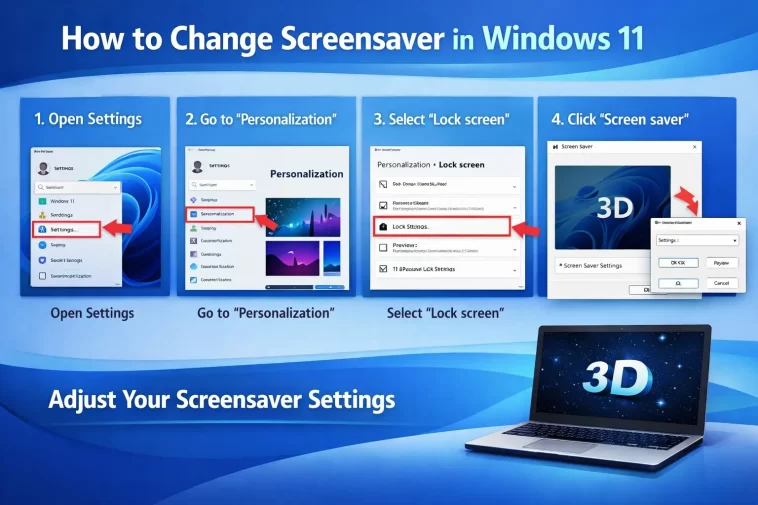
If your Windows 11 screensaver is stuck on the default or you just want something fresh on your screen, changing it takes less than two minutes once you know where to look.
Why Bother Changing Your Screensaver?
Screensavers might feel like a relic from the old CRT monitor days, but they still serve a purpose. If you step away from your desk and don’t want anyone peeking at your open tabs, a screensaver adds a basic layer of visual privacy. Some people also just like having something nice to look at instead of a black screen.
Windows 11 comes with a handful of built-in screensaver options, and you can customize how long the computer waits before activating one. You can even set it to prompt for a password when you return — which is a smart habit in shared spaces.
What You Need Before You Start
No special software is required. You just need:
- A PC running Windows 11
- Access to the Settings app or Control Panel
- About 2 minutes of your time
That’s it. Let’s get into it.
How to Change Screensaver in Windows 11
Step 1: Open Windows Settings
Click the Start menu (the Windows icon in the taskbar) and then click the Settings gear icon. You can also press Windows + I on your keyboard to open Settings directly.
This is the fastest way in. No need to dig through menus.
Step 2: Go to Personalization
In the Settings window, look at the left-hand sidebar and click Personalization. This section controls everything visual — wallpapers, colors, lock screen, and yes, screensavers.
Scroll down a little if you don’t see all the options at first.
Step 3: Click on “Lock Screen”
Inside Personalization, click Lock screen. This might feel like the wrong place, but screensaver settings are tucked here in Windows 11.
Microsoft reorganized the layout compared to Windows 10, so it’s easy to miss if you’re looking in the wrong spot.
Step 4: Find the Screensaver Settings Link
Scroll down to the bottom of the Lock screen page. You’ll see a link that says Screen saver. Click it.
This opens the classic Screen Saver Settings dialog box — the same one that’s been around since older Windows versions.
Step 5: Choose Your Screensaver
In the Screen Saver Settings window, you’ll see a dropdown menu under Screen saver. Click it to see all available options:
- 3D Text — Displays customizable spinning text
- Blank — Just a black screen
- Bubbles — Floating transparent bubbles
- Mystify — Moving geometric lines
- Photos — Slideshow from your Pictures folder
- Ribbons — Colorful flowing ribbons
Click on any option to see a preview in the mini monitor at the top of the window.
Step 6: Customize Your Screensaver (Optional)
Some screensavers have extra settings. If you pick 3D Text, for example, you can click Settings… to change the text, font, rotation speed, and color.
If you choose Photos, the Settings button lets you pick which folder the slideshow pulls from and how fast images change.
Not all screensavers have customization options — Blank and Bubbles, for instance, don’t have extra settings.
Step 7: Set the Wait Time
Under the screensaver dropdown, you’ll see a field labeled Wait. This is how many minutes of inactivity pass before the screensaver kicks in.
The default is usually 1 or 5 minutes. You can set it to anything from 1 to 9999 minutes. Most people find 5–15 minutes works well for everyday use.
Step 8: Enable “On Resume, Display Logon Screen” (Recommended)
Just below the wait time, there’s a checkbox: On resume, display logon screen. Check this box.
This means when you move your mouse or press a key, Windows will ask for your PIN or password before showing your desktop. It’s a simple security measure that takes zero extra effort to enable.
Step 9: Preview and Apply
Before saving, click the Preview button to see the screensaver in full screen. Move your mouse to exit the preview.
Once you’re happy with your choice, click Apply and then OK. Done — your screensaver is now active.
How to Disable the Screensaver Completely
If you don’t want a screensaver at all, go back to the Screen Saver Settings window and select None from the dropdown menu. Click Apply and OK.
Your monitor will stay on (or sleep based on your power settings) without any screensaver activating.
Bonus: Using a Custom Screensaver
Windows 11 supports third-party screensavers in the .scr file format. If you download one from a trusted source:
- Right-click the .scr file
- Select Install
- It will appear in your screensaver dropdown automatically
Be careful about where you download screensavers from. Stick to reputable sources — malicious .scr files have been used to spread malware in the past.
Screensaver vs. Sleep Mode: What’s the Difference?
A lot of people confuse these two, so it’s worth a quick explanation.
| Feature | Screensaver | Sleep Mode |
|---|---|---|
| Monitor stays on | ✅ Yes | ❌ No |
| Saves energy | ❌ Minimal | ✅ Significant |
| Protects privacy | ✅ Partially | ✅ Yes |
| Requires password | Optional | Yes (if set) |
If saving power is your goal, Sleep mode (set in Power Settings) is much more effective than a screensaver. But if you’re in a public space and want your screen to look inactive without fully locking up, a screensaver with password-on-resume is a solid middle ground.
Common Problems and Fixes
Screensaver won’t start even after setting it Check your power settings. If your monitor is set to turn off before the screensaver wait time, the screen will go dark before the screensaver ever activates. Go to Settings → System → Power & Sleep and adjust your monitor-off timer to be longer than your screensaver wait time.
Screensaver option is greyed out This sometimes happens on work or school computers managed by an IT department. Group Policy settings can disable or lock screensaver options. If this is the case, contact your system administrator.
Custom .scr file doesn’t show up in the list Make sure you right-clicked and selected Install rather than just opening the file. Also confirm the file is a valid .scr format and not corrupted.
Photos screensaver shows no images The default folder is your Pictures library. If that folder is empty or the path has changed, go into the Photos screensaver settings and manually select the correct folder.
FAQ
Where is the screensaver setting in Windows 11? Go to Settings → Personalization → Lock Screen → Screen saver (at the bottom of the page). The direct path is a bit buried compared to older Windows versions, but it’s there.
Can I use a video as a screensaver in Windows 11? Not natively. Windows 11 doesn’t support video screensavers by default. You’d need a third-party app like Lively Wallpaper, which can set animated content as your screensaver or wallpaper.
Does Windows 11 still have screensavers? Yes, Windows 11 still includes several built-in screensavers. They’re not prominently advertised, but they’re fully functional and accessible through the Lock screen settings.
Is it safe to download screensavers from the internet? It depends on the source. Only download .scr files from trusted websites. Screensavers are executable files, so they carry the same risk as any downloaded software.
How do I stop my screensaver from activating during a presentation? Set the wait time to a very high number, or temporarily select “None” as your screensaver. You can also press Windows + P to manage display settings during a presentation, which often suppresses screensaver activation.
Can I set a different screensaver for multiple monitors? No — Windows 11 applies the same screensaver across all connected displays. There’s no built-in way to set different screensavers per monitor.
Will using a screensaver slow down my PC? Some screensavers (like 3D Text or Ribbons) use GPU resources, which could be noticeable on older hardware. If your PC struggles, switch to Blank — it uses virtually no resources.
Final Thoughts
Changing your screensaver in Windows 11 is a straightforward process once you know that the settings are hidden inside the Lock screen section of Personalization. The whole thing takes about two minutes from start to finish.
Whether you want a calming slideshow of your photos, a classic Bubbles animation, or just a blank black screen, Windows 11 has you covered. And if you enable the “On resume, display logon screen” option, you get a small but meaningful security boost without any extra effort.
