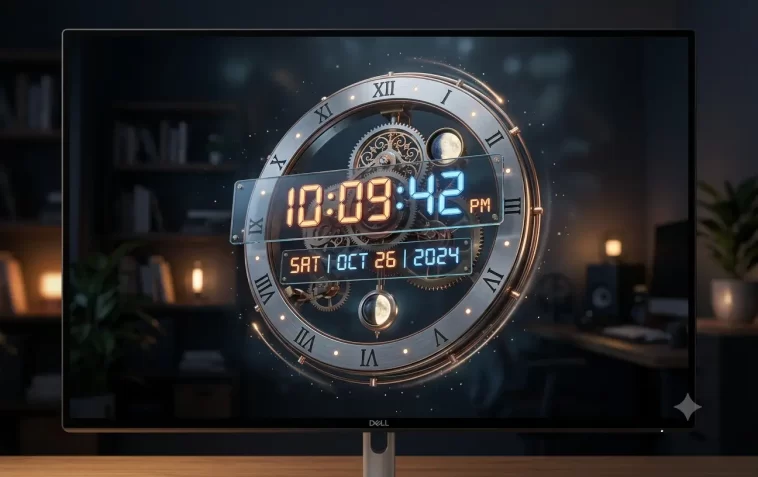
A 3D clock screensaver on Windows 11 is one of the simplest ways to personalize your PC. Instead of a blank screen or a basic slideshow, you get a sharp, animated clock display that actually looks good.
This guide walks you through exactly how to find, download, and install a 3D clock screensaver on Windows 11 — safely, quickly, and without any technical knowledge required.
What Is a 3D Clock Screensaver?
A 3D clock screensaver is an animated screen display that activates when your PC is idle. It shows the current time in a three-dimensional visual style — rotating, glowing, or floating depending on the design.
Unlike old-school screensavers, modern versions are lightweight, visually polished, and customizable. Some show analog clock faces, others show digital displays with neon or minimalist styles.
Windows 11 doesn’t include a 3D clock screensaver by default. You need to download one and install it manually — which takes about 5 minutes.
Before You Start: What You Need
- A Windows 11 PC (any edition)
- An internet connection
- Administrator access on your account
- About 5–10 minutes
No advanced settings or coding knowledge required.
Step 1 – Choose a 3D Clock Screensaver
The first step is picking a screensaver. There are several good free options available.
Recommended Options
Fliqlo (Flip Clock) — one of the most popular screensavers in the world. Shows a large, clean flip-clock animation in black and white. Minimal and elegant.
- Download: fliqlo.com
- Free, safe, widely used
3D Clock Screensaver by Astro Gemini — shows a realistic 3D analog or digital clock with customizable colors and backgrounds.
Chameleon Clock Screensaver — animated 3D clock with multiple skin options and color themes.
- Lightweight and highly customizable
Johnny Castaway / Clock Screensavers (Classic) — older-style screensavers that still work on Windows 11 with compatibility mode.
For most users, Fliqlo is the safest and cleanest choice. It’s regularly updated, has no ads, and installs in seconds.
Step 2 – Download the Screensaver File
Go to the official website of the screensaver you chose. Always download from the official source — never from third-party download sites.
For Fliqlo:
- Go to fliqlo.com
- Click the Download button
- Choose the Windows version
- Save the
.zipfile to your Downloads folder
For screensavers from other sources, look for a file ending in .scr or a .zip file that contains a .scr file inside.
Security tip: Always scan downloaded files with Windows Defender before opening. Right-click the file → Scan with Microsoft Defender.
Step 3 – Extract the File (If Zipped)
If your downloaded file is a .zip archive, you need to extract it first.
- Right-click the
.zipfile in your Downloads folder - Click Extract All
- Choose a destination folder (Downloads is fine)
- Click Extract
You should now see a file ending in .scr — that’s the screensaver file.
Step 4 – Install the Screensaver
Windows 11 makes installing a .scr file very simple.
- Right-click on the
.scrfile - Select Install from the context menu
That’s it. Windows automatically registers it as a screensaver and opens the Screen Saver Settings window.
If you don’t see Install in the right-click menu, try this alternative:
- Right-click the
.scrfile- Click Show more options
- Then click Install
Step 5 – Set It as Your Active Screensaver
Installing the file doesn’t automatically activate it. You need to select it in Windows settings.
Through Right-Click (Quickest Method)
After clicking Install, the Screen Saver Settings window usually opens automatically. If it does:
- In the Screen saver dropdown menu, select your newly installed screensaver (e.g., “Fliqlo”)
- Set the Wait time — how many minutes of inactivity before the screensaver activates (5–10 minutes is typical)
- Check On resume, display logon screen if you want password protection when returning
- Click Preview to see how it looks
- Click Apply, then OK
Through Windows Settings (Manual Method)
If the settings window didn’t open automatically:
- Press
Windows + Ito open Settings - Go to Personalization → Lock screen
- Scroll down and click Screen saver
- In the Screen saver dropdown, select your screensaver
- Adjust the wait time and other options
- Click Apply → OK
Step 6 – Customize the Screensaver (Optional)
Most 3D clock screensavers come with a Settings or Options button inside the Screen Saver Settings window.
Click Settings to customize:
- Clock style — analog, digital, flip clock, neon, minimal
- Background color — black, dark blue, gradient, custom
- Clock size — small, medium, fullscreen
- Animation speed — how fast the clock elements move
- Font style — for digital clock variants
For Fliqlo specifically, you can adjust the clock size using the Settings button — most people set it to 50% or 75% of the screen.
Step 7 – Test It
Don’t just wait for the screensaver to activate on its own.
- Open Screen Saver Settings (search “screensaver” in the Start menu)
- Click the Preview button
- Your screen should go full-screen with the 3D clock animation
Move the mouse or press any key to exit the preview.
If it doesn’t look right, go back into Settings and adjust the size or style. Then preview again until it looks how you want.
How to Uninstall a Screensaver
Changed your mind? Removing a screensaver is simple.
- First, go to Screen Saver Settings and switch to a different screensaver (or “None”)
- Click Apply
- Then navigate to where you saved the
.scrfile - Delete it
Screensavers installed via right-click are typically placed in: C:\Windows\System32\ (for system-wide installation) or C:\Users\YourName\AppData\Local\ (for user-only installation)
You can search for the .scr filename in File Explorer to find and delete it.
Troubleshooting Common Issues
The screensaver doesn’t appear in the dropdown list Make sure you right-clicked the .scr file and selected Install. Simply double-clicking doesn’t install it — it just runs it once.
The screensaver won’t activate automatically Check that your power settings aren’t preventing it. Go to Settings → System → Power & sleep and make sure the screen isn’t set to turn off before the screensaver wait time.
The screensaver activates but the screen just goes black Your display settings may be turning off the monitor before the screensaver has a chance to run. Set the Turn off the display time to be longer than your screensaver wait time.
“Windows cannot open this file” error Make sure you’re running a .scr file — not a .exe or other format. Some screensaver packages include an installer .exe instead; run that as administrator instead.
Screensaver is blurry on a high-DPI screen Right-click the .scr file → Properties → Compatibility tab → check Override high DPI scaling behavior → set to Application. This fixes blurriness on 4K and high-resolution displays.
Are Screensaver Files Safe?
This is a fair question. The .scr format is the same as a .exe — it’s an executable file. That means a malicious .scr file could theoretically cause harm.
How to stay safe:
- Only download from official developer websites
- Avoid “screensaver pack” sites with dozens of unrelated downloads
- Scan every downloaded file with Windows Defender before installing
- Check the file size — a legitimate screensaver is usually between 500 KB and 10 MB
Fliqlo and other well-known screensavers have been downloaded millions of times and have a clean track record. Stick to reputable sources and you’ll have no issues.
Best Free 3D Clock Screensavers for Windows 11 (Summary)
| Screensaver | Style | Price | Best For |
|---|---|---|---|
| Fliqlo | Flip clock, minimal | Free | Clean, modern look |
| 3D Clock (Astro Gemini) | Analog 3D | Free/Paid | Realistic clock feel |
| Chameleon Clock | Multi-skin | Free | Customization options |
| XScreenSaver (via WSL) | Various | Free | Power users |
| Microsoft Store options | Various | Free/Paid | Easy, safe install |
FAQ
Q: Does Windows 11 have a built-in 3D clock screensaver? No. Windows 11 includes only a few basic screensavers by default (Bubbles, Mystify, Ribbons, and Photos). A 3D clock screensaver needs to be downloaded and installed separately.
Q: Will a screensaver affect my PC’s performance? Modern screensavers use very little CPU and RAM. A simple 3D clock screensaver won’t slow down your PC or affect background tasks.
Q: Can I use a screensaver on a laptop? Yes, but keep in mind that screensavers don’t save power — they keep your display active. If battery life matters, consider setting your display to turn off after inactivity instead of (or in addition to) using a screensaver.
Q: Does the screensaver work on multiple monitors? It depends on the screensaver. Fliqlo, for example, displays on all connected monitors by default. Check the screensaver’s settings for multi-monitor options.
Q: Is Fliqlo safe to download? Yes. Fliqlo is one of the most downloaded screensavers in the world, made by a reputable developer (Yuji Adachi). Download only from the official site at fliqlo.com.
Q: My screensaver keeps getting interrupted. Why? This is usually caused by a USB device (like a mouse or gamepad) sending small signals that reset the idle timer. Try unplugging unused USB devices or check your mouse’s polling rate settings.
Q: Can I set a password to unlock after the screensaver activates? Yes. In Screen Saver Settings, check the box labeled On resume, display logon screen. This requires your Windows login credentials to dismiss the screensaver.
Q: What’s the difference between a screensaver and a lock screen background? The lock screen background is a static or slideshow image shown when your PC is locked. A screensaver is an animation that plays during idle time before the screen turns off. They’re configured separately in Windows 11.
Final Thoughts
Installing a 3D clock screensaver on Windows 11 is genuinely one of the easiest personalizations you can make to your PC. It takes about 5 minutes from download to activation, and the result is a clean, polished idle screen that actually shows useful information.
Start with Fliqlo if you want something simple and reliable. If you want more customization, try Astro Gemini’s 3D Clock for a more detailed, configurable look.
Either way, your PC’s idle screen will look a lot better than a blank display.
