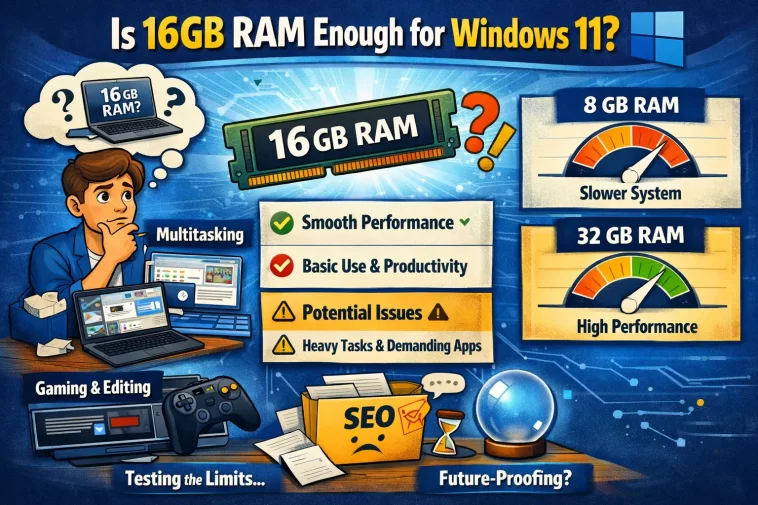
If you’re wondering whether 16GB RAM is enough for Windows 11, the short answer is yes — for most people, most of the time. But “most of the time” is doing a lot of work in that sentence, and there are specific workflows and configurations where 16GB starts showing cracks faster than you’d expect.
What Windows 11 Actually Does With Your RAM
Windows 11 uses more baseline RAM than Windows 10. That’s not a complaint, just a fact — the new shell, widgets service, Teams integration, and various background processes push idle RAM usage higher. On a clean install with no third-party apps, Windows 11 sits at roughly 3.5–4.5GB of RAM at idle on most systems I’ve tested.
That leaves you about 11–12GB of headroom on a 16GB system before you start hitting the page file.
But here’s where it gets messier. Windows 11 uses a memory management technique called SuperFetch (now called SysMain) that pre-loads frequently used apps into RAM before you open them. This is why your RAM usage looks high even when you’re not doing much — Windows is being proactive about what it thinks you’ll need next. That’s not a problem. It only becomes a problem when actual application demand exceeds what’s available and Windows starts swapping to disk.
Where 16GB Starts Struggling
Browser-Heavy Workflows
Chrome and Edge are the main offenders here. A session with 15–20 tabs open, a few pinned web apps, and maybe a video playing in the background can consume 4–6GB on its own. Add Discord, Spotify, and a PDF open in the background, and you’re already at 10–11GB before you’ve opened anything else.
From what I’ve seen, this is where most people first notice the pressure — not in a crash or error, but in that half-second lag when switching tabs or the fan spinning up when Chrome decides to reload a tab it quietly discarded from memory.
Development Environments
Running VS Code alone is fine. Running VS Code with a local Docker container, a Node dev server, and a database running simultaneously is a different story. That kind of stack can easily consume 10–14GB, which leaves Windows almost nothing to work with. Not 100% sure why Docker in particular is so hungry on Windows compared to Linux, but WSL2’s memory behavior is a known rough edge and it doesn’t always release RAM cleanly after containers stop.
Video Editing and Creative Work
Light editing in DaVinci Resolve or Premiere — say, 1080p footage, simple cuts, minimal effects — is workable on 16GB. The moment you move to 4K timelines, multi-cam, or heavy color grading, you’ll hit the ceiling regularly. These apps aren’t just loading the timeline into RAM; they’re caching preview frames, maintaining undo history, and buffering render queues simultaneously.
Gaming
This is where 16GB still holds up reasonably well in 2026, but the margin is shrinking. Most modern titles run fine at 16GB. But some newer open-world games are starting to recommend 16GB as a minimum, which means they’re designed to use most of it. Running a game alongside Discord, a browser with a guide open, and OBS for streaming can push you to the edge.
The Real-World Scenario Where 16GB Bites You
Picture this: you’re working from home, you’ve got a Teams call running, you’re sharing your screen while a browser with twelve tabs is open, and you’re pulling a report from a local SQL database. That’s a completely normal workday for a lot of people.
And that setup — Teams, Chrome, VS Code or Excel, and a background process or two — can quietly chew through 13–14GB without any single app doing anything obviously excessive. The system doesn’t crash. It just starts feeling sluggish, and Task Manager shows your RAM at 87% with the disk light flickering. That’s paging. And once Windows starts writing memory to disk, performance degrades noticeably.
How to Check if 16GB Is Actually Your Bottleneck
Before assuming you need more RAM, confirm RAM is actually the problem.
Open Task Manager (Ctrl + Shift + Esc) → Performance → Memory. Look at two things:
- In Use — how much RAM is actively being used right now
- Committed — the number on the right side of the fraction. If Committed is higher than your total physical RAM, Windows is using virtual memory (page file) and you’re past your RAM ceiling
Also check the Memory column in the Processes tab, sorted by usage. You might find a single process — Chrome, a background updater, a poorly coded app — is consuming far more than expected.
One more thing worth checking: Resource Monitor (search for it in Start) → Memory tab → Hard Faults/sec. If that number is consistently above zero during normal use, your system is actively paging to disk. That’s the real performance killer, and it means 16GB isn’t enough for your current usage pattern.
Should You Upgrade to 32GB?
Well, sort of — it’s more nuanced than a straight yes or no. For a lot of people, 16GB is genuinely fine and 32GB would sit mostly unused. For others, especially developers, video editors, or people who live in a browser with fifty tabs, 32GB makes a noticeable difference.
The upgrade is worth it if:
- Your Committed memory regularly exceeds your physical RAM
- You’re seeing hard page faults during normal work
- You run VMs, Docker containers, or heavy creative software regularly
- You plan to keep this machine for 3–5 more years (the line for “enough RAM” keeps moving up)
It’s probably not worth it if you mostly browse, stream, write, do email, and light office work. 16GB will handle that without complaint for years.
RAM Speed and Dual-Channel Matter More Than People Realize
Here’s something that gets buried in RAM upgrade discussions: how your RAM is configured matters almost as much as how much you have.
Two 8GB sticks running in dual-channel will outperform a single 16GB stick at the same speed by a meaningful margin — sometimes 15–20% in memory-bandwidth-sensitive tasks. If you bought a laptop or pre-built PC with a single 16GB stick, adding a second matching 8GB stick will give you a real-world performance boost that feels like more than just the bandwidth numbers suggest, especially for integrated graphics systems that share system RAM as VRAM.
Check your current config in Task Manager → Performance → Memory → look at “Slots used.” If it says 1 of 2, you’re leaving dual-channel on the table.
What Actually Happened on My Machine
I was running 16GB on a mid-range laptop for about a year and never thought much about it. Then I started running a local AI model alongside my usual browser-plus-code setup, and things went sideways fast. The model alone wanted 6–8GB, which left Windows scrambling. The system didn’t crash — it just became genuinely unpleasant to use. Slow tab switches, stuttery scrolling, the SSD working overtime.
I upgraded to 32GB expecting a dramatic difference and was a little surprised that for everything except the AI model, it felt about the same. Which honestly made sense once I thought about it — my normal workload was fine on 16GB, the specific new workload wasn’t.
So if you’re thinking about upgrading, be honest about what’s actually using the RAM. Task Manager will tell you.
FAQ
Windows 11 shows 90%+ RAM usage even when I’m not doing anything. Is that normal?
Probably. Windows pre-loads apps and caches data into available RAM proactively. High RAM usage at idle isn’t a problem — slow performance combined with high RAM usage is. Check Committed memory and hard page faults before worrying.
Will upgrading from 16GB to 32GB make Windows 11 faster?
Only if RAM is actually your bottleneck. If your Committed memory is consistently below 16GB, adding more RAM won’t change anything noticeable.
Is 16GB enough for gaming on Windows 11?
For most games in 2026, yes. But streaming, recording, or running Discord/browser alongside newer open-world titles can push you close to the limit. 32GB gives you more headroom for that.
Does Windows 11 use more RAM than Windows 10?
Yes, noticeably. Idle usage is typically 500MB–1GB higher on Windows 11 for the same hardware and background apps. It’s not dramatic, but it does reduce your headroom slightly.
My laptop came with 16GB soldered RAM. Can I still upgrade?
If it’s soldered, no — that RAM is permanently attached to the motherboard. Some laptops have one soldered slot and one open slot. Check your exact model’s specs before assuming you’re stuck.
16GB RAM vs 32GB for video editing — is it actually worth the cost?
For 1080p editing, 16GB is workable but tight. For 4K or any kind of heavy color work, 32GB is the point where the software actually behaves the way it’s supposed to. Worth it if you’re doing this regularly.
Editor’s Opinion
16GB is fine for most people but the margin is smaller than it used to be. browsers got greedier, windows got heavier, and a bunch of apps that used to be lightweight now aren’t. if you’re doing normal stuff — office apps, browsing, streaming — you’ll be fine for a few more years. if you’re a developer or you do any kind of media work, just go to 32GB. the price difference isn’t that big anymore and you’ll stop thinking about RAM entirely which is honestly the goal.
