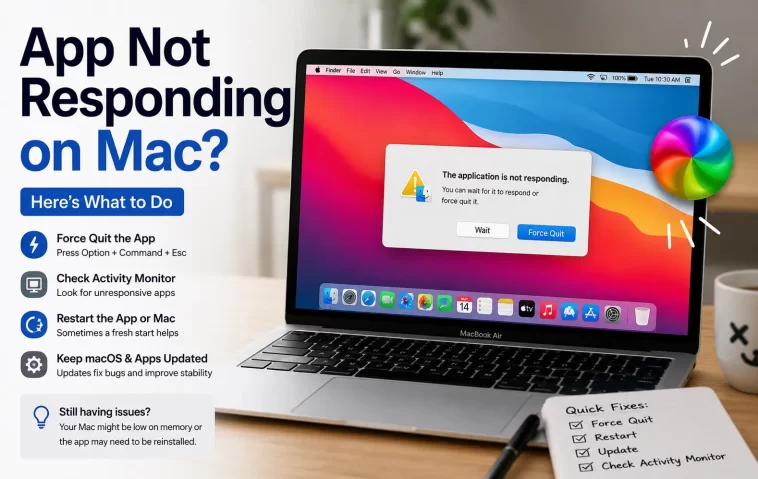
I was exporting a video in Final Cut last week when the app just… stopped. Beach ball spinning, menu bar frozen, no error, nothing. If you’ve got an app not responding on Mac right now, you don’t need the backstory — you need it closed, fast, and you need to know why it keeps happening so you’re not back here next Tuesday.
So let’s get into it.
Quick Answer
- Press Cmd + Option + Esc to open Force Quit Applications
- Select the frozen app and click Force Quit
- If the Dock icon shows, right-click it and hold Option to reveal Force Quit
- Still stuck? Use Activity Monitor or Terminal’s
killcommand - If it happens constantly with the same app, it’s usually a corrupted preference file or a memory leak, not “just Mac being Mac”
Why Apps Freeze on Mac in the First Place
Before the fixes — because honestly, knowing why helps you pick the right one instead of just mashing Force Quit every time.
Memory pressure. macOS is pretty good at juggling RAM, but when an app (or a background helper process it spawned) eats through available memory, the whole thing can lock up while the system tries to swap data to disk. You’ll usually see the Activity Monitor memory pressure gauge turn yellow or red right before this happens.
A stuck thread or infinite loop. Sometimes an app is waiting on something — a network request that never returns, a file it can’t read, a printer that’s not responding — and instead of timing out gracefully, it just hangs there. This is really common with apps that talk to external hardware or cloud services.
Corrupted preference or cache files. This one’s sneaky. An app’s .plist file or cache directory gets corrupted (crash mid-write, disk error, whatever) and every time the app tries to read it, it chokes. And it’ll keep freezing on launch or on a specific action until that file gets cleared.
GPU or graphics driver conflicts, especially on external displays or with apps doing heavy rendering — video editors, 3D software, some games running through Rosetta or under Crossover.
Kernel extension or third-party software conflicts. Older security software, some VPN clients, and audio interface drivers are frequent offenders here. Not always, but often enough that it’s worth checking if you installed anything recently.
Common Scenarios
- Chrome or Safari with 40 tabs open — memory pressure, plain and simple
- Photoshop or Final Cut during export — usually GPU or disk I/O related
- A freshly updated app crashing on launch — corrupted prefs or an incompatible plugin
- Apps freezing right after waking from sleep — often a driver or peripheral reconnection issue
- Zoom or Teams hanging mid-call — network stack or camera/mic driver conflict
Your situation might not match any of these exactly, and that’s fine — the fixes below cover most of it anyway.
Step-by-Step Fixes
Step 1: Try the Keyboard Shortcut First
Press Cmd + Option + Esc. This opens the Force Quit Applications window. Any app that’s not responding usually gets flagged in the list with “(Not Responding)” next to its name. Click it, hit Force Quit, confirm. Done in about four seconds when it works.
Step 2: Right-Click the Dock Icon
If the app’s still in the Dock, right-click (or Control-click) it. Hold down Option and “Quit” changes to “Force Quit.” This works even when Cmd+Option+Esc doesn’t respond for some reason — I’ve had that happen a couple of times when the whole system was under heavy load, not just the one app.
Step 3: Open Activity Monitor
Go to Applications > Utilities > Activity Monitor, or just search for it in Spotlight. Find the process, check the % CPU column — if it’s pegged near 100% and not moving, that’s your frozen app. Select it, click the X in the toolbar, choose Force Quit.
This is also where you can actually see why it froze. High memory usage, high CPU, “Not Responding” status — Activity Monitor tells you more than the basic Force Quit window does.
Step 4: Use Terminal (kill/killall)
If the GUI itself is unresponsive — which happens more than people expect — open Terminal and run:
killall "AppName"Replace AppName with the actual process name (case-sensitive, and it has to match exactly). If that doesn’t work:
ps aux | grep AppNameto find the process ID, then:
kill -9 [PID]The -9 sends SIGKILL, which doesn’t ask nicely — it just kills the process immediately. Use it as a last resort since it skips any cleanup the app would normally do on exit.
Step 5: Restart Finder or the Dock (If Those Are Frozen Too)
Sometimes it’s not the app, it’s the Dock or Finder that’s stuck. In Terminal:
killall Dock
killall Finder
Both relaunch automatically. No data loss, just a quick flicker.
What Actually Worked For Me
Okay so with the Final Cut freeze I mentioned — Force Quit didn’t work the first two times. Not 100% sure why, but the window would just sit there, “Force Quit” button doing nothing when clicked. I tried waiting it out for a solid ten minutes because I didn’t want to lose the render. Big mistake, in hindsight — the export was already dead, it just hadn’t told me yet.
What finally worked was Terminal, kill -9 on the process ID. And after that, the actual root cause turned out to be a corrupted render cache from a project I’d copied over from an external drive that had disconnected mid-copy. Deleted the cache folder, reimported, never happened again on that project. I genuinely wouldn’t have guessed the external drive was involved — that’s the part that annoys me a little, because none of the obvious fixes pointed there.
Advanced Fixes and Edge Cases
Check Console.app for crash logs. Open Console (Applications > Utilities), filter by the app name, and look for entries around the time it froze. You’re looking for anything mentioning “hang,” “not responding,” or a specific error code. This won’t always give you a clean answer, but it narrows things down.
Reset the app’s preferences. Go to ~/Library/Preferences/ and find the .plist file matching the app’s bundle identifier (something like com.apple.finder.plist). Move it to the Desktop — don’t delete it outright in case you need to restore it — then relaunch the app. It’ll rebuild a fresh preferences file.
Check for a stuck login item or launch agent. Some apps install background helpers that run at login and can hang the parent app if they’re misbehaving. System Settings > General > Login Items will show you what’s running.
Look at Activity Monitor’s “Energy” tab if this is happening on battery — some apps get throttled aggressively on low power mode and appear frozen when they’re actually just deprioritized by the system.
Prevention Tips
- Keep apps updated, but give it a week or two after a major macOS release before updating everything — early compatibility issues are common
- Restart your Mac at least weekly, not just when it’s slow
- Watch Activity Monitor’s memory pressure gauge if you’re a heavy multitasker
- Don’t work directly off external drives for anything render-heavy — copy to internal storage first
- Clear app caches occasionally, especially for creative apps like video or photo editors
FAQ
Will force quitting delete my unsaved work? Yes, usually. Force Quit skips the normal save prompts. Some apps have autosave/versioning that can recover some of it, but don’t count on it.
Why does Force Quit itself freeze sometimes? Usually means the whole system is under memory or CPU pressure, not just the one app. Activity Monitor or Terminal will get through when the GUI won’t.
Is this a hardware problem? Rarely, but not never. If it’s happening across totally unrelated apps multiple times a day, run Apple Diagnostics (restart holding D) to rule out a RAM or storage issue.
Does this happen more on Intel Macs or Apple Silicon? From what I’ve seen, Intel Macs freeze more often under heavy multitasking just due to thermal throttling. Apple Silicon isn’t immune, but it’s less common.
Can a bad Bluetooth peripheral cause an app to freeze? Yes, more often than you’d think — camera apps and video call software especially. Unplug/unpair and see if it resolves.
Editor’s Opinion
honestly force quit is one of those things thats simple until it isnt. most people know cmd+option+esc but nobody checks activity monitor to actually figure out WHY it happened, they just kill it and move on. thats fine for a one off but if the same app keeps freezing on you every week, somethings actually wrong and force quitting is just putting a bandaid on it. check the console logs at least once, you might be surprised what you find
