Did a clean Windows 11 install last month, plugged in a G502 and a G915, installed G HUB fresh — no old drivers, no leftover junk, about as clean a slate as you can get — and the thing just sat there spinning its loading animation forever. No error, no timeout, nothing in the tray to click. On a fresh install that’s especially annoying because you can’t blame six years of driver cruft. So here’s what’s actually going on and the order I’d work through it.
Quick Answer
- G HUB’s loading screen is waiting on a background service (LGHUB Agent, LGHUB Updater) to finish initializing, and on a clean install that service can fail silently
- <cite index=”44-1″>In almost every case the software is stuck waiting on a background component, Windows service, or driver that failed to initialize</cite>, not a corrupted install in the traditional sense
- Kill all LGHUB-related processes in Task Manager and try launching the updater executable directly before doing a full reinstall
- USB device enumeration timing on a fresh install is a common and often-overlooked cause — Windows hasn’t fully “learned” your specific peripherals yet
- If a standard reinstall doesn’t fix it, leftover permissions or service registration issues are the next place to look
Why It Fails
G HUB isn’t a simple standalone app. <cite index=”44-1″>It depends on background services, USB drivers, permissions, and correctly initialized components before the interface ever loads</cite>, which is exactly why a clean Windows install doesn’t automatically mean a clean G HUB experience — you’ve removed old cruft, but you’ve also removed everything G HUB might have depended on quietly working around.
A few specific things cause this on a fresh Windows 11 setup:
LGHUB services failing to start on first launch. G HUB relies on a background agent and updater process running with the right permissions. On a brand new install, Windows Defender or a fresh set of user account permissions can block or delay these from initializing properly the very first time, and the main interface just waits on a signal that never comes.
USB device enumeration timing. This is the one people miss most. On a clean install, Windows is still building out its driver database for every USB device you plug in. If G HUB launches before Windows has finished recognizing your mouse or keyboard at the hardware level, it can hang waiting for a device handshake that’s still in progress.
Missing or outdated Visual C++ runtimes. G HUB depends on specific redistributable packages that a full Windows install doesn’t always include out of the box, depending on which edition or ISO you used.
Antivirus or Windows Defender blocking a component silently. Fresh installs sometimes have more aggressive default security behavior before you’ve set exceptions, and G HUB’s updater process reaching out to check for the latest firmware can get quietly blocked without any visible warning.
Installing G HUB before plugging in your devices, or vice versa in the wrong order. From what I’ve seen, the order genuinely matters more than it should — installing the software first and then attaching devices sometimes triggers a different detection path than the reverse, and one of those paths seems to hang more often.
Step-by-Step Fixes
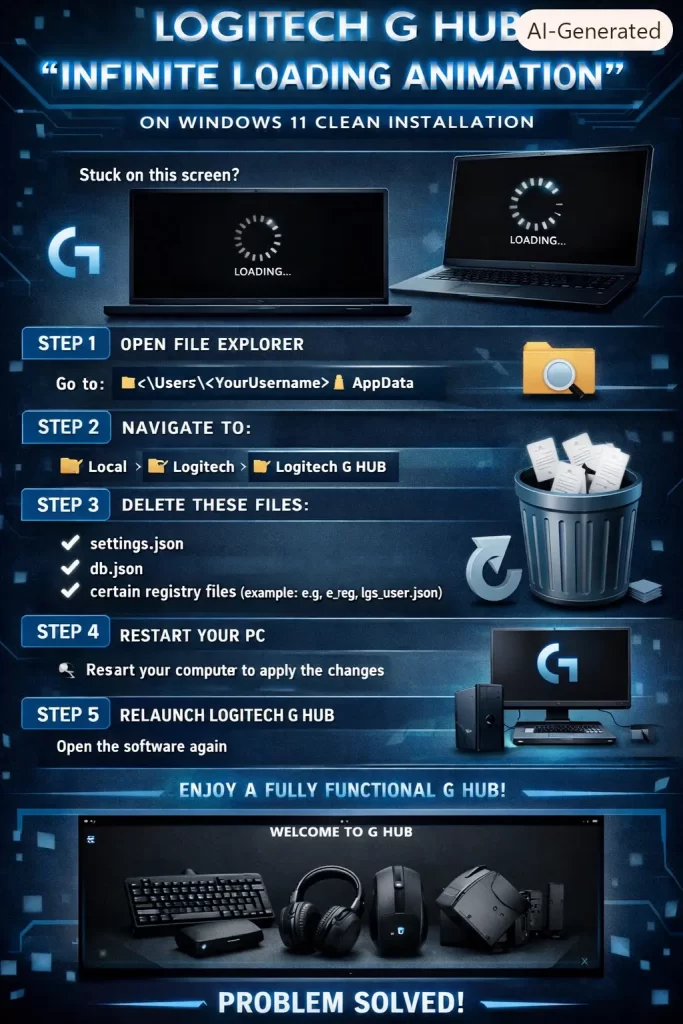
Step 1: Kill all G HUB processes and restart clean
Open Task Manager (Ctrl+Shift+Esc) and end any of these if present: lghub.exe, lghub_agent.exe, lghub_updater.exe. Then relaunch G HUB from the Start menu rather than a leftover shortcut.
Step 2: Run the updater executable directly as administrator
Navigate to C:\Program Files\LGHUB and right-click lghub_updater.exe, choosing Run as administrator. Let it sit for a minute. So this sounds like a strange first step, but it forces the update-check component to initialize on its own instead of waiting on the main app to trigger it.
Step 3: Confirm your devices are actually recognized by Windows first
Open Device Manager before touching G HUB at all. Check under “Human Interface Devices” and “Mice and other pointing devices” for your Logitech hardware. If Windows itself hasn’t finished recognizing the device, no amount of G HUB troubleshooting will help until that’s sorted — sometimes just waiting five minutes after a fresh boot is genuinely the fix.
Step 4: Install missing Visual C++ Redistributables
Download and install the latest Visual C++ Redistributable packages (both x86 and x64) directly from Microsoft. Restart after installing, then try G HUB again.
Step 5: Temporarily disable antivirus and test
Turn off real-time protection in Windows Security (or your third-party antivirus if you’ve installed one) just long enough to test whether G HUB loads normally. If it does, you’ll need to add specific exceptions for the LGHUB folder rather than leaving protection off.
Step 6: Full clean uninstall and reinstall
Uninstall through Settings > Apps, then manually delete any leftover folders in C:\Program Files\LGHUB and %localappdata%\LGHUB if they still exist. Restart, then download and install the latest version fresh from Logitech’s site.
What Actually Worked For Me
I jumped straight to a full uninstall and reinstall figuring that’s the obvious move on a supposedly “clean” system anyway. Didn’t help — same infinite spinner, exact same spot. And that’s usually the moment where you start doubting your own patience more than the software.
The thing that actually worked, and this took embarrassingly long to land on, was just closing G HUB entirely, unplugging my keyboard, waiting about thirty seconds, and plugging it back in before relaunching. Windows re-enumerated the device properly that second time around, and G HUB loaded normally within a few seconds. Not a satisfying fix to write up because it feels like nothing, but the USB detection theory checked out — it wasn’t G HUB that was broken, it was Windows not having finished its handshake with the keyboard the first time I launched the app after boot.
That’s not going to be everyone’s fix, to be clear. But it’s cheap enough to try before you go nuclear on reinstalls and service resets.
Advanced Fixes and Edge Cases
Check Windows Event Viewer for application errors tied to lghub.exe. Look under Windows Logs > Application for any error or warning entries logged around the time G HUB hangs. A crash or access-denied entry here points you toward permissions rather than a generic “reinstall and hope” approach.
Verify service registration with the Services panel. Open services.msc and look for any Logitech-related entries. If they’re missing entirely or show as disabled, that’s a stronger signal something didn’t register correctly during install, and a full reinstall with admin rights becomes the more targeted fix rather than a shot in the dark.
Check for conflicting HID software. If you’ve got other peripheral software installed (Razer Synapse, Corsair iCUE, SteelSeries GG), these can sometimes grab HID device handles before G HUB gets a chance to, especially right after a fresh install when everything’s launching and initializing around the same time. Closing competing peripheral software during first launch is worth testing.
Run System File Checker if problems started appearing after Windows Updates. <cite index=”48-1″>Running a DISM component store analysis and SFC scan can catch corrupted system files contributing to the issue, even on installs that were clean to begin with</cite>, particularly if an update landed between your clean install and when G HUB started acting up.
Prevention Tips
- Plug in your Logitech devices and give Windows a minute or two before launching G HUB for the first time on a fresh install
- Install Visual C++ Redistributables as part of your standard post-install checklist, before installing peripheral software
- Set antivirus exceptions for the LGHUB folder proactively rather than troubleshooting blind later
- Avoid installing multiple peripheral management suites (G HUB alongside iCUE or Synapse) unless you actually need both
- Keep G HUB’s auto-update enabled once it’s working — outdated versions cause their own separate set of headaches
FAQ
Is this specific to clean installs, or does it happen on upgraded systems too? It happens on both, but clean installs see it more because none of the usual “it already worked once” context exists to fall back on.
Does reinstalling Windows again fix it? No, and it’s not worth the time. The cause is almost always service, permission, or USB-related, not something a second OS install addresses.
Will using an older G HUB version help? Sometimes, but Logitech’s updater tends to force the latest version anyway, so this isn’t a reliable long-term fix.
Why does it work on one USB port but not another? Different USB controllers on your motherboard can have separate driver behavior, especially between USB 2.0 and 3.0 headers. Worth testing a different port before anything else if you haven’t already.
Can I skip G HUB entirely and use my devices without it? Basic mouse and keyboard function works without it, yes, but you’ll lose macro programming, RGB lighting control, and DPI switching on supported hardware.
Editor’s Opinion
the annoying part about this one is how anticlimactic the actual fix usually is. everyone expects some deep registry issue and nine times out of ten its just windows not finished recognising the device yet. unpluging and repluging feels like something a support script tells you to do to get you off the phone but this time it genuinely worked. try the boring stuff before the nuclear reinstall, save yourself the time i didnt save myself.
