If you’ve just tried to spin up a WSL2 distro and got slapped with Wsl/Service/CreateInstance/CreateVm/ConfigureNetworking/HRESULT_0x80041002, you already know it’s not exactly a friendly message. I hit this exact wall on a laptop that had worked fine with WSL2 for months, then suddenly refused to boot any distro after a Windows update. The WSL2 ConfigureNetworking error almost always comes down to Hyper-V failing to create the virtual network switch WSL depends on — and there are a handful of usual suspects behind it.
This isn’t a “restart your PC and hope” kind of problem, though restarting does fix it sometimes, annoyingly. So let’s go through what’s actually causing it and how to fix it without just guessing.
Quick Answer
- The error means Hyper-V couldn’t create the virtual switch WSL2 needs for networking.
- Most common cause: a VPN client or third-party firewall installing a network filter driver that conflicts with Hyper-V.
- Second most common: Hyper-V Virtual Switch Manager component got disabled, often silently, after a Windows Update.
- Fastest fix that actually works for most people: disable and re-enable the Hyper-V Windows features, then reboot.
- If that doesn’t work, check for orphaned virtual switches or network adapter conflicts in Device Manager.
Why It Fails
WSL2 doesn’t run as a lightweight process anymore — it’s a real, if minimal, virtual machine sitting on top of Hyper-V. Every time you launch a distro, Windows has to spin up that VM and attach it to a virtual network switch (WSL or vEthernet (WSL)) so it can talk to the outside world. When that switch creation fails, you get the ConfigureNetworking error, and it doesn’t tell you why it failed — just that it did.
From what I’ve seen, there are three or four causes that account for almost every case:
VPN software with a network filter driver. Cisco AnyConnect, GlobalProtect, some corporate VPN clients, and even a few consumer VPNs install low-level network filter drivers that grab exclusive control of network adapters. Hyper-V tries to create its virtual switch and gets blocked because something else already claimed the adapter it wanted to bind to.
Hyper-V components getting partially disabled. This happens more than you’d think, especially after a feature update (like moving from 23H2 to 24H2). Windows sometimes re-enables WSL but leaves Virtual Machine Platform or Hyper-V’s networking piece in a weird half-state. wsl --status will often still say everything’s fine, which is not helpful.
Third-party antivirus or firewall software. Not always, but Norton, some Kaspersky builds, and certain enterprise EDR tools have been reported to interfere with virtual switch creation. It’s not consistent — your mileage may vary here, and I’ve seen machines with the exact same antivirus version behave differently.
Leftover or corrupted virtual switches. If you’ve ever installed Hyper-V, Docker Desktop, VirtualBox, or VMware on the same machine, you can end up with orphaned virtual switches competing for the same physical adapter binding. This one’s an unexpected cause a lot of people overlook — they assume the problem is WSL-specific when it’s really a Hyper-V networking conflict that predates WSL entirely.
There’s a smaller list of edge causes too — a disabled network adapter, IPv6 disabled at the wrong layer, or a Group Policy pushed by IT that locks down Hyper-V networking on managed corporate laptops. That last one is genuinely a pain because you can’t fix it yourself; you need IT to loosen the policy or grant an exception.
Common Scenarios
This error shows up in a few recognizable situations:
- Corporate laptops with a VPN always running. Probably the single most common report — you connect to the company VPN, then WSL breaks.
- After a Windows feature update. Hyper-V networking components get reset or partially reinstalled, and something doesn’t come back online correctly.
- Dual-booting virtualization tools. Machines running Docker Desktop (which also depends on Hyper-V/WSL2) alongside VirtualBox or VMware Workstation in non-Hyper-V mode.
- Fresh WSL installs on machines where Hyper-V was never fully configured, especially on Windows 11 Home, where some Hyper-V management tools aren’t installed by default even though the underlying platform is.
Step-by-Step Fixes
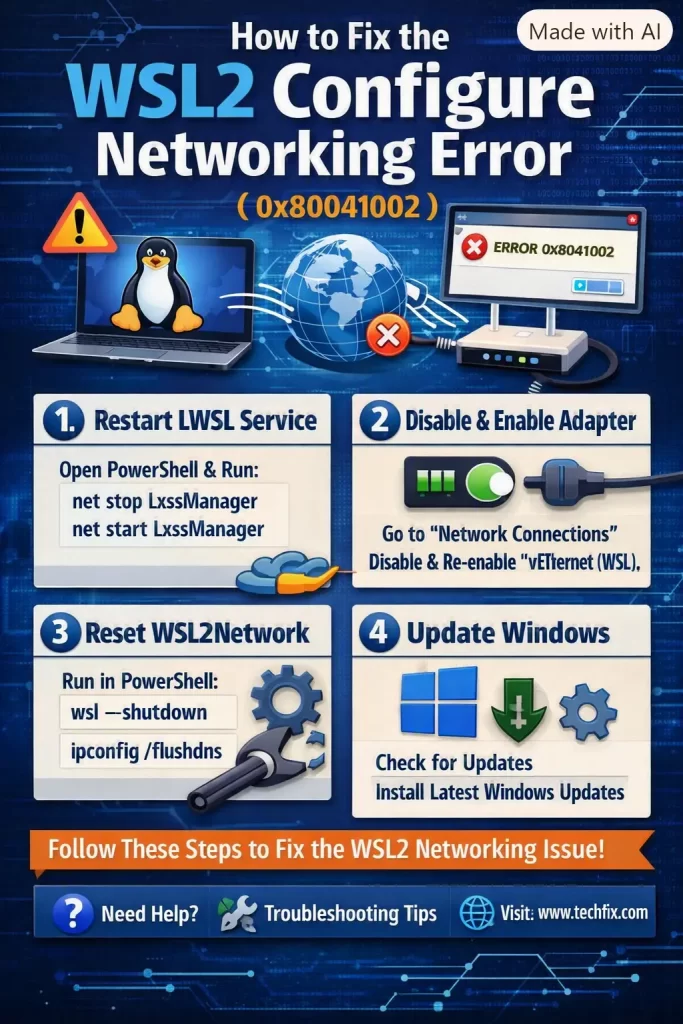
Step 1: Restart the LxssManager and Hyper-V services
Sounds too simple, but it clears a surprising number of cases. Open PowerShell as Administrator and run:
powershell
Restart-Service LxssManagerIf that alone doesn’t fix it, restart Hyper-V’s host compute service too:
powershell
net stop vmcompute
net start vmcompute
Then try wsl --shutdown followed by launching your distro again.
Step 2: Check for a rogue VPN or filter driver
Open Device Manager, go to View > Show hidden devices, then look under Network adapters for anything with “Virtual” or “Filter” in the name that isn’t your normal Hyper-V or Wi-Fi adapter. If you’re running a VPN client, disconnect it fully (not just minimize it) and try launching WSL again. If it works with the VPN off, you’ve found your cause — and unfortunately the fix is usually “don’t run WSL and this VPN client at the same time,” or dig into the VPN client’s split-tunneling settings.
Step 3: Toggle Hyper-V and Virtual Machine Platform off, then back on
This is the fix that tends to work most often in practice, in my experience and based on what shows up repeatedly in forum threads. Run this in an elevated PowerShell:
powershell
dism.exe /online /disable-feature /featurename:Microsoft-Hyper-V-All /norestart
dism.exe /online /disable-feature /featurename:VirtualMachinePlatform /norestart
Reboot. Then re-enable both:
powershell
dism.exe /online /enable-feature /featurename:Microsoft-Hyper-V-All /all /norestart
dism.exe /online /enable-feature /featurename:VirtualMachinePlatform /all /norestart
Reboot again. Yes, two reboots. It’s annoying, but the re-enable step regenerates the virtual switch configuration from scratch, which is usually where the corruption lives.
Step 4: Manually recreate the WSL virtual switch
If Steps 1–3 didn’t help, open Hyper-V Manager (you’ll need to install the Hyper-V management tools on Windows 11 Home via optional features first — it’s not there by default). Check under Virtual Switch Manager for a switch called WSL. If it exists but looks broken, delete it, then run wsl --shutdown and relaunch a distro — WSL should recreate it automatically. Sometimes it doesn’t, in which case:
powershell
wsl --shutdown
netcfg -s n
netcfg -s n shows registered network components and can reveal if something’s stuck mid-registration. Not a fix by itself, but useful for diagnosis.
Step 5: Check Windows Update history for a bad networking patch
A few 2024 and 2025 cumulative updates shipped with known Hyper-V networking regressions. Not going to pretend I remember every KB number off the top of my head, but if this started right after a Patch Tuesday, checking Windows Update history and looking up that specific KB alongside “WSL2 networking” is worth ten minutes.
Technical Comparison Table
| Cause | How to confirm | Fix reliability |
|---|---|---|
| VPN filter driver conflict | Disable VPN, retry WSL | High — usually fixes it immediately |
| Hyper-V feature half-enabled | dism /online /get-featureinfo shows inconsistent state | High, but needs two reboots |
| Orphaned virtual switch | Hyper-V Manager shows duplicate/broken switches | Medium — depends on what created it |
| Group Policy restriction (corporate) | gpresult /h report.html shows Hyper-V policy | Low without IT involvement |
What Actually Worked For Me
Honestly, my first move was the dumb one — restart the whole machine. Didn’t work. Then I burned about twenty minutes restarting LxssManager and vmcompute, which is usually my go-to and normally does the trick. Nothing.
I went down the Hyper-V toggle path next, the disable/enable/reboot/reboot cycle from Step 3. That’s usually where it ends for me, but this time WSL still threw the same HRESULT on launch. At that point I was fairly annoyed, not going to lie — it’s a lot of downtime for something that used to just work.
The actual fix turned out to be something I half-remembered from a GitHub issue thread months earlier: I had Cisco AnyConnect installed for a client VPN I barely use anymore, and its network filter driver was still active even though I wasn’t connected. Uninstalling it (not just disconnecting — fully uninstalling, since the driver stays loaded either way) fixed it instantly. So the VPN wasn’t even running, but the driver footprint alone was enough to break Hyper-V’s switch creation. That’s the unexpected part — I’d assumed “not connected” meant “not interfering,” and that’s not entirely accurate, at least not for filter drivers.
Advanced Fixes and Edge Cases
Check Event Viewer for the real underlying error. Go to Applications and Services Logs > Microsoft > Windows > Hyper-V-VmSwitch and look for errors around the timestamp of your failed WSL launch. This often names the specific adapter or driver conflict instead of just giving you the generic HRESULT code.
Run a network trace if nothing else points to a cause. netsh trace start scenario=NetConnection before attempting to launch WSL, then stop it and inspect the .etl output (or just eyeball timing gaps) — overkill for most people, but useful if you’re troubleshooting a fleet of machines with the same issue.
Check for Secure Boot / VBS conflicts on newer hardware. Rare, but Virtualization-Based Security settings in the BIOS occasionally block nested virtualization features Hyper-V wants, particularly on some Ryzen and newer Intel systems with default BIOS security profiles.
Registry check for winnat. If winnat service is failing to start (check with sc query winnat), that’s sometimes a separate but related networking failure. net stop winnat && net start winnat is worth trying alongside the Hyper-V steps.
Prevention Tips
- If you regularly use a corporate VPN, ask IT whether split tunneling can be configured so the filter driver doesn’t need to claim every adapter.
- Don’t install multiple virtualization platforms (Hyper-V, VirtualBox, VMware) side by side unless you actually need all of them — the adapter conflicts aren’t worth it.
- After major Windows feature updates, run
wsl --updateandwsl --shutdownbefore your first launch, just as a sanity check. - Keep a note of what VPN clients or security software you’ve installed, even ones you rarely use — leftover filter drivers are a common source of “it just stopped working” reports.
FAQ
Does this error mean my WSL install is corrupted? No, not usually. It’s almost always a Hyper-V networking issue, not a WSL/distro problem.
Will reinstalling WSL fix it? Rarely. People try this a lot and it almost never solves the actual cause, since the problem sits at the Hyper-V/network adapter layer, not inside the distro itself.
Can I use WSL2 without a VPN client installed at all? Yes, and if you don’t need one, this whole class of issue basically disappears.
Is downgrading to WSL1 a real fix? It works around the problem since WSL1 doesn’t use Hyper-V networking the same way, but you lose full Linux kernel compatibility and better filesystem performance. Treat it as a last resort, not a fix.
Does this happen on Windows 11 Home too, or just Pro/Enterprise? Both. Home doesn’t ship the Hyper-V management GUI by default, but the underlying Hyper-V platform WSL2 uses is still there and can still hit this error.
Editor’s Opinion
Under 100 words, so — this one’s annoying mainly because the error message tells you nothing useful. It’s basically always Hyper-V networking, and nine times out of ten it’s either a VPN filter driver or a half-enabled feature after an update. Check VPN software first, it’s the cheapest thing to rule out. If you’ve got IT-managed policies involved, just loop them in early instead of burning an afternoon on it yourself.
