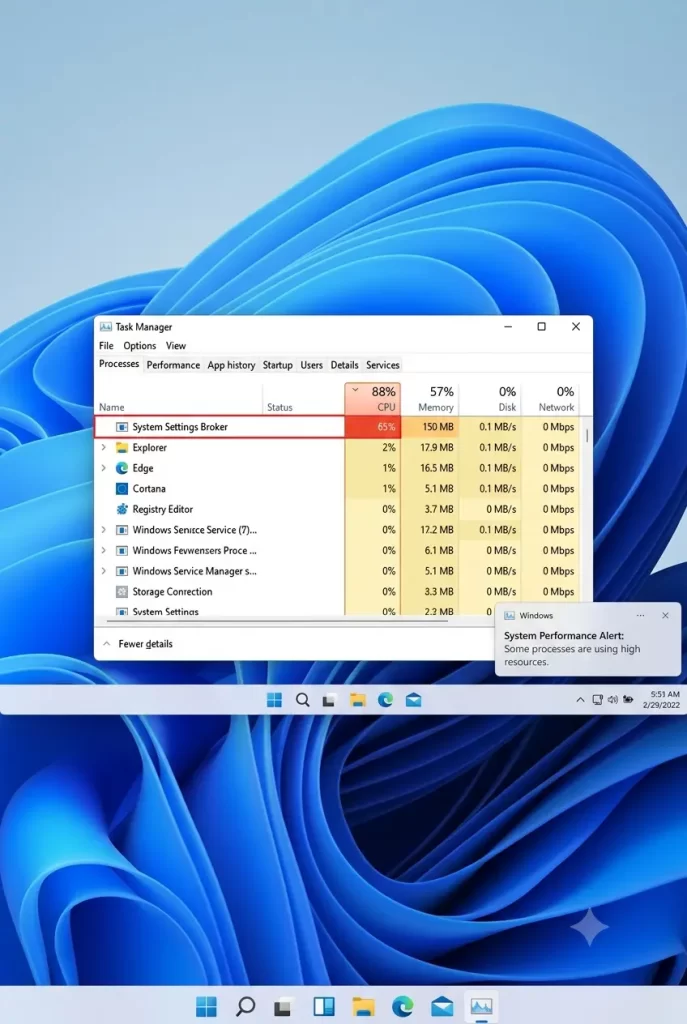
If your fan is spinning like a jet engine and Event Viewer points to System Settings Broker, you’re dealing with a glitch in Windows 11’s modern settings framework.
I ran into this exact issue last week while trying to adjust display scaling on a test laptop, and watching SystemSettingsBroker.exe eat up 40% of my CPU for twenty minutes straight was annoying. The process handles permissions and execution between traditional desktop apps and modern Universal Windows Platform (UWP) apps, but a corrupt background cache or stuck system notification often breaks its loop.
So, how do you get your CPU back without reinstalling Windows? Let’s fix it.
Why System Settings Broker Spikes CPU Usage
The SystemSettingsBroker.exe process isn’t malware, though malware can occasionally impersonate it. It acts as an execution broker for the modern Settings app (SystemSettings.exe).
When you open Settings, tweak a permission, or toggle a feature in Windows 11, the broker checks security contexts and applies changes.
When it hogs resources, one of these core issues is usually responsible:
- Corrupted Settings App State: The local app package data for
windows.immersivecontrolpanelgets stuck in a loop reading corrupt configuration files. - Background Notification Syncing: Windows 11 “Tips and Suggestions” constantly queries the broker process, locking up a CPU core.
- Corrupted System Files: Damaged system manifests cause the broker to continually retry registering background tasks.
- Outdated Display/Graphics Drivers: The modern WinUI interface heavily relies on GPU rendering hooks; bad graphics drivers make the underlying host process thrash.
Quick Fix Checklist
If you want the quick route, try these fixes in order:
- Disable “Get tips and suggestions when using Windows” under Settings > System > Notifications.
- Reset the Settings app via Advanced Options.
- Run
DISM /Online /Cleanup-Image /RestoreHealthin an elevated terminal. - Restart the
SvcHostinstance housing System Settings Broker via Task Manager.
Troubleshooting Guide & System Impact
| Potential Cause | Expected Behavior | Common Error Code / Symptom | Primary Fix |
| Corrupt UWP Cache | Persistent 20-50% CPU load | Event ID 10001 (DistributedCOM) | Reset Immersive Control Panel |
| Tip Provider Glitch | Spikes when clicking Start/Settings | High thread count on SystemSettingsBroker.exe | Disable Windows Tips |
| Broken File Integrity | Random spikes on idle | SFC reports corrupted files | DISM + SFC scan |
| Driver Hook Hang | CPU spike during display changes | Desktop Window Manager (DWM) lag | DDU + Clean Driver Install |
Step-by-Step Fixes for SystemSettingsBroker.exe
Step 1: Turn Off Windows Tips and Suggestions
This sounds too simple to work, but it’s actually the most common culprit. Windows 11 uses the broker process to push contextual tips into your notification area based on what menu you’re in.
- Right-click the Start Menu and choose Settings.
- Go to System > Notifications.
- Scroll down to the bottom and click on Additional settings.
- Uncheck Get tips and suggestions when using Windows.
And honestly, you should uncheck the other two boxes there while you’re at it, because nobody really needs Windows asking for feedback surveys mid-task.
Step 2: Reset the Modern Settings App
When settings configurations get mangled, resetting the app clears out temporary caches without destroying your personal files.
- Open Start, search for Settings, right-click it, and pick App settings.
- Scroll down until you see the Reset section.
- Click Terminate first to kill hanging broker processes.
- Click Repair. Wait ten seconds and test if the CPU load drops.
- If it stays high, click Reset.
This drops all custom layout states inside the Settings app back to factory defaults.
Step 3: Clear System Settings Broker via PowerShell
If the GUI reset fails, you can force-re-register the modern control panel infrastructure using an elevated PowerShell terminal.
Right-click the Start button, select Terminal (Admin), and paste this command:
PowerShell
Get-AppxPackage *immersivecontrolpanel* | Reset-AppxPackage
If that throws an error about deployment state — well, sort of unexpected, but it means the package database itself is locked. Restart your PC into Safe Mode and run it again.
Step 4: Repair Windows Component Store
Broken system files prevent the broker from validating security manifests.
- Press
Win + Xand select Terminal (Admin). - Run the deployment image tool first:
DISM.exe /Online /Cleanup-Image /RestoreHealth - Once that completes, run System File Checker:
sfc /scannow - Reboot your machine when finished.
What Actually Worked For Me
When I bumped into this issue on my Dell XPS, my first instinct was to check driver updates. I figured my Intel graphics driver was tripping up the modern frame buffer, so I spent forty-five minutes wiping drivers with Display Driver Uninstaller (DDU) and reinstalling clean packages.
That didn’t do anything to solve it.
Next, I went hunting through registry keys related to SystemSettingsBroker, changing execution flags based on an old Reddit thread from 2021. That made things worse; the Settings app wouldn’t even launch after a reboot.
I rolled those changes back, opened Event Viewer, and noticed endless DCOM permission warnings popping up every time SystemSettingsBroker.exe called its GUID. That’s when I realized the problem was tied to account notifications.
I flipped off Get tips and suggestions when using Windows in the notification panel, killed SystemSettingsBroker.exe in Task Manager, and the CPU usage dropped from 38% down to a clean 0% instantly. It hasn’t spiked since.
Advanced Troubleshooting & Edge Cases
Diagnostic Method 1: Check DCOM Errors in Event Viewer
If the basic steps don’t resolve the load, your account security identifier (SID) might have lost registry ownership over the DCOM runtime components that SystemSettingsBroker demands.
- Press
Win + R, typeeventvwr.msc, and press Enter. - Navigate to Windows Logs > System.
- Filter the log for Source: DistributedCOM and Event ID: 10016.
- Check the description for mentions of
APPID{8C8B8E84-803B-42F4-9646-C3D7644A501F}(or similar broker GUIDs).
If you see hundreds of these logging every minute, the broker is stuck in an infinite access-denied loop. You can fix this by taking ownership of the corresponding registry key in HKEY_LOCAL_MACHINE\SOFTWARE\Classes\AppID\ using regedit, though simply creating a new user profile is often safer if permissions are deeply broken.
Diagnostic Method 2: Process Explorer Thread Inspection
Download Sysinternals Process Explorer from Microsoft’s site to see what specific thread within the broker process is consuming cycles.
- Run Process Explorer as Administrator.
- Locate
SystemSettingsBroker.exein the process tree. - Right-click it and select Properties.
- Switch to the Threads tab.
- Look at the top CPU-consuming thread. If it’s pointing to
wintypes.dllortwinapi.appcore.dll, the issue is almost certainly an app notification pipeline hanging on a background lock.
Prevention & Maintenance Tips
- Keep optional Windows features minimal: Don’t install developer tools or mixed reality packages unless you actively use them; they add background listeners to the broker process.
- Avoid aggressive registry “cleaners”: Tools that claim to optimize the Windows registry often strip out necessary DCOM permission keys used by UWP brokers.
- Pause notification Sync: If you use “Phone Link”, disable notification mirroring temporarily to see if cross-device syncing is locking up system brokers.
Frequently Asked Questions
Can I just delete or disable SystemSettingsBroker.exe?
No. Deleting the file or removing execution rights will break the Windows 11 Settings app, network selection flyouts, and display layout controls.
Is SystemSettingsBroker.exe a virus?
The official file located in C:\Windows\System32\SystemSettingsBroker.exe is legitimate. If you find a process with that name running out of AppData or Temp, scan your system with an updated antivirus immediately.
Why does SystemSettingsBroker run even when Settings is closed?
It handles background tasks for system flyouts, volume controls, and notification triggers. It should sit at 0% CPU and very low RAM when idle.
Will a Windows Update fix this automatically?
Sometimes, but from what I’ve seen, if the issue is caused by a corrupted local user cache, installing a new Windows update won’t overwrite the bad local app state. You still need to manually reset the app.
Editor’s Opinion
Look, Windows 11’s modern UI stuff is still a bit messy under the hood. Half the time these broker processes crash because Microsoft tried forcing unnecessary recommendation engine clutter into what should just be a plain control panel. If turning off notifications fixes a core system process, that tells you everything you need to know about software optimization these days. Don’t waste hours reformatting your drive over this; just kill the tips toggle and move on with your day.
