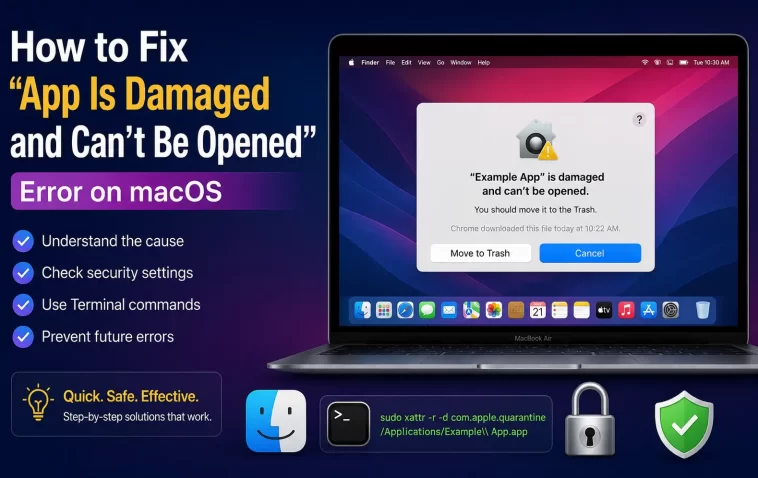
I downloaded a small utility app last month, double-clicked it, and got hit with “App Is Damaged and Can’t Be Opened. You should move it to the Trash.” My first instinct was to actually trash it, since that’s literally what the dialog tells you to do. Turns out that message is one of the most misleading things macOS shows you, because in the vast majority of cases the app isn’t damaged at all — it’s just Gatekeeper being overly cautious about something you downloaded outside the App Store.
Why This Error Shows Up
macOS attaches a quarantine flag to pretty much anything you download from a browser, and that flag triggers a Gatekeeper check the first time you try to open it. When that check fails or can’t complete properly, instead of saying “hey, I couldn’t verify this,” macOS just tells you the file is damaged. It’s technically accurate in a weird bureaucratic sense — the “verification” is damaged, not the app — but it reads like your download is corrupted, which sends a lot of people straight to redownloading for no reason.
A few specific reasons this actually triggers:
- The developer’s notarization ticket doesn’t match your macOS version. Apple tightens notarization requirements with major OS releases, so an app built fine for one macOS version can throw this error on a newer one if the developer hasn’t re-signed or updated it.
- The quarantine attribute itself gets attached weirdly during download, particularly with apps distributed as .zip files rather than .dmg — browsers sometimes mangle the extended attributes during extraction.
- The app genuinely isn’t signed or notarized at all. This is common with smaller open-source tools, internal company builds, or anything distributed outside conventional channels.
- Gatekeeper caches a rejection. If you tried opening the app once and it failed, macOS can remember that rejection and keep blocking it even after you fix the underlying issue, which is annoying and not well documented anywhere official.
- Less often, the download really is incomplete or corrupted — usually from an unreliable connection, a sketchy mirror, or a torrent.
Quick Answer
- Right-click the app and choose Open, then click Open Anyway if prompted — this is the safest first move
- If that option doesn’t appear, remove the quarantine flag via Terminal with
xattr -cr /path/to/App.app - Check System Settings > Privacy & Security for an “Open Anyway” button that shows up after a blocked attempt
- Only do this for apps whose source you actually trust — this bypasses a real security check
- If quarantine removal doesn’t fix it, the download is probably genuinely corrupted; get a fresh copy
Step-by-Step Fixes
Step 1: Right-Click Instead of Double-Click
Sounds too simple, but a lot of people don’t know this bypasses the initial block. Right-click (or Control-click) the app, select Open, and you’ll usually get a dialog with an “Open Anyway” button that a normal double-click doesn’t show.
Step 2: Check Privacy & Security Settings
If the right-click trick doesn’t offer Open Anyway, go to System Settings > Privacy & Security and scroll down. You should see a message naming the blocked app with its own Open Anyway button. Click it, enter your password, and try launching the app again.
Step 3: Remove the Quarantine Flag via Terminal
This is the fix that actually resolves it when the GUI options don’t show up at all. Open Terminal (Applications > Utilities, or just search with Spotlight) and type:
xattr -crLeave a space after that, then drag the app icon straight from Finder into the Terminal window — it’ll auto-fill the full path so you don’t have to type it manually. Hit Enter, type your admin password when prompted (you won’t see characters as you type, that’s normal), and press Enter again.
The -c flag clears extended attributes, and -r makes it recursive so everything inside the app bundle gets cleared too, not just the top-level file. For a single non-bundle file you can drop the -r, but for an actual .app you want it.
Step 4: Try Opening the App Again
Sometimes it opens immediately. And sometimes it throws the same damaged error one more time before finally working — that’s not a sign it failed, from what I’ve seen it’s just Gatekeeper doing a second verification pass after the attribute change. Try twice before assuming the command didn’t work.
Step 5: Move It to Applications First (If You Haven’t)
Running apps directly from Downloads or a mounted .dmg can sometimes contribute to weird permission or path issues. Drag it into /Applications properly, then repeat the quarantine removal from its new location if needed.
What Actually Worked For Me
The right-click Open Anyway trick didn’t even show up as an option for me, which threw me off since every guide leads with that one. I went straight to the Terminal command, ran xattr -cr on the app, and it still gave me the exact same damaged error on the next launch attempt. My first thought was that the command had silently failed.
That’s not what happened, though. I tried launching it a second time out of sheer stubbornness rather than any actual troubleshooting logic, and it opened clean. So the command had worked the first time — Gatekeeper just needed a second pass to actually register the change, which nobody had mentioned anywhere I’d read. I got a little lucky I didn’t just give up and redownload the thing at that point.
Advanced Fixes and Edge Cases
- Verify the app’s signature before trusting it further with
spctl -a -vv /Applications/App.app. This tells you whether the app is properly signed and notarized, which is useful if you’re on the fence about whether to trust it at all. - Check the quarantine attribute directly with
xattr -p com.apple.quarantine /Applications/App.appbefore removing anything — this shows you the download source and timestamp, confirming this really is a quarantine issue and not something else entirely. - Never run
spctl --master-disable. I see this recommended in older forum threads as a blanket fix, and it disables Gatekeeper system-wide rather than for one app. That’s a different level of risk entirely — you’re not clearing one exception, you’re removing the check for everything you’ll ever download. - If none of this works and you’re confident the source is legitimate, the download itself is probably the problem. Delete the copy you have, clear your browser cache if it’s an unusual size mismatch, and grab it fresh from the original source rather than a mirror.
Prevention Tips
Download software directly from the developer’s site or official release page rather than aggregator sites and mirrors — a lot of “damaged” errors trace back to a modified or incompletely-transferred file from an unofficial source. Keep macOS reasonably current, since notarization requirements shift with each release and older apps sometimes need a developer update to keep working smoothly. And if you regularly use tools outside the App Store, get comfortable with xattr now rather than fumbling through it mid-panic later.
FAQ
Is it safe to remove the quarantine flag? Only for apps you trust. The flag exists specifically to flag unverified downloads, so removing it blindly on something sketchy defeats the point.
Why does this happen with apps I’ve used before without issue? Usually a macOS update changed notarization requirements, or the developer pushed a new build that isn’t properly signed yet.
Does this mean my Mac has a virus? No, not on its own. This error is about Gatekeeper’s verification process, not an active infection.
Can I fix this without using Terminal at all? Sometimes — the right-click Open Anyway trick and the Privacy & Security override both work without Terminal. It just doesn’t always show up as an option, especially for command-line tools or apps without a proper .app bundle.
Will Apple eventually stop showing this error for older apps? Not likely, no. If anything, notarization requirements tend to get stricter over time, not looser.
Editor’s Opinion
this error message is honestly kind of a bad UX decision on apples part, calling something “damaged” when 90% of the time its perfectly fine just makes people redownload stuff for nothing or trash apps that work great. the xattr command is your friend here but only for stuff you actually trust — dont go stripping quarantine flags off random downloads just because its annoying, thats literally the one thing that flag is there to stop.
