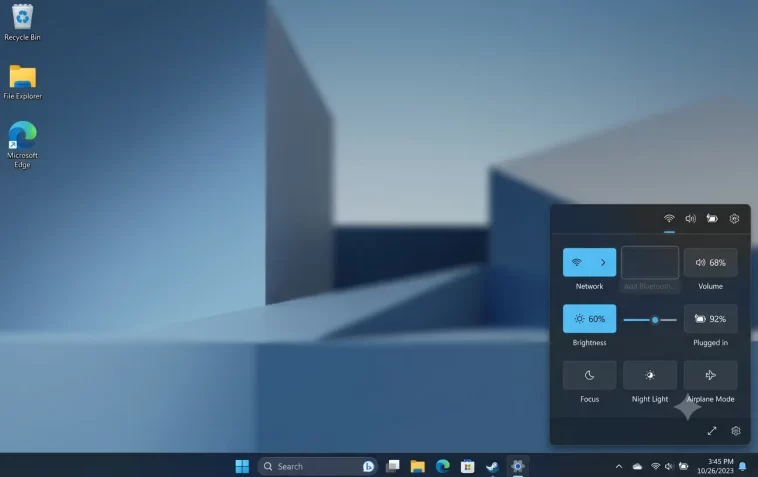
If you’ve noticed that the Bluetooth icon is missing from Quick Settings (the taskbar panel) in Windows 11, you’re not alone. This is one of the most common annoyances Windows 11 users run into — and the good news is it’s almost always fixable without reinstalling anything.
This guide walks you through every proven fix, step by step. No tech jargon, no fluff — just clear instructions that actually work.
Why Is the Bluetooth Icon Missing from Quick Settings?
Before jumping into fixes, it helps to know why this happens. The Bluetooth toggle can disappear from the Quick Settings panel for several reasons:
- The button was accidentally removed from the panel
- Bluetooth drivers are outdated or corrupted
- The Bluetooth Support Service is not running
- A recent Windows update caused a conflict
- Bluetooth hardware is disabled in Device Manager
Most of the time, it’s one of the first two. Let’s start there.
Step 1: Re-Add Bluetooth to Quick Settings
This is the simplest fix and the first place to look. Windows 11 lets you customize which buttons appear in Quick Settings — and Bluetooth may have been removed accidentally.
Here’s how to add it back:
- Click the Quick Settings area in the taskbar (the cluster of icons near the clock — Wi-Fi, battery, sound).
- Click the pencil icon (Edit) in the bottom-right corner of the panel.
- Click “Add” to see all available toggles.
- Find Bluetooth in the list and click it.
- Click Done to save.
The Bluetooth icon should now appear in your Quick Settings panel. If it’s not in the “Add” list at all, the problem is deeper — keep reading.
Step 2: Check If Bluetooth Is Enabled in Device Manager
If Bluetooth doesn’t even show up as an option in Quick Settings, Windows may not be detecting your Bluetooth adapter at all.
- Right-click the Start button and select Device Manager.
- Look for the Bluetooth category and expand it.
- If you see a Bluetooth adapter listed with a yellow warning icon, right-click it and choose Enable device or Update driver.
- If there’s no Bluetooth category at all, your adapter may not be recognized — skip to Step 5.
Once enabled here, go back and try Step 1 again.
Step 3: Restart the Bluetooth Support Service
Windows runs background services that keep Bluetooth working. If the Bluetooth Support Service has stopped or is set to manual, the icon won’t appear.
- Press Windows + R, type
services.msc, and press Enter. - Scroll down and find Bluetooth Support Service.
- Double-click it to open its properties.
- Set Startup type to Automatic.
- Click Start if the service isn’t running, then click OK.
- Restart your PC and check Quick Settings again.
This fix works for a surprising number of people, especially after Windows updates.
Step 4: Update or Reinstall Bluetooth Drivers
Outdated or corrupted drivers are a very common cause of the Bluetooth icon going missing. Updating them often solves the problem completely.
Option A — Update via Device Manager:
- Open Device Manager (right-click Start → Device Manager).
- Expand Bluetooth, right-click your adapter, and select Update driver.
- Choose Search automatically for drivers and let Windows find the latest version.
- Restart your PC.
Option B — Reinstall the driver:
- In Device Manager, right-click your Bluetooth adapter and choose Uninstall device.
- Check the box that says “Delete the driver software for this device” if it appears.
- Restart your PC — Windows will reinstall the driver automatically.
Option C — Download from your manufacturer:
If neither option above works, go to your laptop or motherboard manufacturer’s website and download the latest Bluetooth driver directly. This is often the most reliable method.
Step 5: Run the Bluetooth Troubleshooter
Windows 11 has a built-in troubleshooter specifically for Bluetooth issues. It’s worth running before going deeper.
- Open Settings (Windows + I).
- Go to System → Troubleshoot → Other troubleshooters.
- Find Bluetooth and click Run.
- Follow the on-screen instructions and apply any fixes it recommends.
The troubleshooter won’t always find the issue, but it’s quick and can sometimes fix things automatically.
Step 6: Check for Windows Updates
A buggy Windows update can knock out Bluetooth — but so can a missing update. Either way, making sure your system is fully up to date is a smart move.
- Go to Settings → Windows Update.
- Click Check for updates.
- Install any available updates, including optional driver updates.
- Restart your PC and check Quick Settings.
Also, if the problem started right after an update, you can try rolling it back: Settings → Windows Update → Update History → Uninstall updates.
Step 7: Use the Registry Editor (Advanced Fix)
If nothing above has worked, there’s a known registry fix that can restore the Bluetooth toggle in Quick Settings. Only do this if you’re comfortable editing the registry — and back it up first.
- Press Windows + R, type
regedit, and press Enter. - Navigate to:
HKEY_LOCAL_MACHINE\SOFTWARE\Microsoft\Windows\CurrentVersion\ActionCenter\Quick Actions\All\SystemSettings_Device_BluetoothQuickAction - If this key doesn’t exist, you may need to create it.
- Make sure the Type value is set to
0(DWORD). - Close the registry editor and restart your PC.
If you’re not sure about editing the registry, skip this step and move to the next one.
Step 8: Run SFC and DISM Scans
Corrupted system files can cause all kinds of strange behavior, including missing Quick Settings icons. Windows has built-in tools to repair them.
Run SFC scan:
- Open Command Prompt as Administrator (search “cmd”, right-click, Run as administrator).
- Type:
sfc /scannowand press Enter. - Wait for the scan to complete — this can take 10–15 minutes.
Run DISM scan (if SFC finds issues):
DISM /Online /Cleanup-Image /RestoreHealthRestart your PC after both scans are done, then check if Bluetooth is back.
Step 9: Reset Quick Settings
If the Quick Settings panel itself is behaving strangely, you can reset it to defaults using PowerShell. This will remove your customizations, but it often fixes stubborn issues.
- Open PowerShell as Administrator.
- Run this command:
Get-AppxPackage -AllUsers *Windows.UI.ControlCenter* | Reset-AppxPackage- Restart your PC.
After the reset, go back to Step 1 and re-add Bluetooth to your Quick Settings panel.
Quick Summary: Fix Checklist
Here’s a fast reference for everything covered above:
- ✅ Re-add Bluetooth button via Quick Settings edit mode
- ✅ Enable Bluetooth adapter in Device Manager
- ✅ Restart Bluetooth Support Service (set to Automatic)
- ✅ Update or reinstall Bluetooth drivers
- ✅ Run the built-in Bluetooth Troubleshooter
- ✅ Check for and install Windows Updates
- ✅ Edit the registry (advanced users only)
- ✅ Run SFC and DISM scans
- ✅ Reset Quick Settings via PowerShell
Work through these in order and you’ll almost certainly solve the problem before reaching the end of the list.
FAQ
Why did my Bluetooth icon disappear after a Windows 11 update?
Windows updates sometimes reset customized settings or install new drivers that conflict with existing ones. This can cause the Bluetooth toggle to vanish from Quick Settings. Checking for follow-up updates or rolling back the problematic one usually fixes it.
My Bluetooth adapter doesn’t appear in Device Manager at all — what now?
If there’s no Bluetooth category in Device Manager, your adapter may not be recognized. Try clicking View → Show hidden devices in Device Manager. If it still doesn’t appear, your adapter might have a hardware failure, or you may need to reinstall your chipset drivers from your manufacturer’s website.
Can I use Bluetooth settings even without the Quick Settings icon?
Yes. You can still access Bluetooth by going to Settings → Bluetooth & devices. From there you can toggle Bluetooth on/off and pair devices. The Quick Settings icon is just a shortcut — losing it doesn’t affect functionality.
Does this problem affect all Windows 11 versions?
It’s been reported across Windows 11 versions 21H2, 22H2, 23H2, and 24H2. The fixes in this guide work for all of them.
Will reinstalling Bluetooth drivers delete my paired devices?
Yes, in most cases. After reinstalling drivers, you’ll need to pair your Bluetooth devices again. This is normal and only takes a minute for each device.
I’ve tried everything and Bluetooth still doesn’t work. What should I do?
If you’ve gone through every step here and nothing has worked, consider these options:
- Contact your device manufacturer — especially if it’s a laptop with a proprietary Bluetooth chip.
- Do a Windows repair install using Windows 11 installation media (keeps your files).
- Check if your hardware is covered under warranty — persistent driver issues can sometimes point to a failing adapter.
