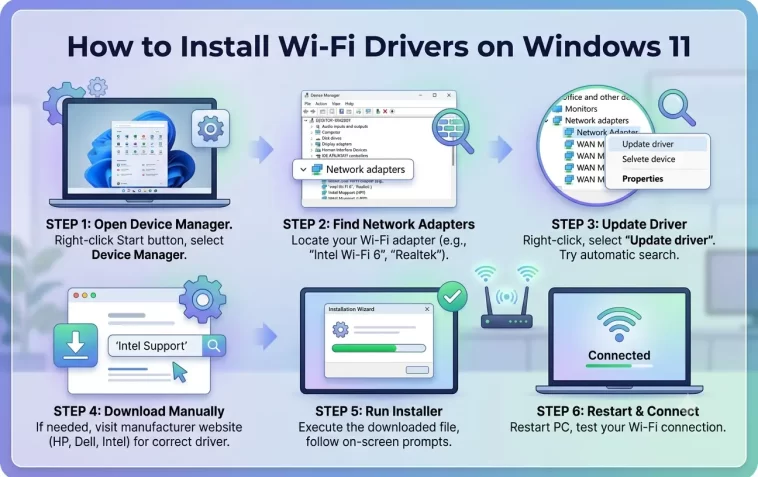
If your Wi-Fi adapter isn’t showing up, your connection is unstable, or Windows 11 simply can’t find any networks — a missing or corrupted Wi-Fi driver is usually the reason.
This guide shows you every method to install Wi-Fi drivers on Windows 11, from the easiest automatic options to manual installation when nothing else works.
Why Wi-Fi Drivers Matter
A driver is the software that lets Windows communicate with your hardware. Without the right Wi-Fi driver, your adapter either won’t work at all or will behave erratically — dropping connections, showing limited connectivity, or not appearing in Device Manager.
Wi-Fi driver issues are especially common after:
- A clean Windows 11 installation
- A major Windows update that overwrites existing drivers
- A system reset or recovery
- Upgrading hardware like a new Wi-Fi card or USB adapter
In all of these cases, reinstalling or updating the driver is the correct fix.
Before You Start: Identify Your Wi-Fi Adapter
Before downloading anything, you need to know exactly which Wi-Fi adapter your PC has.
Press Win + X → click Device Manager → expand Network adapters.
Look for your Wi-Fi adapter in the list. It will usually say something like:
- Intel Wi-Fi 6 AX201
- Realtek RTL8821CE
- Qualcomm QCA9377
- MediaTek MT7921
Write down the exact model name. You’ll need it to find the correct driver if automatic methods don’t work.
If there’s a yellow exclamation mark next to it — or if it doesn’t appear at all — the driver is missing or broken.
Method 1: Update Driver Through Device Manager
This is the fastest method and works in most cases.
- Right-click the Start button → Device Manager
- Expand Network adapters
- Right-click your Wi-Fi adapter → Update driver
- Select Search automatically for drivers
Windows will search online and install the best available driver. If it finds one, let it install and then restart your PC.
If Windows says “The best drivers for your device are already installed” but your Wi-Fi still isn’t working, move on to the next method — Windows doesn’t always find the latest drivers this way.
Method 2: Install via Windows Update
Windows Update sometimes includes driver updates that Device Manager misses.
- Go to Settings → Windows Update
- Click Check for updates
- After the main update check, look for Advanced options → Optional updates
- Under Driver updates, check if your Wi-Fi adapter is listed
- Select it and click Download & install
Restart your PC after installation. This method is particularly useful right after a clean Windows 11 install.
Method 3: Download the Driver from the Manufacturer’s Website
This is the most reliable method — especially when automatic options fail. Manufacturer websites always have the latest and most compatible drivers.
For Laptop Users
Go to your laptop manufacturer’s support page and search by your model number:
- Dell: dell.com/support
- HP: support.hp.com
- Lenovo: support.lenovo.com
- Asus: asus.com/support
- Acer: acer.com/support
- MSI: msi.com/support
Enter your laptop model, go to the Drivers & Downloads section, filter by Windows 11, and find the Wi-Fi or Network driver. Download and run the installer.
For Desktop Users or Custom Builds
Find your Wi-Fi adapter brand and download from their official page:
- Intel Wi-Fi: intel.com/content/www/us/en/support
- Realtek: realtek.com/en/downloads
- Qualcomm/Atheros: Check your motherboard manufacturer’s site
- MediaTek: Check your motherboard or device manufacturer’s site
Download the correct driver for your exact adapter model and Windows 11 (64-bit in most cases). Run the installer and follow the on-screen steps.
Method 4: Install the Driver Manually (From a Downloaded File)
If the driver you downloaded doesn’t come with an installer — just a folder of files — you’ll need to install it manually through Device Manager.
- Extract the downloaded driver folder to a location you can find easily (like the Desktop)
- Open Device Manager
- Right-click your Wi-Fi adapter → Update driver
- Select Browse my computer for drivers
- Click Browse and navigate to the extracted driver folder
- Make sure Include subfolders is checked
- Click Next and let Windows install the driver
Restart your PC when done.
Method 5: Use a USB Drive to Transfer Drivers (No Internet Access)
If your PC has no internet connection at all because the Wi-Fi driver is completely missing, you’ll need to download the driver on another device and transfer it.
On a different PC or phone:
- Download the Wi-Fi driver for your adapter from the manufacturer’s website
- Copy the installer file to a USB drive
On your Windows 11 PC:
- Plug in the USB drive
- Run the installer directly from the USB drive
- Follow the installation steps
- Restart your PC
After restarting, your Wi-Fi adapter should appear and connect normally.
Method 6: Uninstall and Reinstall the Driver
If your Wi-Fi adapter is showing errors or the driver is corrupted, a clean reinstall often fixes it.
- Open Device Manager
- Right-click your Wi-Fi adapter → Uninstall device
- Check the box that says “Delete the driver software for this device” if it appears
- Click Uninstall
- Restart your PC
When Windows restarts, it will automatically attempt to reinstall a basic driver. If that’s not enough, follow Method 3 to install the full manufacturer driver afterward.
Method 7: Use Windows 11’s Built-in Driver Store
Windows 11 keeps a local cache of previously installed drivers. If you recently had a working driver that got overwritten, you can restore it.
- Open Device Manager
- Right-click your Wi-Fi adapter → Update driver
- Select Browse my computer for drivers
- Click Let me pick from a list of available drivers on my computer
- You’ll see a list of drivers Windows already has stored locally
- Select an older version and click Next
This is a quick way to roll back to a driver that was working before an update broke things.
How to Check If the Driver Installed Correctly
After installation, confirm everything is working:
- Open Device Manager → Network adapters
- Your Wi-Fi adapter should appear without a yellow exclamation mark or red X
- Right-click it → Properties → Driver tab — you’ll see the driver version and date
- Click the Wi-Fi icon in the taskbar — available networks should now appear
If networks appear and you can connect, the driver is installed and working correctly.
Common Errors and What They Mean
“Windows could not find driver software for your device” Windows couldn’t locate a compatible driver automatically. Use Method 3 to download it manually from the manufacturer.
Yellow exclamation mark on the adapter The driver is installed but not functioning correctly. Try uninstalling and reinstalling (Method 6).
Wi-Fi adapter not showing in Device Manager at all The adapter may be disabled, physically unseated (for desktop cards), or the driver is completely absent. Check if there’s an unknown device listed under Other devices — that might be your adapter without a driver.
“This device cannot start (Code 10)” Driver corruption or a hardware conflict. Uninstall the driver, restart, and reinstall from the manufacturer’s site.
Driver installs but Wi-Fi still doesn’t connect The driver is fine — the issue is elsewhere. Check your network settings, router, or see our guide on fixing Windows 11 Wi-Fi disconnections.
Tips for Keeping Your Wi-Fi Driver Stable
Once your driver is working, keep it that way:
- Don’t update drivers automatically unless needed — if everything is stable, “if it ain’t broke, don’t fix it”
- Create a restore point before installing new drivers so you can roll back if something goes wrong
- Check manufacturer sites every few months for driver updates, especially if you notice performance changes after Windows updates
- Avoid third-party driver updater tools — many of them install incorrect drivers or come bundled with unwanted software. Stick to official sources
FAQ: Installing Wi-Fi Drivers on Windows 11
How do I know which Wi-Fi driver I need?
Open Device Manager, find your Wi-Fi adapter under Network adapters, and note the exact model name. Then go to the manufacturer’s website and download the driver for that specific model and Windows 11.
Can I install Wi-Fi drivers without an internet connection?
Yes — use a USB drive. Download the driver on another device, copy it to a USB drive, and run the installer on your PC. This is the standard approach after a clean Windows 11 install with no network access.
Is it safe to use third-party driver updater software?
Generally no. Many driver updater tools are unreliable, install outdated or mismatched drivers, and some come with adware. Always download drivers directly from the manufacturer’s official website.
My Wi-Fi driver installed but the connection is still unstable — what now?
The driver itself is fine if the adapter shows up without errors. The instability is a different issue — likely power management settings, DNS configuration, or a router problem. Check our Windows 11 Wi-Fi disconnecting guide for step-by-step fixes.
Will reinstalling Windows 11 fix a broken Wi-Fi driver?
Yes, but it’s overkill for a driver issue. A clean reinstall will remove the broken driver, but you’ll still need to install the correct Wi-Fi driver afterward — especially if Windows can’t find it automatically. Try the methods in this guide first.
How do I find my laptop model number to download the right driver?
Press Win + R, type msinfo32, and press Enter. Your laptop’s model name appears next to System Model. You can also check the sticker on the bottom of your laptop or the original box.
What’s the difference between a Wi-Fi driver and a network adapter driver?
They’re the same thing in this context. Your Wi-Fi adapter is a type of network adapter, and the driver that controls it is called a network adapter driver. When you search for “Wi-Fi driver,” you’re looking for the same file.
Installing a Wi-Fi driver on Windows 11 is straightforward once you know your adapter model and where to find the right file. Start with Device Manager or Windows Update, and if those don’t work, go straight to the manufacturer’s website for the most reliable result.
