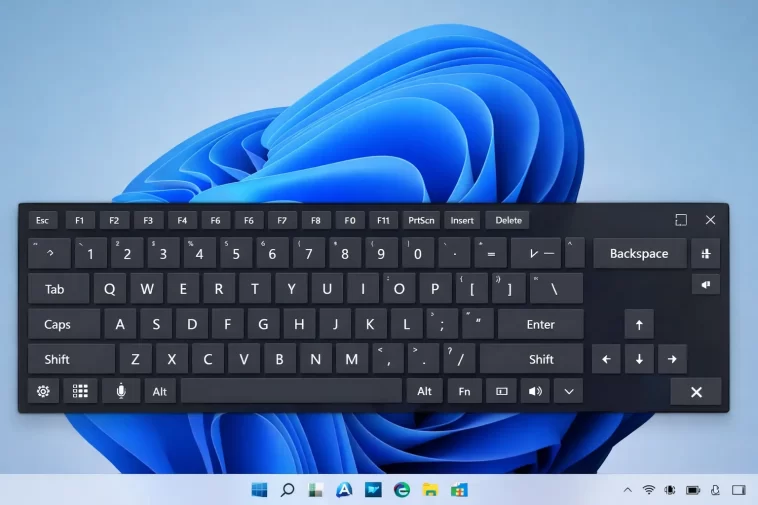
Accidents happen. You spilled tea on your keyboard, a key stopped working, or you’re using a touchscreen device without a physical keyboard attached. Whatever the reason, Windows 11 has a built-in solution that most people don’t know about.
The on-screen keyboard in Windows 11 is a fully functional virtual keyboard that lets you type using your mouse, touchpad, or touchscreen. In this guide, you’ll learn every way to open it, how to pin it so it’s always available, and how to get the most out of it.
What Is the On-Screen Keyboard in Windows 11?
The on-screen keyboard (OSK) is a built-in accessibility tool in Windows 11. It displays a virtual keyboard on your screen that you can click or tap to type — no physical keyboard required.
It supports:
- Standard typing with mouse clicks
- Touchscreen tap input
- Number pad
- Function keys
- Special characters and symbols
It’s not just for emergencies. Many people with mobility difficulties use it as their primary input method. But if you just poured tea on your keyboard, it’ll save your day right now.
Method 1: Open On-Screen Keyboard from the Taskbar
This is the fastest method if your taskbar is working.
- Right-click on an empty area of the taskbar
- Select Taskbar settings
- Scroll down to System tray icons or look for Touch keyboard
- Toggle Touch keyboard to On
- A keyboard icon will appear in the bottom-right corner of your taskbar
- Click that icon to open the on-screen keyboard anytime
Once it’s pinned to the taskbar, you can open it with a single click whenever you need it.
Method 2: Open On-Screen Keyboard with the Run Command
If your taskbar isn’t responding or you prefer keyboard shortcuts (using a mouse to click the Run box), this method works great.
- Press Windows key + R with your mouse (right-click the Start button → Run)
- In the Run box, type:
osk - Click OK
The on-screen keyboard opens immediately. This is the quickest method if you can still access the Start menu or Run dialog with your mouse.
Method 3: Open On-Screen Keyboard from the Start Menu
- Click the Start button (Windows logo in the taskbar)
- Click All apps
- Scroll down to Windows Ease of Access or search for “On-Screen Keyboard”
- Click it to open
Alternatively, just type “on-screen keyboard” in the Start search bar and click the result.
Method 4: Open On-Screen Keyboard from Settings
- Open Settings (Windows key + I, or right-click Start → Settings)
- Go to Accessibility
- Click Keyboard on the right side
- Toggle On-Screen Keyboard to On
The keyboard will appear on your screen immediately. This setting also keeps it enabled after you restart, which is useful if you’re waiting for a replacement keyboard to arrive.
Method 5: Open On-Screen Keyboard from the Sign-In Screen
This is critical if your physical keyboard is broken and you can’t even log in to Windows.
On the Windows 11 login screen:
- Look for the Accessibility icon in the bottom-right corner (it looks like a person inside a circle)
- Click it
- Select On-Screen Keyboard
The virtual keyboard will appear over the login screen so you can type your password or PIN.
Method 6: Open On-Screen Keyboard via Task Manager
If other methods aren’t working, Task Manager can launch it directly.
- Press Ctrl + Shift + Esc (or right-click the taskbar → Task Manager)
- Click File → Run new task
- Type
osk.exe - Click OK
Method 7: Open On-Screen Keyboard via File Explorer
- Open File Explorer
- In the address bar, type the following and press Enter:
C:\Windows\System32\osk.exe- The on-screen keyboard launches immediately
You can also right-click osk.exe and send it to the desktop as a shortcut so you always have quick access.
How to Pin the On-Screen Keyboard So It’s Always Available
If you’re going to be without a physical keyboard for a few days, pinning the OSK is the smart move.
Pin to taskbar:
- Search for “On-Screen Keyboard” in the Start menu
- Right-click the result
- Select Pin to taskbar
Set it to open at startup:
- Go to Settings → Accessibility → Keyboard
- Enable On-Screen Keyboard
- This keeps it active every time Windows starts
On-Screen Keyboard vs Touch Keyboard: What’s the Difference?
Windows 11 actually has two virtual keyboards and they serve slightly different purposes.
| Feature | On-Screen Keyboard (OSK) | Touch Keyboard |
|---|---|---|
| Best for | Mouse/accessibility use | Touchscreen devices |
| Opens with | osk.exe / Accessibility settings | Taskbar icon |
| Moves around | Yes, draggable | Docked at bottom |
| Function keys | Yes | Limited |
| Works at login | Yes | No |
For most emergency situations — like a broken or wet keyboard — the On-Screen Keyboard (OSK) is the better choice. It’s more fully featured and works even before you log in.
Tips for Using the On-Screen Keyboard Effectively
Using a virtual keyboard with a mouse isn’t the fastest experience, but these tips help:
- Drag it out of the way — click and drag the OSK to a corner so it doesn’t block what you’re typing
- Use hover typing — in OSK settings, you can enable “hover over keys” mode so letters are selected after hovering for a set time (no clicking needed)
- Enable the number pad — click Options inside the OSK and check “Turn on numeric key pad”
- Use click sound — turn on click sounds in Options so you know when a key registers
- Resize the window — drag the edges of the OSK to make it larger and easier to click accurately
What to Do After Spilling Liquid on Your Keyboard
While the on-screen keyboard keeps you working, here’s what to do about the physical keyboard:
- Unplug it immediately — for USB keyboards, unplug right away. For laptops, shut down immediately.
- Turn it upside down — let gravity pull the liquid out. Don’t shake it.
- Dab with a dry cloth — gently absorb surface liquid without spreading it further
- Let it dry completely — at least 24–48 hours before plugging it back in
- For laptops — take it to a repair shop as soon as possible. Liquid inside a laptop can damage more than just the keyboard.
Tea, coffee, and juice are worse than plain water because the sugar and acids can corrode contacts even after the liquid dries. Don’t rush plugging it back in.
FAQ
How do I open the on-screen keyboard in Windows 11 without a keyboard? Right-click the Start button using your mouse and select Run. Then click inside the Run box, type osk using your mouse on any on-screen element, or go to Settings → Accessibility → Keyboard and toggle On-Screen Keyboard to On.
Can I use the on-screen keyboard to type my Windows password? Yes. On the login screen, click the Accessibility icon in the bottom-right corner and select On-Screen Keyboard. You can then click your password using the mouse.
Is the on-screen keyboard free in Windows 11? Yes, it is completely built into Windows 11 at no extra cost. No download or installation needed.
Can I make the on-screen keyboard bigger? Yes. Drag the edges of the OSK window to resize it. Making it larger makes individual keys easier to click accurately.
Does the on-screen keyboard work in all apps? It works in most apps, including browsers, Office programs, Notepad, and system dialogs. A small number of older or specialized programs may have compatibility issues.
What’s the shortcut to open the on-screen keyboard in Windows 11? The fastest shortcut is Windows key + Ctrl + O. This opens the On-Screen Keyboard instantly without navigating any menus.
Will my keyboard work again after drying out? It depends on how much liquid got in and what the liquid was. Plain water keyboards often recover after 48 hours of drying. Sugary drinks like tea, coffee, or juice have a lower recovery rate because residue corrodes the contacts.
