Windows 11 black screen error is one of the most frustrating problems you can run into. Your PC powers on, you hear the fans spin up, maybe the keyboard lights up — but nothing shows on the monitor. Or worse, you see only a mouse cursor floating on a dark screen with no desktop in sight.
This guide walks you through exactly how to fix it, step by step, without needing to reinstall Windows.
What Causes the Windows 11 Black Screen Error?
Before jumping into fixes, it helps to know what you’re dealing with. The black screen issue in Windows 11 can come from several different sources:
- A failed or interrupted Windows Update
- A corrupted or outdated graphics driver
- Fast Startup causing a bad wake-from-sleep state
- A loose or faulty display cable or monitor connection
- Third-party startup apps blocking the desktop from loading
- Explorer.exe not starting correctly
The good news: most of these are fixable without reinstalling Windows.
Step 1: Check Your Physical Connections First
Before touching any software settings, rule out hardware as the cause.
Unplug your monitor cable and plug it back in firmly. If you have a dedicated GPU, make sure the cable is connected to the graphics card, not the motherboard’s display output. Try a different cable if you have one available.
If you use multiple monitors, disconnect all but one and see if the image appears. Sometimes Windows 11 sends the signal to the wrong display after an update.
Also try pressing Windows key + Ctrl + Shift + B — this resets the graphics driver and can bring back a black screen instantly if the driver is the issue.
Step 2: Boot Into Safe Mode
If the screen stays black after login, you need to access Windows 11 without loading the full environment. Safe Mode is the way to do that.
How to enter Safe Mode from a black screen:
- Hold down the Power button for 10 seconds to force a shutdown.
- Turn the PC back on and force another shutdown when you see the Windows logo.
- Repeat this 2–3 times. Windows will detect the failed boots and open Automatic Repair mode.
- Go to Advanced options → Troubleshoot → Advanced options → Startup Settings.
- Click Restart, then press 4 or F4 to boot into Safe Mode.
Once you’re in Safe Mode, the black screen should be gone because only essential drivers load. From here, you can start diagnosing the real problem.
Step 3: Update or Roll Back Your Graphics Driver
A bad graphics driver is one of the most common reasons for the Windows 11 black screen error. This is especially common right after a Windows Update or after manually updating a GPU driver.
To update the driver:
- Right-click Start and select Device Manager.
- Expand Display adapters.
- Right-click your GPU and choose Update driver → Search automatically.
To roll back to a previous driver:
- Right-click your GPU in Device Manager and select Properties.
- Go to the Driver tab.
- Click Roll Back Driver if the option is available.
If you recently updated your NVIDIA, AMD, or Intel graphics driver and the black screen started immediately after, rolling back almost always fixes it.
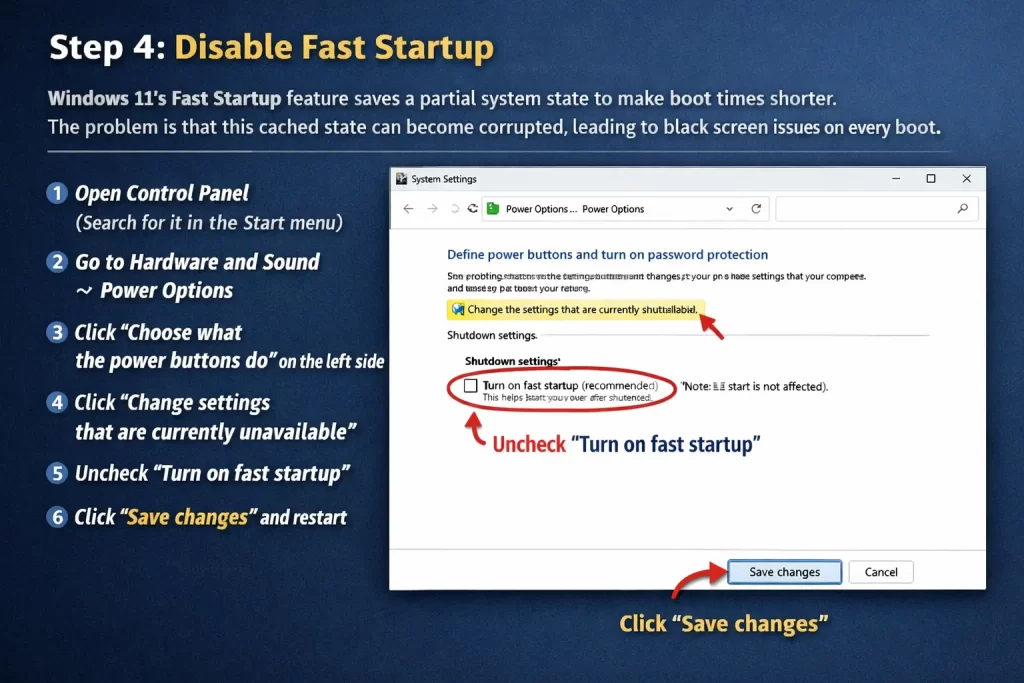
Step 4: Disable Fast Startup
Windows 11’s Fast Startup feature saves a partial system state to make boot times shorter. The problem is that this cached state can become corrupted, leading to black screen issues on every boot.
How to turn off Fast Startup:
- Open Control Panel (search for it in the Start menu).
- Go to Hardware and Sound → Power Options.
- Click Choose what the power buttons do on the left side.
- Click Change settings that are currently unavailable.
- Uncheck Turn on fast startup.
- Click Save changes and restart.
After disabling this, Windows does a full cold boot each time, which avoids the corrupted cache problem entirely.
Step 5: Restart Windows Explorer
If you can see your mouse cursor but nothing else — no taskbar, no desktop, no icons — Windows Explorer may have simply crashed. This is a quick fix.
How to restart Explorer.exe:
- Press Ctrl + Alt + Delete and open Task Manager.
- Click More details if you see the simplified view.
- Find Windows Explorer under the Processes tab.
- Right-click it and choose Restart.
The desktop should reappear within a few seconds. If this works but the problem keeps coming back after reboots, there’s likely a startup app or a corrupted shell extension causing Explorer to crash.
Step 6: Check for Problematic Startup Apps
A third-party app set to launch at startup can interfere with the Windows shell and cause a persistent black screen.
How to disable startup apps:
- Boot into Safe Mode (see Step 2 if needed).
- Open Task Manager and go to the Startup apps tab.
- Disable everything except essential system entries.
- Restart normally and see if the desktop loads.
If the desktop loads correctly, re-enable startup apps one by one until you find the one causing the issue. Common culprits include older versions of third-party antivirus tools, RGB lighting software, and remote desktop apps.
Step 7: Run System File Checker (SFC) and DISM
Corrupted system files can prevent Windows 11 from fully loading the desktop. The built-in SFC and DISM tools can find and repair those files automatically.
Run these commands in order:
- Open Command Prompt as Administrator (search “cmd” → right-click → Run as administrator).
- Type the following and press Enter:
sfc /scannow- Wait for the scan to complete. Then run:
DISM /Online /Cleanup-Image /RestoreHealth- Restart your PC when both finish.
These scans can take 10–20 minutes. Let them run fully without interrupting. After a restart, the black screen error is often gone.
Step 8: Uninstall the Latest Windows Update
Sometimes a specific Windows Update introduces a bug that causes black screen issues on certain hardware configurations. If the problem started right after an update, removing it is worth trying.
How to uninstall a recent update:
- Boot into Safe Mode or Automatic Repair mode.
- Go to Settings → Windows Update → Update history.
- Click Uninstall updates.
- Find the most recently installed update and uninstall it.
- Restart and check if the screen loads normally.
Microsoft usually patches known issues within days, so you can re-enable updates once a fix is released.
Step 9: Perform a System Restore
If nothing above has worked, and you had System Restore enabled before the problem started, you can roll Windows back to a point when everything was working fine.
How to use System Restore:
- From Automatic Repair mode, go to Troubleshoot → Advanced options → System Restore.
- Choose a restore point dated before the black screen problem appeared.
- Follow the on-screen steps and let Windows restore the system.
System Restore does not delete your personal files, but it will remove apps and drivers installed after the chosen restore point.
When to Consider a Clean Reinstall
If you’ve worked through every step above and the Windows 11 black screen error still appears, a clean reinstall of Windows is the most reliable option. You can do this from the Windows recovery environment and keep your personal files intact by choosing the right option during setup.
This should be a last resort — the steps above resolve the vast majority of black screen cases.
FAQ: Windows 11 Black Screen Error
Q: Why does my Windows 11 show a black screen with only a cursor? This usually means Windows Explorer has crashed or failed to load. Press Ctrl + Alt + Delete, open Task Manager, and restart the Windows Explorer process. That typically brings the desktop back immediately.
Q: Can a bad Windows Update cause a black screen in Windows 11? Yes, it’s a known issue. Certain updates have caused black screen problems on specific hardware, particularly with older graphics drivers. Uninstalling the latest update from the recovery environment usually resolves it.
Q: How do I fix a Windows 11 black screen before login? If the screen is black before you even reach the login screen, the issue is likely a driver or display connection problem. Try pressing Windows + Ctrl + Shift + B to reset the graphics driver, or check that your monitor cable is connected to the GPU, not the motherboard.
Q: Does the black screen error mean my GPU is dying? Not necessarily. A corrupted driver can produce the exact same symptoms as a failing GPU. Update or reinstall your graphics driver first. If the problem persists after a clean driver install, then hardware failure is worth investigating.
Q: Will reinstalling Windows fix the black screen error? In most cases, yes. A clean install eliminates driver conflicts, corrupted files, and startup app interference. But try the software-based steps first — most black screen errors in Windows 11 don’t require a full reinstall.
Q: Is it safe to force-shutdown my PC when I see a black screen? It’s not ideal, but it’s safe to do a few times to access the Automatic Repair menu. Repeated forced shutdowns over a long period can cause file system issues, so resolve the root cause as quickly as possible.
Final Thoughts
The Windows 11 black screen error looks scary, but it’s almost always fixable without losing your data. Start with the simple stuff — check your cables, restart Explorer, reset the graphics driver. If those don’t work, move into Safe Mode and dig deeper with driver updates, SFC scans, or disabling Fast Startup.
Work through the steps in order and you’ll likely have your desktop back within the hour.
