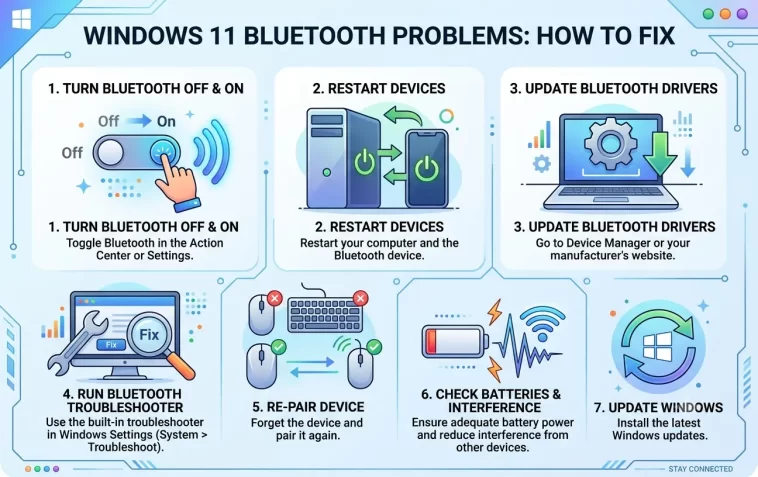
Bluetooth connection problems on Windows 11 are among the most common hardware complaints — and they come in three distinct flavors: devices that won’t pair at all, audio that lags noticeably behind what’s on screen, and connections that drop randomly without warning.
This guide covers all three problems with clear, step-by-step fixes. Jump to whichever section matches your issue.
Why Bluetooth Problems Are So Common on Windows 11
Bluetooth on Windows has always been more fragile than it should be. Windows 11 made some changes to how Bluetooth is handled — including new power management behaviors and driver handling — that introduced new failure points.
Common root causes include:
- Outdated or corrupted Bluetooth drivers
- Windows Update replacing manufacturer drivers with generic ones
- Power management settings turning off the Bluetooth adapter to save energy
- Signal interference from WiFi, USB 3.0 devices, or other wireless hardware
- A2DP codec conflicts causing audio lag
- Bluetooth service not running properly in the background
- Too many paired devices stored in memory
Understanding which one applies to your situation makes the fix much faster.
Quick Checks Before Anything Else
Run through these first — they take under a minute and solve the problem more often than expected:
- Toggle Bluetooth off and on: Go to Settings → Bluetooth & devices and flip the toggle off, wait 5 seconds, then back on
- Restart your Bluetooth device: Turn your headphones, mouse, or keyboard fully off and back on
- Remove and re-pair: Delete the device from Windows and pair it fresh
- Check distance: Bluetooth range is typically 10 meters. Move closer to your PC and test
- Airplane mode: Make sure Airplane mode is off (Settings → Network & Internet)
- Restart your PC: Obvious but effective — many Bluetooth issues are resolved by a clean reboot
If none of these work, move on to the specific fixes below.
Part 1 – Bluetooth Device Won’t Pair
Fix 1 – Remove the Device and Pair Again from Scratch
A failed previous pairing attempt can leave corrupted pairing data that prevents future connections.
- Open Settings → Bluetooth & devices
- Find the device in the list
- Click the three dots (…) next to it → Remove device
- Confirm removal
- Put your Bluetooth device into pairing mode (check the device manual — usually hold the power or pairing button for 3–5 seconds until an LED flashes)
- Click Add device in Windows → Bluetooth
- Select your device from the list and complete pairing
Fix 2 – Run the Bluetooth Troubleshooter
Windows 11 has a built-in troubleshooter that detects and fixes common Bluetooth configuration issues automatically.
- Open Settings → System → Troubleshoot
- Click Other troubleshooters
- Find Bluetooth and click Run
- Follow the on-screen steps and apply any suggested fixes
- Try pairing again
Fix 3 – Restart the Bluetooth Support Service
The Bluetooth Support Service manages pairing and connections in the background. If it’s stopped or stuck, devices won’t pair.
- Press
Windows + R, typeservices.msc, press Enter - Scroll down to Bluetooth Support Service
- Right-click it → Restart
- Also right-click → Properties → set Startup type to Automatic
- Click Apply → OK
- Try pairing again
Fix 4 – Update the Bluetooth Driver
An outdated or corrupted Bluetooth driver is one of the most common causes of pairing failure — especially after a Windows update.
Via Device Manager:
- Right-click Start → Device Manager
- Expand Bluetooth
- Right-click your Bluetooth adapter → Update driver
- Select Search automatically for drivers
Via manufacturer’s website (recommended):
- For Intel Wireless Bluetooth: go to intel.com/support and search for your wireless adapter model
- For Realtek Bluetooth: check your laptop or motherboard manufacturer’s support page
- For Qualcomm Bluetooth: same — go to your PC manufacturer’s support downloads
After installing, restart your PC and try pairing.
Fix 5 – Uninstall and Reinstall the Bluetooth Driver
If updating doesn’t work, a full driver reinstall clears corrupted files that an update can’t fix.
- Open Device Manager → expand Bluetooth
- Right-click your Bluetooth adapter → Uninstall device
- Check Attempt to remove the driver for this device if available
- Click Uninstall
- Restart your PC — Windows will reinstall a basic Bluetooth driver automatically
- Test pairing, then install the manufacturer’s driver for best performance
Fix 6 – Check for USB 3.0 Interference
This is a well-known but rarely mentioned issue. USB 3.0 devices emit radio frequency noise in the 2.4 GHz range — the same frequency Bluetooth uses. Plugging a USB 3.0 device into a port close to your Bluetooth adapter can completely block pairing.
To test:
- Unplug all USB 3.0 devices (external hard drives, USB hubs, flash drives)
- Try pairing your Bluetooth device
- If it pairs successfully, the USB device was causing interference
Fix: Use a USB extension cable to move USB 3.0 devices further away from the PC, or plug them into ports on the back of the tower rather than front panels. You can also use a USB 2.0 port for low-bandwidth devices.
Fix 7 – Clear the Bluetooth Registry Entries
Sometimes old, corrupted Bluetooth pairing data stays in the Windows registry even after you remove a device through Settings.
- Press
Windows + R, typeregedit, press Enter - Navigate to:
HKEY_LOCAL_MACHINE\SYSTEM\CurrentControlSet\Services\BthPort\Parameters\Devices- You’ll see subkeys for previously paired devices
- Delete any entries for devices you no longer use or that failed to pair
- Restart your PC and try pairing again
Be careful in the registry — only delete keys under the Devices folder. Don’t modify anything else.
Part 2 – Bluetooth Audio Lag (Delay/Latency)
Fix 1 – Switch to a Better Bluetooth Codec
The most common cause of audio lag with Bluetooth headphones is the codec being used. The default SBC codec has the highest latency. Switching to aptX or AAC significantly reduces delay.
Check and change the codec:
- Right-click Start → Device Manager
- Expand Bluetooth
- Right-click your headphone device → Properties
- Go to the Advanced tab — look for codec information
For more control, use Bluetooth audio codec managers:
- Install Bluetooth Audio Receiver from the Microsoft Store
- Or check if your headphone manufacturer’s companion app lets you select the codec
Note: Both your headphones and your Bluetooth adapter must support the same codec. If your adapter only supports SBC, no software change will help — you’d need a Bluetooth 5.0 USB adapter with aptX support.
Fix 2 – Disable Bluetooth Hands-Free / Telephony Mode
When Windows uses a Bluetooth headset in hands-free mode (for calls and microphone use simultaneously), it switches to a lower-quality, higher-latency audio profile called HFP or HSP. This causes both audio quality drops and significant lag.
Disable hands-free mode:
- Right-click the speaker icon → Sound settings → More sound settings
- In the Playback tab, look for your Bluetooth headphones
- You may see two entries — one for Stereo (A2DP) and one for Hands-Free (HFP)
- Right-click the Hands-Free entry → Disable
- Set the Stereo entry as your default device
- In the Recording tab, also disable the Bluetooth microphone entry if you don’t need it
This forces Windows to use the A2DP profile, which has much lower latency and better audio quality.
Fix 3 – Reduce WiFi and Bluetooth Interference
WiFi (especially 2.4 GHz networks) and Bluetooth operate on the same frequency band. When both are active, they compete for bandwidth — causing audio stuttering and lag.
Fixes:
- Switch your WiFi router to 5 GHz band if your adapter supports it (faster and doesn’t interfere with Bluetooth)
- In your router settings, change the 2.4 GHz WiFi channel to 1, 6, or 11 — these don’t overlap with Bluetooth channels
- Move your Bluetooth headphones and the PC’s Bluetooth adapter away from the WiFi router
Fix 4 – Update Bluetooth and Audio Drivers Together
Audio lag can result from a mismatch between the Bluetooth driver version and the audio subsystem. Updating both at the same time resolves version conflicts.
- Update your Bluetooth driver (see Part 1, Fix 4)
- Also update your audio driver via Device Manager → Sound, video and game controllers
- Restart after both updates
- Test audio lag again
Fix 5 – Adjust the Sound Control Panel Sample Rate
A mismatch between the Bluetooth device’s audio format and Windows’ sample rate can cause buffering and lag.
- Right-click the speaker icon → Sound settings → More sound settings
- Right-click your Bluetooth headphones in the Playback tab → Properties
- Go to the Advanced tab
- Change the Default Format to 16 bit, 44100 Hz (CD Quality)
- Click Apply → OK
- Test the lag
Part 3 – Bluetooth Keeps Disconnecting
Fix 1 – Disable Bluetooth Power Management
Windows saves power by turning off Bluetooth devices when it thinks they’re idle. This causes random disconnections — especially with mice and keyboards that have brief moments of inactivity.
- Right-click Start → Device Manager
- Expand Bluetooth
- Right-click your Bluetooth adapter → Properties
- Go to the Power Management tab
- Uncheck Allow the computer to turn off this device to save power
- Click OK
Do the same for any Bluetooth device listed under Human Interface Devices or Mice and other pointing devices.
Fix 2 – Change the Power Plan
The Balanced power plan actively throttles wireless adapters including Bluetooth. Switching to High Performance prevents this.
- Open Control Panel → Power Options
- Select High performance
- Click Change plan settings → Change advanced power settings
- Expand Wireless Adapter Settings → Power Saving Mode
- Set it to Maximum Performance
- Click Apply → OK
Fix 3 – Reduce the Number of Paired Devices
Bluetooth adapters have a limited pairing memory. When it’s full, the adapter can struggle to maintain stable connections with all paired devices — causing random drops.
- Open Settings → Bluetooth & devices
- Remove any devices you no longer use
- Keep the paired list to 5 or fewer active devices
- Re-pair your device and test stability
Fix 4 – Update Bluetooth Driver to Fix Disconnection Bugs
Some specific driver versions have known disconnection bugs that were fixed in later releases. Updating to the latest driver often resolves persistent disconnection issues.
Follow the steps in Part 1, Fix 4 to update your Bluetooth driver from the manufacturer’s website. For Intel Wireless adapters specifically, the Intel Driver & Support Assistant (downloadable from intel.com) will automatically find and install the correct version.
Fix 5 – Check for Signal Interference and Range Issues
Walls, other wireless devices, and physical obstacles all degrade Bluetooth signal. A device that connects fine when close to the PC may drop when you move further away.
- Stay within 8–10 meters of your PC for reliable connection
- Avoid placing the PC inside a closed cabinet or behind metal panels
- Keep the Bluetooth adapter away from large metal objects, monitors, and other wireless devices
- If using a desktop PC with a built-in Bluetooth adapter on the motherboard, consider a USB Bluetooth 5.0 adapter positioned at the front or top of the desk for better signal
Fix 6 – Reinstall the Bluetooth Stack
If disconnections are persistent and no other fix works, reinstalling the entire Bluetooth software stack clears any deep configuration corruption.
- Open Device Manager → Bluetooth
- Right-click every device listed under Bluetooth → Uninstall device (check the box to remove driver software)
- Also go to View → Show hidden devices and uninstall any grayed-out Bluetooth entries
- Restart your PC
- Windows will reinstall the Bluetooth stack on boot
- Install the latest manufacturer driver afterward
Quick Reference Table
| Problem | Best Fix to Try First |
|---|---|
| Device won’t appear during pairing | Fix 6 – Check USB 3.0 interference |
| Pairs but immediately disconnects | Fix 1 – Remove and re-pair from scratch |
| Pairing fails after Windows Update | Fix 4 – Update Bluetooth driver |
| Audio is delayed / out of sync | Fix 2 – Disable hands-free mode, use A2DP |
| Audio lag with video | Fix 1 – Switch to aptX or AAC codec |
| Mouse or keyboard drops randomly | Fix 1 – Disable power management |
| Disconnects after a few minutes | Fix 2 – Change power plan |
| Everything drops at the same time | Fix 5 – Check interference and range |
| Nothing works | Fix 6 – Reinstall Bluetooth stack |
FAQ
Q: Why does my Bluetooth headphone keep disconnecting only when WiFi is on? Both use the 2.4 GHz frequency band and interfere with each other. Switch your WiFi to the 5 GHz band, or change your router’s 2.4 GHz channel to 1, 6, or 11. This alone often eliminates the disconnection.
Q: My Bluetooth mouse works fine at first but disconnects after a few minutes of inactivity. Why? Windows is turning off the Bluetooth adapter to save power. Go to Device Manager → Bluetooth adapter → Properties → Power Management tab → uncheck “Allow the computer to turn off this device to save power.” This keeps the adapter active permanently.
Q: Why is my Bluetooth audio delayed when watching videos? You’re likely using the SBC codec, which has the highest latency of all Bluetooth audio codecs. Disable the hands-free audio profile in Sound settings to force A2DP mode, which has much lower delay. For zero-latency audio, a wired connection is always the most reliable option.
Q: Can I use Bluetooth and WiFi at the same time without problems? Yes, if your adapter handles both well and you’re on 5 GHz WiFi. Problems arise mainly with 2.4 GHz WiFi and Bluetooth competing for the same frequency. Using 5 GHz WiFi completely separates the two signals.
Q: My Bluetooth was working perfectly and stopped after a Windows update. What happened? Windows Update often replaces manufacturer Bluetooth drivers with generic Microsoft ones that have fewer features and more bugs. Go to Device Manager, check the driver provider for your Bluetooth adapter, and reinstall the manufacturer’s driver if it shows Microsoft.
Q: How many Bluetooth devices can I connect to Windows 11 at once? Most Bluetooth adapters support 7 active connections simultaneously, though performance degrades with more devices. For daily use, keeping 3–4 active devices connected is the most stable configuration.
Q: Should I buy a USB Bluetooth adapter if my built-in one keeps causing problems? It’s worth trying if your built-in adapter has persistent issues. A quality USB Bluetooth 5.0 adapter (from brands like ASUS, TP-Link, or Plugable) costs around $15–25 and often outperforms built-in adapters — especially on older laptops or desktop motherboards with weak Bluetooth hardware.
Q: Does Windows 11 support Bluetooth 5.0 and 5.3? Yes. Windows 11 fully supports Bluetooth 5.0, 5.1, 5.2, and 5.3 — provided your hardware adapter supports those versions. Check your adapter’s specs in Device Manager → Bluetooth → Properties → Details tab → look for the Bluetooth version information.
Final Thoughts
Bluetooth problems on Windows 11 are almost always software or configuration issues — not hardware failures. The fixes above resolve the vast majority of pairing failures, audio lag, and disconnection problems without replacing any hardware.
Start with the simplest fix for your specific problem — remove and re-pair, restart the Bluetooth service, or disable power management. Most issues are resolved within the first two or three steps.
If your built-in Bluetooth adapter continues to cause trouble even after trying everything, a USB Bluetooth 5.0 adapter is an inexpensive and effective upgrade that sidesteps the built-in hardware entirely.
