
Donating with Microsoft Rewards is one of the most meaningful ways to use your points. Instead of redeeming them for gift cards, you can turn your everyday Bing searches into real cash donations for the charities and nonprofits you care about — completely free.
This guide explains exactly how the donation feature works, how to set it up, which charities you can support, and what happens to your points after you donate.
What Is the Microsoft Rewards Donation Feature?
Microsoft Rewards lets you redeem your accumulated points as charitable donations through a program called Give with Bing. When you donate points, Microsoft converts them into a cash equivalent and sends that money to your chosen nonprofit through its partner, Benevity — a third-party platform that facilitates charitable giving for corporations worldwide.
The basic conversion rate is 1,000 points ≈ $1 USD in donation value.
You don’t spend any money out of pocket. You earn points by doing things you already do — searching with Bing, completing Daily Sets, using Microsoft Edge — and then redirect those points to a cause instead of a gift card.
How Give with Bing Works
The Give with Bing system offers two ways to donate:
Manual donations — You go to the redemption catalog, pick a charity, choose a points amount, and confirm the donation. The points leave your account immediately and Microsoft sends the corresponding cash to Benevity within six weeks.
Give Mode (automatic donations) — You choose a charity once and turn on Give Mode. From that point forward, points you earn from Bing searches are automatically donated to that charity each month. No manual steps required after setup.
Both methods result in real cash going to real nonprofits. The difference is just how much control you want over the timing.
Which Charities Can You Donate To?
Microsoft partners with Benevity to give access to over 1 million registered nonprofits worldwide. The catalog includes both global organizations and local causes depending on your country.
Some well-known organizations supported through Give with Bing include:
- UNICEF — children’s welfare worldwide
- Doctors Without Borders (MSF) — medical aid in crisis zones
- American Red Cross / Red Cross — disaster relief and emergency services
- Oxfam — poverty and inequality relief
- Save the Children — child welfare and education
- Special Olympics — sports for people with intellectual disabilities
- World Wildlife Fund (WWF) — environmental conservation
- Feeding America — food insecurity in the US
- Cancer Research UK — cancer research funding (UK)
- Wikipedia / Wikimedia Foundation — free knowledge for everyone
Beyond the major names, you can search for local animal shelters, community foundations, education programs, and regional nonprofits through the search tool at bing.com/give/search.
Countries Where Donation Is Available
Give with Bing is currently available in:
- United States
- United Kingdom
- Canada
- Australia
- France
- Germany
- Italy
- Spain
If you’re in one of these countries, you can donate both globally and to charities local to your region. Availability of specific charities varies by country.
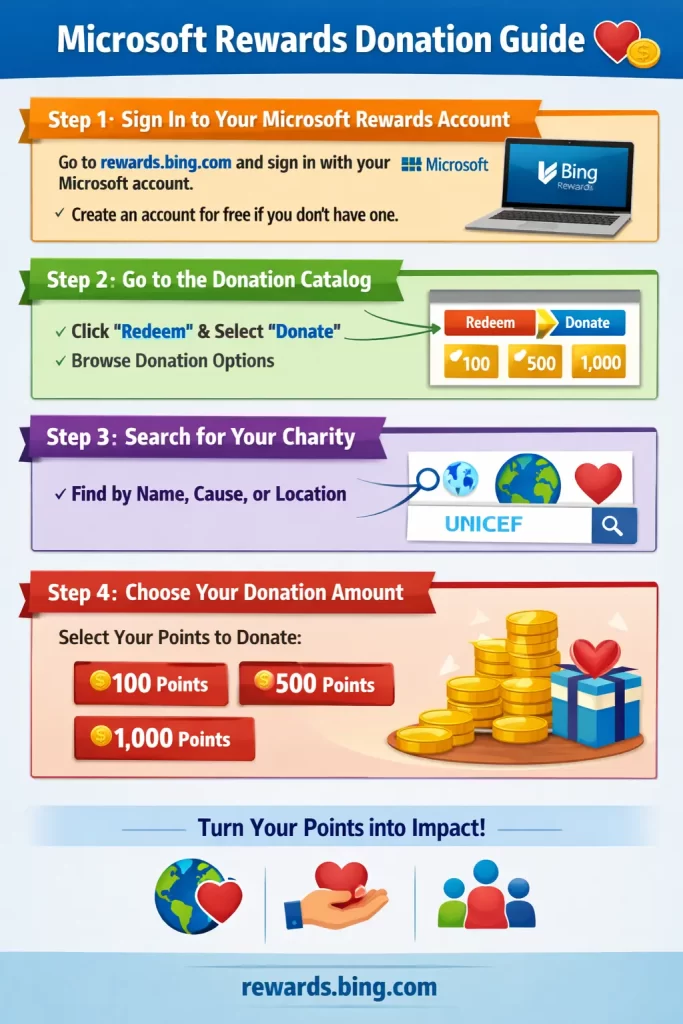
Method 1: Manual Donation (One-Time)
This is the best option if you want to choose exactly how many points to give and when.
Step 1 — Sign In to Your Microsoft Rewards Account
Go to rewards.bing.com and sign in with your Microsoft account. You need to be signed in to see your points balance and access the donation catalog.
If you don’t have a Microsoft account yet, you can create one for free at account.microsoft.com. It takes under two minutes.
Step 2 — Go to the Donation Catalog
Once signed in:
- Click Redeem in the top navigation bar
- Select the Donate or Give with Bing category from the filter options
- Browse the available donation tiers — common options include 100, 500, 1,000, and 5,000 points
Alternatively, go directly to rewards.bing.com/redeem/donate to jump straight to the donation section.
Step 3 — Search for Your Charity
Use the search bar to find the nonprofit you want to support. You can search by:
- Organization name (e.g., “UNICEF” or “Red Cross”)
- Cause category (e.g., “environment,” “education,” “hunger”)
- Location (e.g., charities in your country or city)
The database includes over a million organizations, so most registered nonprofits will appear. If a charity doesn’t show up, it may not yet be registered with Benevity.
Step 4 — Choose Your Donation Amount
Select the points tier you want to donate. Common options are:
| Points | Approximate Value |
|---|---|
| 100 points | ~$0.10 |
| 500 points | ~$0.50 |
| 1,000 points | ~$1.00 |
| 5,000 points | ~$5.00 |
Choose the amount that fits your current balance. You don’t have to donate all your points at once.
Step 5 — Confirm the Donation
Review your selection — the charity name, the points amount, and the estimated donation value — then click Confirm or Redeem.
Your points are deducted from your account immediately. Microsoft then makes a corresponding cash donation to a donor-advised fund at the America Online Giving Foundation (AOGF) in the US, or the UK Online Giving Foundation (OGF) for other regions, with a recommendation to grant those funds to your chosen nonprofit.
Important: Donation redemptions are non-refundable. Once confirmed, you cannot reverse the transaction.
Step 6 — Receive Your Confirmation
After completing the donation, Microsoft sends a confirmation to your email. Keep it for your records. The physical donation reaches the nonprofit within six weeks after the end of the month in which you redeemed.
Method 2: Give Mode (Automatic Monthly Donations)
Give Mode is the hands-off approach. You set your charity once, and your earned search points go directly to that cause every month — automatically.
Step 1 — Go to Your Rewards Dashboard
Visit rewards.bing.com and sign in.
Step 2 — Find the Give Mode Option
Look for the Give with Bing or Give Mode section on your dashboard. It may also appear under account settings or the Earn tab depending on your region.
Step 3 — Choose Your Cause
Search for your preferred nonprofit using the search tool. Once you find it, select it as your designated cause.
Step 4 — Turn On Give Mode
Toggle Give Mode to On. From this point, points you earn from Bing searches will be automatically donated to your chosen cause each month through Benevity.
You can change your chosen charity or turn off Give Mode at any time from the same settings area.
Step 5 — Keep Searching with Bing
That’s it. Every Bing search you do earns points that flow automatically to your charity. You can track your total lifetime giving on your Rewards dashboard.
How Microsoft Processes Your Donation
It helps to understand what actually happens after you click Confirm.
- Your points are deducted from your balance immediately.
- Microsoft converts those points into a cash equivalent.
- That cash goes into a donor-advised fund managed by America Online Giving Foundation (US) or UK Online Giving Foundation (other regions), both operated through Benevity.
- The foundation makes a grant to your chosen nonprofit, typically within six weeks after the end of the donation month.
- The nonprofit receives the funds and it is logged in their Benevity donor reports under “Microsoft Rewards / Give with Bing.”
Microsoft is not directly involved in processing cash donations — Benevity handles the financial side, which ensures accountability and transparency for the charities receiving funds.
Can You Also Donate Cash?
Yes. Separate from the points program, Microsoft’s Give with Bing also allows cash donations through the same Benevity platform. You use your own payment method (credit card, etc.) to donate directly to the nonprofit you’ve chosen for your points donations.
Microsoft is not involved in cash transactions — those go directly through Benevity to the chosen nonprofit. This is a completely separate feature from the points redemption system.
Tips to Maximize Your Charitable Impact
A few ways to get more from your Microsoft Rewards donation:
Earn more points before donating. The more consistently you use Bing for daily searches, complete Daily Sets, and use Microsoft Edge, the faster your points build up. Level 2 users can accumulate 9,000–10,000 points per month — enough for a $9–$10 monthly donation.
Watch for Microsoft matching promotions. Microsoft has run matching programs in the past where they doubled the value of donated points for a limited time. These promotions typically appear around major giving seasons. Check the Earn tab and Rewards emails for active promotions.
Donate in larger amounts. While 100-point donations are available, donating in 1,000-point increments (≈$1) or more means your contribution reaches the charity more efficiently after any processing.
Set a cause and forget it. If charitable giving is your primary goal for Microsoft Rewards, Give Mode is the simplest setup. Turn it on once and let your daily searching do the work passively.
Search for your local nonprofit. The Benevity database includes over a million organizations. Many local animal shelters, school foundations, and community programs are registered and searchable. Your points don’t have to go to only large global organizations.
What to Know Before You Donate
A few important details to keep in mind:
- Donations are non-refundable. Once you confirm a redemption, it cannot be reversed.
- Points are deducted immediately. The charity receives funds later (within six weeks), but your balance updates right away.
- Not all nonprofits are eligible. Benevity evaluates each organization. If a charity doesn’t appear in search results, it isn’t currently part of the program. Microsoft and Benevity can remove organizations from the eligible list at any time.
- If a charity becomes ineligible after your donation, the funds are redirected to another nonprofit of Microsoft’s choosing — not returned to your account.
- Donations have no personal tax benefit for the user, since it is technically Microsoft making the cash donation, not you personally.
- Points expiration still applies. If you have a large balance sitting idle, donating some of it protects you from losing points to expiration (which happens after 18 months of no activity).
FAQ: Donating with Microsoft Rewards
Is donating Microsoft Rewards points actually free? Yes. You’re donating points you earned at no cost through regular Bing searches and activities. No money leaves your pocket.
How long does it take for the charity to receive the donation? Typically within six weeks after the end of the month in which you redeemed. So if you donate in June, the charity should receive funds by mid-to-late August.
Can I donate to any charity in the world? You can donate to any of the 1 million+ nonprofits registered in the Benevity network. This covers most major international organizations and many regional ones. However, not every charity in the world is registered with Benevity.
Can I change my Give Mode charity? Yes. You can switch your designated charity or turn off Give Mode at any time through your Rewards account settings.
Does donating points count as a tax deduction? No. Because Microsoft makes the cash donation on your behalf, you personally cannot claim a tax deduction. The donation is from Microsoft, not from you as an individual.
What if my chosen charity is removed from the program? If a nonprofit becomes ineligible after you’ve made a donation, the funds are redirected to another nonprofit of Microsoft’s choosing. Your points are not returned.
Can I split my points between multiple charities? Not automatically through Give Mode, which only supports one active cause at a time. However, you can make separate manual donations to different charities using the catalog.
Is Give with Bing available in Turkey or other markets not listed? Currently, Give with Bing is only available in the US, UK, Canada, Australia, France, Germany, Italy, and Spain. Other regions may not see the donation option in their Rewards catalog.
Donating with Microsoft Rewards takes a few minutes to set up and nothing to maintain after that. If you’re already using Bing daily, Give Mode turns your routine into a steady, passive contribution to causes you care about. It’s one of the rare situations where doing nothing extra still makes a difference.
