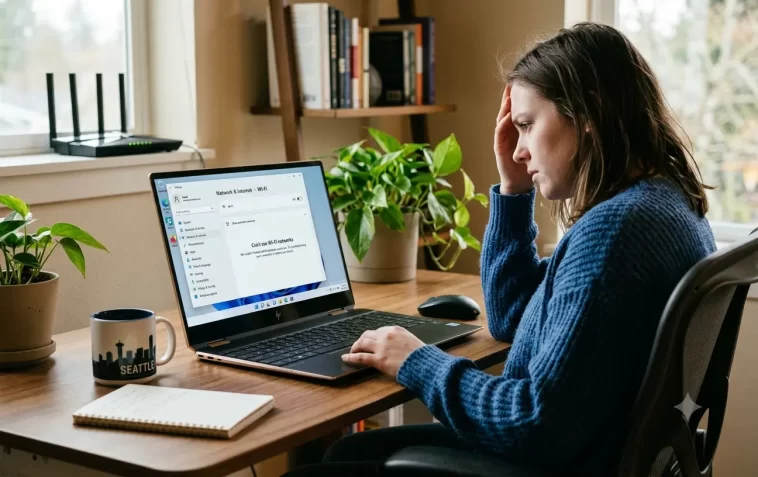
If Windows 11 can’t see any Wi-Fi networks — or drops signal the moment you move a few feet from the router — you’re dealing with one of the most common and fixable wireless problems on modern PCs.
This guide covers both issues together: why Windows 11 fails to detect Wi-Fi networks, and how to extend your wireless range so your connection stays strong throughout your home or office.
Part 1: Windows 11 Can’t See Wi-Fi Networks
Why Windows 11 Isn’t Detecting Any Networks
Before jumping into fixes, it helps to know what’s actually going wrong.
Windows 11 may fail to show available Wi-Fi networks because of:
- A disabled Wi-Fi adapter
- A missing or corrupted Wi-Fi driver
- Airplane mode being turned on
- A stuck network service in the background
- Physical Wi-Fi hardware switch turned off (some laptops have one)
- A Windows update that reset network settings
Work through the fixes below in order. Most users solve the problem within the first three steps.
Fix 1: Make Sure Wi-Fi Is Actually Enabled
This sounds too simple — but it’s the most commonly missed cause.
Click the network icon in the taskbar (bottom right). Make sure the Wi-Fi tile is highlighted/active. If it looks grayed out, click it once to enable it.
Also check Airplane Mode — if it’s turned on, all wireless connections are disabled. Click the Airplane mode tile to turn it off.
Some laptops also have a physical switch or keyboard shortcut (usually Fn + F2, Fn + F3, or a dedicated key with an antenna icon) to toggle Wi-Fi on and off. Make sure it hasn’t been pressed accidentally.
Fix 2: Enable the Wi-Fi Adapter in Device Manager
If Wi-Fi is enabled in the taskbar but nothing shows up, the adapter itself might be disabled at the hardware level.
- Right-click Start → Device Manager
- Expand Network adapters
- Find your Wi-Fi adapter (Intel, Realtek, Qualcomm, etc.)
- If there’s a small down arrow on the icon, it’s disabled — right-click it and select Enable device
If there’s a yellow exclamation mark instead, the driver is broken. Skip to Fix 4.
Fix 3: Restart the WLAN AutoConfig Service
Windows relies on a background service called WLAN AutoConfig to detect and manage wireless networks. If it stops running, no networks will appear.
- Press Win + R, type
services.msc, press Enter - Scroll down and find WLAN AutoConfig
- Right-click it → Restart (or Start if it’s stopped)
- Double-click it, set Startup type to Automatic, click Apply → OK
Go back to your taskbar and check if networks are now visible.
Fix 4: Update or Reinstall the Wi-Fi Driver
A missing or outdated driver is one of the top reasons Windows 11 can’t find any networks.
Update via Device Manager:
- Right-click Start → Device Manager
- Right-click your Wi-Fi adapter → Update driver
- Select Search automatically for drivers
If that doesn’t work — download from the manufacturer:
Go to your laptop or Wi-Fi card manufacturer’s support page, find your exact model, and download the Windows 11 Wi-Fi driver. Install it manually and restart your PC.
If you have no internet at all, use a USB drive to transfer the driver from another device.
Fix 5: Run Network Reset Commands
Sometimes the issue is deep in Windows’ network stack — corrupted settings that can’t be fixed through the GUI.
Open Command Prompt as Administrator and run these one at a time:
netsh winsock reset
netsh int ip reset
ipconfig /release
ipconfig /flushdns
ipconfig /renew
Restart your PC after all five commands. This clears DNS cache, resets TCP/IP settings, and refreshes your IP address — often restoring Wi-Fi visibility instantly.
Fix 6: Check If the Router Is the Problem
If you’ve tried everything above and still see no networks, test with another device.
- Connect your phone or another laptop to Wi-Fi
- If they can see networks but your Windows 11 PC can’t, the problem is your PC’s adapter or driver
- If no device can see the network, your router may have stopped broadcasting — restart it by unplugging for 30 seconds
Also make sure your router isn’t set to hide its SSID (network name). A hidden network won’t appear in the list automatically. You’d need to connect manually by entering the network name under Settings → Network & internet → Wi-Fi → Manage known networks → Add network.
Fix 7: Reset Network Settings Completely
If nothing else has worked, a full network reset is your best option before reinstalling Windows.
Go to Settings → Network & internet → Advanced network settings → Network reset.
Click Reset now and confirm. Windows will remove all network adapters and reinstall them with default settings. Your PC will restart.
After the reset, reinstall your Wi-Fi driver from the manufacturer’s website and reconnect to your network.
Part 2: How to Boost Wi-Fi Range on Windows 11
Even when Wi-Fi is working, weak signal is a real problem — especially in larger homes, offices with thick walls, or multi-floor buildings.
Here’s how to get the most range and signal strength out of your Windows 11 PC.
Tip 1: Set Your Wi-Fi Adapter to Maximum Performance
Windows 11 limits your Wi-Fi adapter’s transmit power by default to save energy. Switching to maximum performance increases signal strength and range.
- Right-click Start → Device Manager
- Expand Network adapters
- Right-click your Wi-Fi adapter → Properties
- Click the Advanced tab
- Look for Transmit Power or TX Power in the list
- Set the value to Highest or 5 (maximum)
- Click OK
This alone can noticeably improve reception at longer distances.
Tip 2: Disable Power Saving on the Wi-Fi Adapter
Power management cuts your adapter’s performance to save battery — and with it, your range suffers.
- Right-click Start → Device Manager
- Right-click your Wi-Fi adapter → Properties
- Click Power Management tab
- Uncheck “Allow the computer to turn off this device to save power”
- Click OK
Also go to Control Panel → Power Options → Change plan settings → Change advanced power settings → Wireless Adapter Settings → Power Saving Mode and set it to Maximum Performance.
Tip 3: Switch to the 2.4GHz Band for Better Range
If your router broadcasts both 2.4GHz and 5GHz networks, your PC may be connecting to 5GHz — which is faster but has much shorter range.
The 2.4GHz band travels farther and penetrates walls better. If you’re at the edge of your router’s range, connecting to the 2.4GHz network instead will give you a more stable signal.
Most routers either:
- Use the same name for both bands (and auto-select)
- Use separate names like “HomeNetwork” and “HomeNetwork_5G”
If your network name has “5G” at the end, try connecting to the version without it.
Tip 4: Adjust Roaming Aggressiveness
Windows 11 controls how quickly your adapter switches between access points when signal weakens. Setting it correctly prevents your adapter from clinging to a weak signal.
- Device Manager → right-click Wi-Fi adapter → Properties
- Click the Advanced tab
- Find Roaming Aggressiveness in the list
- Set it to Highest if you have multiple access points and want fast switching
- Set it to Lowest if you have one router and want the adapter to hold its connection longer
For single-router homes, Medium or Lowest usually gives the most stable connection.
Tip 5: Update Wi-Fi Driver to Improve Range
Driver updates often include antenna optimization improvements and bug fixes that directly affect signal range.
Always use the latest driver from your adapter manufacturer — not the generic Windows version. Intel, Realtek, and Qualcomm regularly release driver updates that improve wireless performance.
Check your manufacturer’s support page every few months, especially after major Windows 11 updates.
Tip 6: Use a Wi-Fi Range Extender or Mesh System
If your PC is far from the router and software tweaks aren’t enough, the real solution is hardware.
Wi-Fi Range Extender: Plugs into a wall outlet midway between your router and your PC. It rebroadcasts the signal to cover dead zones. Affordable and easy to set up.
Mesh Wi-Fi System: A set of nodes (2–3 units) placed around your home that work together as one seamless network. Much better than extenders for large homes. Brands like TP-Link Deco, Eero, and Netgear Orbi are popular options.
Powerline Adapter: Uses your home’s electrical wiring to carry the network signal. Plug one unit near your router and one near your PC for a wired-speed connection without running cables.
Tip 7: Upgrade Your Wi-Fi Adapter
If your PC has an older Wi-Fi adapter — anything older than Wi-Fi 5 (802.11ac) — upgrading the hardware itself is the most impactful change you can make.
For laptops: Check if your Wi-Fi card is replaceable (many are M.2 cards accessible under the back panel). Upgrading to a Wi-Fi 6 (802.11ax) card like the Intel AX210 dramatically improves range, speed, and stability.
For desktops: A USB Wi-Fi adapter with an external antenna is the easiest upgrade. Look for dual-band USB 3.0 adapters with external antennas — they outperform built-in desktop Wi-Fi significantly.
For any PC: A PCIe Wi-Fi card for desktops gives the best performance and comes with large external antennas for maximum range.
Tip 8: Reduce Wireless Interference
Other devices can interfere with your Wi-Fi signal and reduce effective range.
Common sources of interference:
- Microwave ovens (operate on 2.4GHz)
- Bluetooth devices
- Baby monitors and wireless cameras
- Neighboring Wi-Fi networks on the same channel
- Thick concrete or brick walls
- Large metal appliances
Move your router away from microwaves and large metal objects. Use a Wi-Fi analyzer app to check which channel your neighbors are using and switch your router to a less congested channel.
FAQ: Windows 11 Wi-Fi Not Detected and Range Issues
Why does Windows 11 show “No Wi-Fi networks found” after an update?
Windows updates sometimes reset or overwrite Wi-Fi drivers. Go to Device Manager, check your adapter for errors, and reinstall the driver from the manufacturer’s website.
My Wi-Fi works close to the router but drops further away — what’s the main fix?
Start with Tip 1 (Transmit Power to Highest) and Tip 2 (disable power saving). These two changes alone often fix range issues without any hardware changes.
Can I boost Wi-Fi range without buying new hardware?
Yes — the software tips in Part 2 (transmit power, power management, band selection, roaming aggressiveness) can meaningfully improve range for free. But if your adapter is old or the building is large, hardware upgrades deliver much better results.
Why does my 5GHz connection drop more than 2.4GHz?
5GHz is faster but has shorter range and struggles with walls. If you’re not close to the router, 2.4GHz will almost always be more stable. Consider separating your networks and connecting your PC to 2.4GHz when signal is weak.
Is a USB Wi-Fi adapter better than a built-in one for range?
It depends. A good USB adapter with external antennas can significantly outperform weak built-in adapters — especially on older laptops. Look for USB 3.0 dual-band adapters from reputable brands like TP-Link or ASUS.
Will resetting network settings delete my saved passwords?
The network reset in Fix 7 removes adapter settings but does not delete saved Wi-Fi passwords stored in Windows Credential Manager. However, you may need to reconnect to some networks manually after the reset.
Whether Windows 11 can’t see any Wi-Fi networks at all or your signal fades the moment you leave the room, the fixes are well within reach. Start with the basics — adapter status, driver health, and power settings — and work your way up to hardware solutions if needed.
