You hit the microphone icon, the input bar shows movement, and Copilot still doesn’t respond to what you said. Or worse — it responds with garbled nonsense like it’s transcribing static instead of your voice. Copilot voice input not working is one of those bugs that seems to hit randomly, but the causes are actually fairly consistent once you dig into them.
I ran into a version of this a while back with a Bluetooth headset that Copilot swore it couldn’t hear, even though every other app on the machine picked it up fine. So let’s go through the real causes and the fixes that tend to actually stick.
Why Voice Input Fails in Copilot
There isn’t one bug here — there are several different failure modes that all present as “voice doesn’t work,” which is part of why the fixes online are so inconsistent.
Layered microphone permissions. Windows has a system-wide microphone toggle and then a separate per-app toggle. Both have to be on. And Copilot won’t tell you which one is off — it just silently fails to hear anything.
Wrong default input device. If you’ve got a webcam, headset, and built-in mic all connected at once, Windows might have the wrong one set as default. Copilot ends up listening to a mic that isn’t actually near your mouth.
The “Start Listening” trigger specifically breaking. This one’s odd — dictation can work fine, meaning Copilot clearly has mic access, but the wake phrase itself just doesn’t register. It’s a separate code path from general voice input, from what I can tell, and it seems to break independently of the rest of the feature.
Bluetooth driver issues. Bluetooth headsets are a common source of this. Outdated Bluetooth drivers can cause the mic to connect but not transmit properly, which looks identical to a permissions problem from the user’s side.
Exclusive mode conflicts. Some other app or Windows itself grabbing exclusive control of the microphone can block Copilot from getting a clean audio stream, even though the mic shows as “connected” everywhere.
An overlooked cause worth mentioning: sample rate mismatches. If your microphone’s default format doesn’t match what Copilot expects, you can get that garbled “uh-huh, yeah” nonsense response instead of an actual transcription — it’s processing audio, just badly.
Common Scenarios Where This Shows Up
- Bluetooth headsets — the most frequent complaint by a wide margin, especially with driver-dependent devices
- Multiple audio devices connected at once (webcam + headset + built-in mic) — wrong device gets selected as default
- After a Windows or Copilot update — several users report voice input working fine for months, then breaking after an update with no clear cause listed in the changelog
- Copilot app vs. Copilot in Edge — some people find voice works fine in the browser version but fails in the standalone app, which points to an app-specific bug rather than a system-wide mic issue
Step-by-Step Fixes
Step 1: Check both permission toggles
Go to Settings > Privacy & security > Microphone. Make sure the master toggle at the top is on, and scroll down to confirm Copilot specifically is allowed. Missing either one causes total silence with no error message.
Step 2: Confirm the right input device is selected
Go to Settings > System > Sound, and under Input, check which device is set as default. If you’ve got more than one mic connected, this is the single most common thing people overlook.
Step 3: Test voice in the browser to isolate the issue
Open Copilot at copilot.microsoft.com and test voice there. If it works in the browser but not the standalone app, the problem is app-specific — skip ahead to repairing or resetting the app instead of chasing driver issues.
Step 4: Update Bluetooth and audio drivers
Open Device Manager, expand Audio inputs and outputs (and Bluetooth if relevant), right-click your microphone or adapter, and choose Update driver > Search automatically. This fixes a surprising chunk of the Bluetooth-specific cases.
Step 5: Adjust the microphone’s default format
Right-click the speaker icon in the taskbar, go to Sounds > Recording tab, select your mic, click Properties > Advanced, and try switching the sample rate (commonly between 48000 Hz and 44100 Hz). Also uncheck “Allow applications to take exclusive control of this device” while you’re there.
Step 6: Repair or reset the app
If everything above checks out and it’s still broken, go to Settings > Apps > Installed apps, find Copilot, and try Repair first, then Reset if that doesn’t help. This clears corrupted voice-handling data that accumulates over time.
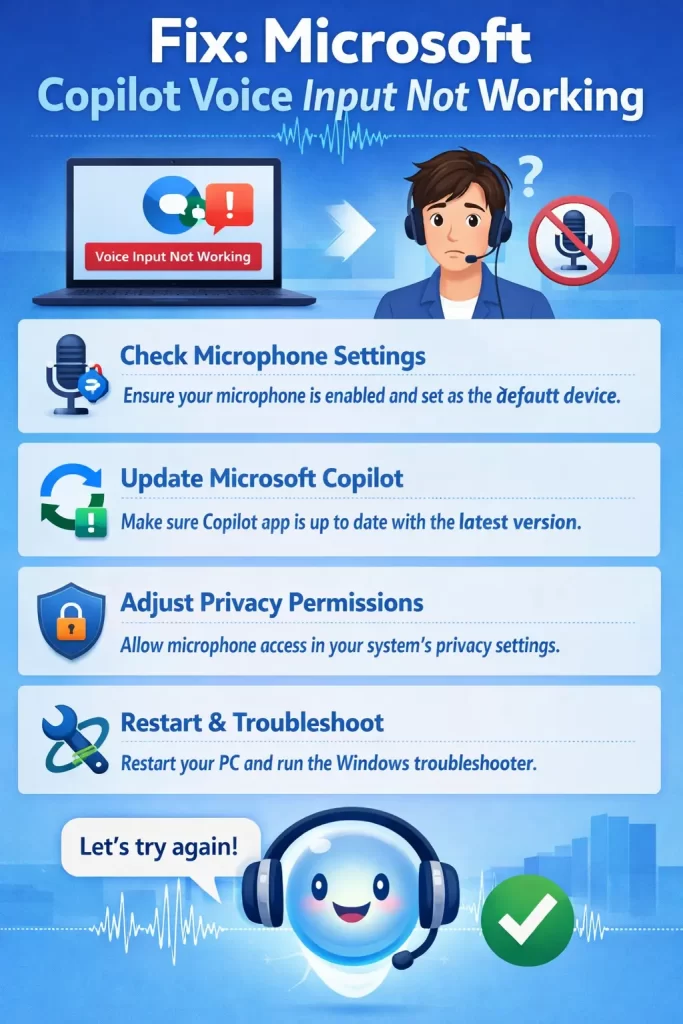
What Actually Worked For Me
With that Bluetooth headset I mentioned, I went through permissions first since that’s the obvious one, and both toggles were already on. Wrong device wasn’t it either — Sound settings had the headset correctly set as default, and it worked fine in every other app.
So I was a bit stuck at that point, honestly. What ended up fixing it — and I only found this because someone mentioned it in a forum thread almost as an aside — was updating the Bluetooth adapter driver itself, not the headset’s own driver. Windows had been treating it as generic and hadn’t pulled the manufacturer-specific one automatically. Updated it, restarted, and voice input worked immediately.
The permissions and default-device checks get recommended constantly, and they do fix a real chunk of cases. But in my experience, if those two check out clean and it’s still broken, driver-level issues are more likely than people expect — especially with Bluetooth. Repairing or resetting the app is what most guides jump to next, and it rarely helped in what I’ve seen, though it’s still worth trying since it’s quick.
Advanced Fixes and Edge Cases
“Start Listening” not triggering despite working dictation: This points specifically to the wake-phrase detection breaking rather than the microphone itself. Updating the audio driver and running Repair on the app both address this in different cases — there’s no single fix that works consistently here, which is frustrating, but that’s genuinely where it stands right now.
Network reset as a last resort: A few users have reported the app-specific mic failure (works in Edge, fails in the standalone app) getting resolved by a network reset under Settings > Network & internet > Advanced network settings. It’s not an obvious connection, and it doesn’t work for everyone, but it costs little to try if you’re already out of other options.
Garbled or repeating transcription output: If Copilot repeats back nonsense phrases instead of transcribing you, check the sample rate mismatch fix above first — this is the most consistent explanation for that specific symptom.
Event Viewer for persistent failures: Check Windows Logs > Application for entries related to the Copilot package around the time voice input fails. Recurring errors at the same timestamp usually point to an app-level bug worth reporting through Copilot’s own Feedback option.
Prevention Tips
- Keep Bluetooth and audio drivers current, particularly on machines using wireless headsets regularly
- If you use multiple mics, double-check the default input device after connecting or disconnecting any of them
- Test voice in the browser version occasionally — it’s a quick way to rule out app-specific bugs before troubleshooting further
- Report persistent bugs through Copilot’s Feedback option with details; some of these issues genuinely are regressions on Microsoft’s end, not local misconfiguration
FAQ
Why does my mic work everywhere except Copilot? Usually a per-app permission toggle or an app-specific bug rather than a hardware issue. Test in the browser version to narrow it down.
Why does Copilot respond with garbled or repeated phrases instead of my actual words? Most often a sample rate mismatch between your mic’s default format and what Copilot expects. Try switching it in the mic’s Advanced properties.
Does “Hey Copilot” wake word work on all Windows 11 PCs? No, voice activation availability varies by device and Windows version — it’s not guaranteed to be present everywhere.
Is this a known bug Microsoft is aware of? Some of it, yes — several users have reported it as a regression after updates, though response times on individual cases through official support vary a lot.
Will reinstalling Copilot fix voice input? Sometimes, but it’s not the most reliable fix. Driver and permission issues cause this more often than a broken app install does.
Editor’s Opinion
voice input on this thing is genuinely inconsistent, more than most Copilot features honestly. permissions and default device are the easy checks everyone tells you to do, and yeah do those first. but if your mic works everywhere else and still fails here, its probably a driver thing, not you doing something wrong. bluetooth headsets seem to get hit with this more than wired ones, not totally sure why but thats been my experience and what i keep seeing reported.
