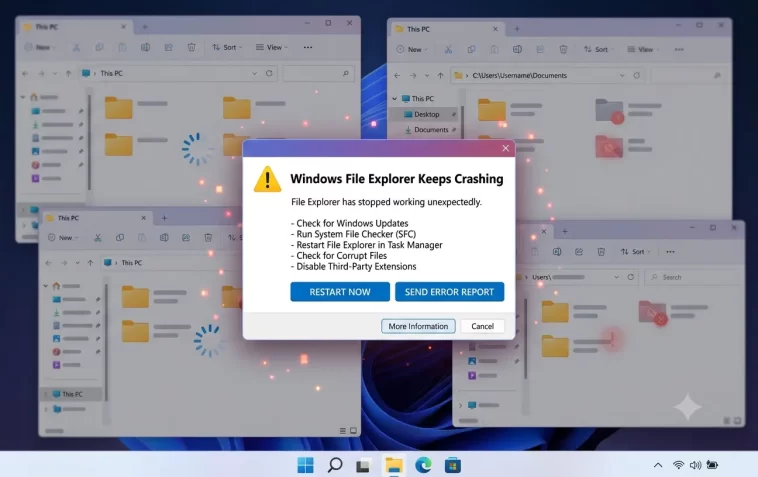
File Explorer crashing on Windows is one of the most disruptive everyday problems you can run into. The screen goes blank for a second, the taskbar vanishes, and then everything reloads. Sometimes it happens once. Sometimes it happens every few minutes.
This guide explains exactly why explorer.exe crashes when you navigate between folders — and walks you through every fix, from the simplest one-click solutions to deeper system repairs.
What Is explorer.exe and Why Does It Crash?
Explorer.exe is the process that runs Windows File Explorer — but it also controls your desktop, taskbar, Start menu, and system tray. When it crashes, everything managed by it disappears for a moment before Windows automatically restarts it.
The crash itself isn’t always dangerous. Windows is designed to restart explorer.exe automatically. But if it keeps crashing repeatedly, something is causing it to fail — and that needs to be fixed.
Common causes of explorer.exe crashing:
- Corrupted system files
- Faulty or outdated third-party shell extensions
- Corrupt thumbnail cache
- Outdated or incompatible display drivers
- Malware or viruses interfering with system processes
- Problematic context menu add-ons
- Corrupt user profile
- RAM issues
How to Confirm It’s Actually explorer.exe Crashing
Before you start fixing things, confirm the problem first.
- Press
Ctrl + Shift + Escto open Task Manager - Go to the Details tab
- Look for explorer.exe in the list
- Watch it — if it disappears and reappears on its own when the crash happens, that confirms it
You can also check Event Viewer for logs:
- Press
Windows + R, typeeventvwr, press Enter - Go to Windows Logs → Application
- Look for red Error entries with source Application Error or Windows Error Reporting
- Check if explorer.exe is listed as the faulting application
Fix 1 – Restart Explorer Manually First
Before anything else, try a clean manual restart of explorer.exe. This clears temporary glitches without rebooting your entire PC.
- Press
Ctrl + Shift + Escto open Task Manager - Find Windows Explorer under the Processes tab
- Right-click it → click Restart
Your screen will flicker for a second and come back. If the crashing stops after this, it was a temporary glitch. If it comes back, continue with the fixes below.
Fix 2 – Clear the Thumbnail Cache
Windows stores thumbnail previews of images and videos in a cache. If this cache gets corrupted, File Explorer can crash every time it tries to load thumbnails while you navigate folders.
Method 1 – Using Disk Cleanup:
- Search Disk Cleanup in the Start menu and open it
- Select your C: drive and click OK
- Check Thumbnails from the list
- Click OK → Delete Files
Method 2 – Manual deletion:
- Press
Windows + R, type the following, press Enter:
%LocalAppData%\Microsoft\Windows\Explorer- You’ll see files named
thumbcache_xxx.db - Select all of them and delete them
- Restart your PC
After clearing the cache, Windows rebuilds it automatically. This fix resolves a surprising number of File Explorer crashes.
Fix 3 – Disable Thumbnail Previews (Quick Workaround)
If clearing the cache doesn’t work, try disabling thumbnails entirely. This tells File Explorer to show generic icons instead of image previews — which eliminates the rendering process that causes crashes.
- Open File Explorer
- Click the three-dot menu (…) in the toolbar → Options
- Go to the View tab
- Check Always show icons, never thumbnails
- Click Apply → OK
If the crashing stops after this, the thumbnail rendering process is definitely the issue. You can keep thumbnails off, or circle back to Fix 2 for a permanent solution.
Fix 4 – Run System File Checker (SFC)
Corrupted Windows system files are a very common cause of explorer.exe instability. The built-in SFC tool scans and repairs them automatically.
- Press
Windows + R, typecmd - Right-click Command Prompt → Run as administrator
- Type the following command and press Enter:
sfc /scannow- Wait for the scan to finish — it takes 5 to 15 minutes
- If it finds and repairs files, restart your PC
After restarting, also run DISM for a deeper repair:
DISM /Online /Cleanup-Image /RestoreHealthThen run SFC one more time after DISM completes:
sfc /scannowThis two-step process catches issues that SFC alone sometimes misses.
Fix 5 – Disable Problematic Shell Extensions
Shell extensions are add-ons that integrate into File Explorer — things like cloud storage overlays (Dropbox, OneDrive, Google Drive), archive tools (WinRAR, 7-Zip), or antivirus right-click menus.
Any one of these can conflict with File Explorer and cause crashes. The tricky part is figuring out which one.
Use ShellExView to identify the problem:
- Download ShellExView from nirsoft.net (free, safe, no install needed)
- Run it as administrator
- Go to Options → Filter by Extension Type → select Context Menu
- Look for non-Microsoft extensions (they appear in a different color)
- Select all non-Microsoft extensions → press F7 to disable them all
- Test File Explorer — if it stops crashing, re-enable extensions one by one to find the culprit
Once you identify the problematic extension, you can leave it disabled or uninstall the related software.
Fix 6 – Check for Windows Updates
Microsoft regularly patches explorer.exe bugs through Windows Update. If your system is behind on updates, you may be running a version with a known crash issue that’s already been fixed.
- Open Settings → Windows Update
- Click Check for updates
- Install everything available — including optional updates
- Restart your PC and test
Fix 7 – Update or Roll Back Your Display Driver
The display driver handles how File Explorer renders folder contents, thumbnails, and animations. A buggy GPU driver can cause explorer.exe to crash specifically when navigating between folders.
To update:
- Right-click Start → Device Manager
- Expand Display adapters
- Right-click your GPU → Update driver → Search automatically
For best results, download the driver directly from your GPU manufacturer:
- NVIDIA: nvidia.com/drivers
- AMD: amd.com/support
- Intel: intel.com/support
To roll back (if the crash started after a driver update):
- In Device Manager, right-click your GPU → Properties
- Go to the Driver tab
- Click Roll Back Driver if the option is available
Fix 8 – Scan for Malware
Malware frequently targets explorer.exe — either by injecting into the process or by disguising itself as explorer.exe. This causes instability, crashes, and unexpected restarts.
Run a full scan:
- Open Windows Security (search in Start menu)
- Go to Virus & threat protection
- Click Scan options → select Full scan
- Click Scan now
For a second opinion, also run Malwarebytes Free (malwarebytes.com) — it catches things Windows Defender sometimes misses.
Fix 9 – Check RAM for Errors
Faulty RAM can cause all kinds of random crashes, including explorer.exe. Windows has a built-in memory diagnostic tool.
- Press
Windows + R, typemdsched, press Enter - Click Restart now and check for problems
- Your PC will reboot and run the memory test automatically
- After the test, Windows restarts and shows the results in the notification area
If errors are found, your RAM may need to be reseated or replaced.
Fix 10 – Create a New User Profile
Sometimes a specific user profile gets corrupted, causing explorer.exe to crash only for that account. Creating a new profile can confirm this — and fix it.
Create a new local account:
- Open Settings → Accounts → Family & other users
- Click Add account → I don’t have this person’s sign-in information → Add a user without a Microsoft account
- Give it a name and password, click Next
- Log out of your current account and log into the new one
- Test File Explorer
If it works perfectly on the new account, your original profile is corrupted. You can migrate your files to the new account and use it going forward.
Fix 11 – Reset File Explorer Settings
Corrupted File Explorer settings can also trigger crashes. Resetting them to defaults is quick and safe.
- Open File Explorer
- Click the three-dot menu (…) → Options
- In the General tab, click Restore Defaults
- In the View tab, click Reset Folders → confirm with Yes
- Click Apply → OK
- Restart File Explorer via Task Manager
Fix 12 – Repair Windows Using an In-Place Upgrade
If nothing else works, an in-place upgrade reinstalls Windows 11 over itself — fixing deep system corruption without deleting your files, apps, or settings.
- Download the Windows 11 Installation Assistant from microsoft.com
- Run it and choose Upgrade this PC now
- On the “Ready to install” screen, make sure it says Keep personal files and apps
- Click Install
The process takes 30–60 minutes. Your files stay intact. After it completes, test File Explorer — this fix resolves even the most stubborn cases.
Quick Troubleshooting Reference
| Situation | Best Fix to Try First |
|---|---|
| Crashes when opening image folders | Fix 2 – Clear thumbnail cache |
| Crashes on right-click | Fix 5 – Disable shell extensions |
| Crashes after Windows update | Fix 6 – Check for newer updates |
| Crashes after driver update | Fix 7 – Roll back display driver |
| Crashes on all folder types | Fix 4 – Run SFC and DISM |
| Only crashes on one user account | Fix 10 – Create new user profile |
| Crashes with high CPU/RAM usage | Fix 9 – Check RAM for errors |
| Nothing else works | Fix 12 – In-place Windows repair |
FAQ
Q: Is it dangerous when explorer.exe crashes? Not typically. Windows is designed to restart explorer.exe automatically, so you don’t lose data. However, if it crashes frequently, something needs to be fixed — repeated crashes can indicate deeper system issues.
Q: Why does File Explorer crash only when I open certain folders? That folder likely contains a file type that triggers a problematic shell extension or a corrupted thumbnail. Try Fix 2 (clear thumbnail cache) and Fix 5 (disable shell extensions) first.
Q: Can third-party software cause explorer.exe to crash? Yes. Shell extensions from apps like cloud storage clients, archiving tools, or antivirus software are among the most common causes. ShellExView (Fix 5) is the fastest way to identify the culprit.
Q: How do I know if explorer.exe is infected with a virus? Open Task Manager → Details tab → right-click explorer.exe → Open file location. It should be in C:\Windows\. If it’s in any other folder, it’s almost certainly malware. Run a full antivirus scan immediately.
Q: File Explorer crashes only when I open the Downloads folder. Why? The Downloads folder often contains a wide variety of file types. A shell extension or thumbnail generator that handles a specific file format (like a video codec or archive handler) may be crashing. Disable thumbnails (Fix 3) and shell extensions (Fix 5) to test.
Q: Will resetting my PC fix the explorer.exe crash? A full reset would fix it, but it’s overkill. An in-place upgrade (Fix 12) achieves the same result while keeping all your files and apps. Try that first before considering a full reset.
Q: How do I stop explorer.exe from crashing without restarting my PC? Press Ctrl + Shift + Esc → find Windows Explorer → right-click → Restart. This restarts explorer.exe cleanly without a full reboot and often clears temporary issues.
Q: Does File Explorer crashing mean my hard drive is failing? Not necessarily, but it’s worth checking. Run chkdsk C: /f /r in an admin Command Prompt to scan your drive for errors. Schedule it to run on next boot and check the results in Event Viewer afterward.
Final Thoughts
Explorer.exe crashing while navigating folders is annoying, but it’s almost always fixable without reinstalling Windows from scratch.
Start with the quick wins — clear the thumbnail cache, run SFC, restart File Explorer manually. If those don’t work, move to shell extensions and driver updates. Most cases are resolved within the first four or five fixes.
The in-place upgrade is your safety net if everything else fails — and it works even when the problem seems impossible to pin down.
