You can use iPad as a MacBook screen through a built-in feature called Sidecar, and once it’s working it feels almost too easy. I set mine up on a cramped hotel desk last year because I didn’t have room for a second monitor, and it saved that entire work trip. But getting there isn’t always the one-click experience Apple’s marketing pages make it look like.
Quick Answer
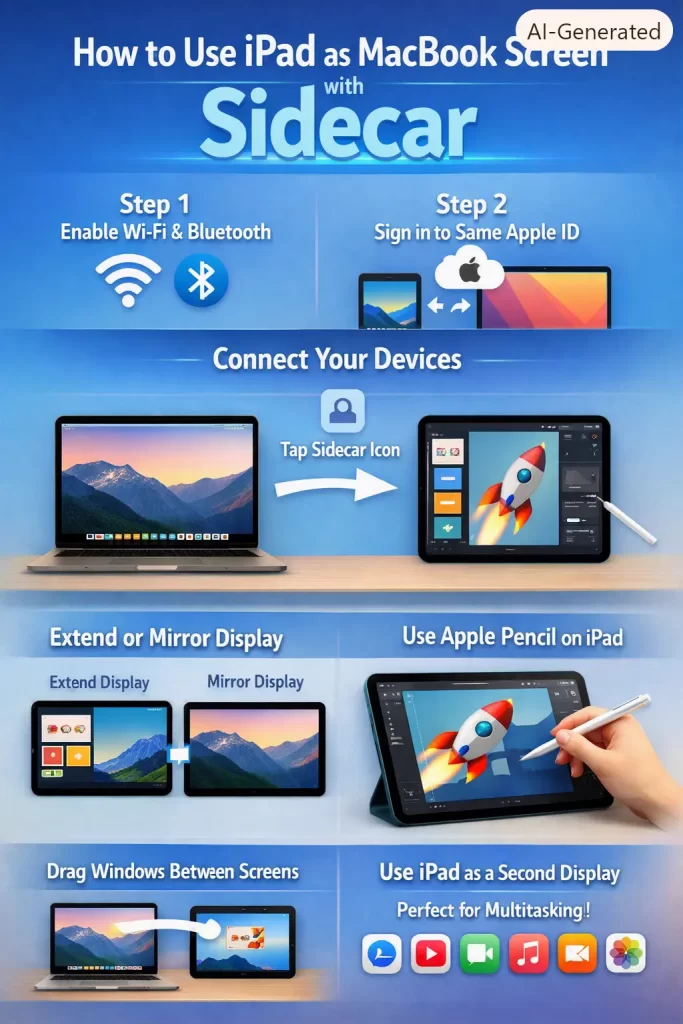
- Sidecar lets any supported iPad act as a second display or a drawing tablet for your Mac, wired or wireless.
- You need macOS Catalina (10.15) or later and iPadOS 13 or later, both signed into the same Apple ID.
- Both devices need Bluetooth, Wi-Fi, and Handoff turned on, even if you plan to connect with a cable.
- Older Intel Macs from before 2016 and some older iPads aren’t supported — check the compatibility list before you troubleshoot anything else.
- If Sidecar doesn’t show up in System Settings at all, it’s almost always an Apple ID mismatch or an unsupported device, not a bug.
Why Sidecar Fails to Show Up or Connect
There are a handful of reasons Sidecar just won’t cooperate, and most of them come down to Apple being oddly strict about account and hardware matching.
Different Apple IDs. This is the big one. Your Mac and iPad have to be signed into the exact same Apple ID with two-factor authentication enabled. So if you’ve got a work Apple ID on your Mac and a personal one on your iPad, Sidecar won’t even appear as an option.
Unsupported hardware. Sidecar needs a Mac from roughly 2016 onward and an iPad from around the sixth generation or newer (there are exceptions on both ends — iPad Pro models go back further). And if you’re on an old Mac mini or an early 12-inch MacBook, that machine might just be too old, full stop.
Wi-Fi and Bluetooth conflicts. Wireless Sidecar depends on Bluetooth for the handshake and Wi-Fi for the actual video stream. If either radio is flaky — and on some Macs, especially ones near a router with a lot of 2.4GHz traffic, they can be — the connection drops or never establishes.
Handoff turned off. Sidecar quietly depends on Handoff being enabled on both devices. It’s a setting people forget exists because they never touch it otherwise.
Third-party display managers. Apps like DisplayLink drivers, certain window managers, or older versions of apps like Luna Display can interfere with how macOS handles external displays, including Sidecar sessions.
Sidecar vs Other iPad-as-Screen Options
Sidecar isn’t the only way to turn an iPad into a display, and honestly it’s not always the best one depending on what you’re doing.
| Method | Wired or Wireless | Latency | Extra Cost | Works With |
|---|---|---|---|---|
| Sidecar (built-in) | Both | Low, occasional lag on Wi-Fi | Free | Mac + supported iPad, same Apple ID |
| Luna Display | Both | Very low | Paid hardware dongle or app | Mac + iPad, any Apple ID |
| Duet Display | Both | Low | Paid app | Mac, Windows + iPad |
| AirPlay Mirroring | Wireless only | Higher, mirrors only | Free | Mac + iPad, no true extended desktop |
Sidecar wins on price since it’s free and already built into macOS. Luna Display tends to win on reliability for people doing color-sensitive work, from what I’ve seen in a couple of design studios that swear by it over Sidecar’s occasional stutter.
Step-by-Step Fixes
Step 1: Confirm Both Devices Meet the Requirements
Check System Settings > General > About on your Mac, and Settings > General > About on your iPad. Compare against Apple’s supported model list. Don’t skip this — I’ve seen people spend an hour troubleshooting a Mid-2015 MacBook Pro that was never going to support Sidecar in the first place.
Step 2: Match the Apple ID on Both Devices
Go to System Settings > Apple ID on the Mac and Settings > [your name] on the iPad. Make sure the email listed is identical on both. If it’s not, sign out and back in with the correct one — this alone fixes a huge chunk of “Sidecar isn’t showing up” reports.
Step 3: Enable Bluetooth, Wi-Fi, and Handoff
On the Mac: System Settings > General > AirDrop & Handoff, toggle Handoff on. On the iPad: Settings > General > AirPlay & Handoff, same toggle. Both devices also need Bluetooth on even for a wired connection, which trips people up constantly.
Step 4: Connect via Cable or Wirelessly
For wired: plug the iPad into the Mac with a USB-C or Lightning cable and tap “Trust” on the iPad if prompted. For wireless: click the AirPlay icon in the Mac’s menu bar, or go to System Settings > Displays and select your iPad from the Add Display menu.
Step 5: Adjust Display Settings
Once connected, open Displays in System Settings to set the iPad as an extended display or mirror. You can also drag the Sidebar and Touch Bar controls to whichever edge feels natural — most people move the sidebar to the right since that’s where the Apple Pencil hand usually sits.
Step 6: Restart Both Devices If Nothing Happens
This sounds dumb but it works more often than it should. A stubborn Bluetooth cache or a stuck Handoff session usually clears after a reboot of both the Mac and the iPad.
What Actually Worked For Me
My first attempt at this was on a wireless connection and it just would not connect — the iPad showed up in the AirPlay list, I’d click it, and nothing happened for about ten seconds before it silently failed. I tried the usual stuff: toggled Wi-Fi off and on, restarted the Mac, checked the Apple ID twice. None of it helped.
What actually fixed it was completely unrelated to anything Apple documents. I had a VPN running in the background for a work account, and Sidecar apparently doesn’t like sharing the network stack with certain VPN clients. Turned the VPN off, tried again, connected in about four seconds. That’s not something Apple’s support pages mention anywhere, and I only stumbled onto it because a coworker mentioned offhand that his corporate VPN did the same thing to his Sidecar setup.
So if you’re stuck and you’ve done everything by the book, check what else is touching your network connection before you assume the hardware itself is broken.
Advanced Fixes and Edge Cases
Check Console.app for Sidecar errors. Open Console, filter by “sidecar” or “AVConference,” and reconnect while it’s running. You’ll often see specific handshake failure messages that point at Bluetooth pairing rather than the video stream itself, which changes what you should actually be troubleshooting.
Reset the Bluetooth module. Hold Shift+Option and click the Bluetooth icon in the menu bar, then choose “Reset the Bluetooth module.” This clears out corrupted pairing data that a normal Bluetooth toggle won’t touch.
Rule out router band conflicts. If your Mac and iPad are both on a busy 2.4GHz network, try switching one device to 5GHz if your router supports both, or move closer to the router temporarily just to test.
Check for MDM restrictions. On managed corporate devices, IT departments sometimes disable Sidecar or Continuity features entirely through profiles. If you’re on a work Mac and none of the above works, that’s worth asking about before you burn more time on it.
Fixes That Sound Right But Rarely Help
Reinstalling macOS or iPadOS from scratch almost never fixes a Sidecar connection issue — it’s a big hammer for what’s usually a small, specific setting problem. Resetting all network settings on the iPad is another one people jump to that mostly just wastes twenty minutes re-adding Wi-Fi passwords. The fix that actually works most of the time, in my experience, is the Apple ID and Handoff check from Steps 2 and 3 — that combination clears up the majority of cases I’ve run into or read about.
Prevention Tips
- Keep both macOS and iPadOS updated, since Sidecar bugs get patched fairly often in point releases.
- Don’t run a VPN if you’re setting up Sidecar for the first time — test the connection clean, then add the VPN back afterward.
- If you use Sidecar regularly, consider a dedicated Sidecar stand so the iPad isn’t constantly repositioned, which can cause the connection to drop mid-session on some setups.
- Turn off Auto-Lock on the iPad, or Sidecar sessions can end abruptly if the screen locks.
FAQ
Can I use an old iPad with Sidecar? Only if it’s on Apple’s supported list — generally sixth-generation iPad or newer, though some earlier iPad Pro models qualify too.
Does Sidecar work over Wi-Fi without a cable? Yes, as long as both devices are near each other and signed into the same Apple ID with Bluetooth and Wi-Fi on.
Why does my iPad screen look blurry when used with Sidecar? That’s usually a resolution scaling issue — try adjusting the display resolution in System Settings > Displays rather than leaving it on default.
Can I use Sidecar and Apple Pencil at the same time? Yes, and it works well for apps like Photoshop or Procreate-adjacent workflows where you want the iPad as a drawing surface rather than just a monitor.
Does Sidecar drain the iPad battery fast? It does drain faster than idle use, especially wirelessly, so keep it plugged in for long sessions.
Can I use Sidecar with a Windows PC? No. Sidecar is Apple-only — Duet Display or a similar third-party app is the route if you’re on Windows.
Why does Sidecar disconnect randomly? Usually Wi-Fi interference, Auto-Lock kicking in, or the iPad going to sleep. Check Auto-Lock settings first.
Is Sidecar free? Yes, it’s built into macOS and iPadOS, no subscription or extra purchase needed.
Editor’s Opinion
honestly Sidecar is one of those features that works great right up until it doesn’t, and when it breaks the reason is almost never obvious. mine turned out to be a VPN, which I never would’ve guessed. if you’re stuck, don’t just keep restarting stuff — think about what else is running in the background. that’s usually where the real answer is hiding.
