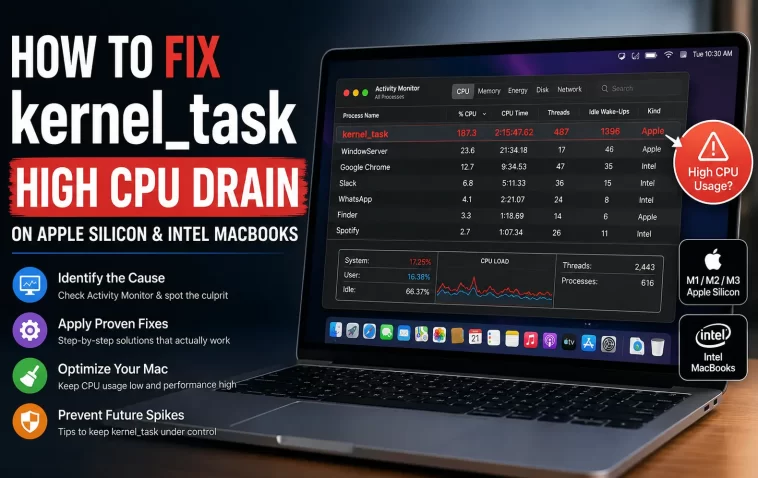
My MacBook Pro’s fans kicked in one afternoon like it was rendering a feature film, except I had exactly one Safari tab and a Notes window open. Activity Monitor showed kernel_task eating over 400% CPU, and that’s the moment you realize kernel_task high CPU isn’t some obscure edge case — it’s one of the most common (and most misunderstood) Mac performance complaints out there. The good news is that it’s almost never actually a bug in the traditional sense.
Quick Answer
- kernel_task itself usually isn’t “doing work” — it’s throttling other processes to manage heat, so high numbers there often mean a thermal issue elsewhere
- Restart first, then check Activity Monitor for the real CPU hog before touching anything else
- Overheating (dust, bad thermal paste, blocked vents, sketchy chargers) is the single most common cause
- On Intel Macs, an SMC reset can help; Apple Silicon Macs don’t have that option and rely on a full shutdown instead
- If it happens right after a macOS update, a flaky kernel extension or driver is a decent bet
Why kernel_task Actually Spikes
Here’s the part that trips people up: kernel_task isn’t a rogue process eating your CPU for no reason. It’s part of the macOS kernel, and one of its jobs is temperature management. So when your Mac starts getting hot, kernel_task will deliberately claim CPU cycles — not to do real work, but to keep other apps from running full speed and cooking the chip. It’s basically a traffic cop standing in the intersection doing nothing productive except blocking cars, and that’s by design.
That said, there are a handful of specific triggers worth naming instead of just waving at “heat” as a vague concept:
- Thermal buildup from dust or dried thermal paste — older MacBooks especially, since paste degrades over years of use.
- A misbehaving kernel extension or driver, often tied to third-party antivirus software, USB hubs, Thunderbolt docks, or audio interfaces. This shows up a lot right after macOS updates, when a driver hasn’t caught up yet.
- External displays or GPUs pushing the system harder than it’s built for, particularly on lower-end MacBook Air models without active cooling.
- A bad or counterfeit charger. And yes, sometimes even genuine Apple chargers cause this — I know that sounds backwards, but I’ve seen it reported enough times that I don’t dismiss it anymore.
- Less commonly, malware or a corrupted system cache, though from what I’ve seen this gets blamed way more often than it’s actually the cause.
Common Scenarios
This shows up a little differently depending on your hardware. On Intel MacBooks, it’s frequently tied to fan failure or degraded thermal paste — the machine just can’t dump heat fast enough anymore. On Apple Silicon (M1 through M4), it’s rarer because those chips run cooler and more efficiently, but it still happens, usually connected to external monitor setups, Rosetta-translated apps behaving badly, or a background process (Spotlight reindexing, Time Machine backups) colliding with something CPU-heavy at the same time.
Step-by-Step Fixes
Step 1: Confirm It’s Actually kernel_task
Open Activity Monitor (Finder > Applications > Utilities), click the CPU tab, and sort by % CPU. If kernel_task is sitting at the top with a big number, don’t force-quit it — you can’t anyway, and trying will just get you a system error. Instead, look at what else is running high. Sometimes the “real” culprit is sitting two rows down.
Step 2: Restart Before Anything Else
I know it’s the most boring advice possible, but restarting clears a surprising number of these spikes on its own. It closes lingering background processes, dumps RAM, and lets the system cool from whatever state triggered the throttling in the first place.
Step 3: Check for Physical Heat Sources
Move the Mac off soft surfaces (beds, couches, pillows — anything that blocks the vents). Check that nothing is sitting on top of it. If you’re on an older Intel model, consider that dust buildup in the fan intake is genuinely common after 2-3 years and can be cleaned with compressed air.
Step 4: Disconnect Peripherals One at a Time
Unplug external monitors, USB hubs, docks, and anything else connected, then check Activity Monitor again. If kernel_task drops immediately, you’ve found your driver conflict. Add devices back one at a time to isolate which one’s responsible.
Step 5: Reset SMC (Intel Macs Only)
On Intel-based Macs, resetting the System Management Controller can resolve fan and thermal management glitches. Shut down completely, then hold Shift+Control+Option and the power button together for about 10 seconds (the exact combo varies slightly by model, so check yours if this doesn’t work first try).
Apple Silicon Macs don’t have a manual SMC or NVRAM reset — Apple built that functionality directly into the chip. On M1/M2/M3/M4 machines, a full shutdown (not just restart), waiting 30 seconds, then powering back on does the equivalent job. There’s no key combo to hunt for, and if someone tells you there is, they’re describing an Intel procedure that doesn’t apply to your hardware.
Step 6: Update macOS
If this started right after installing a new app or driver, check for a macOS update. Apple ships kernel extension compatibility fixes fairly often, and a driver that’s fighting the kernel on an old macOS version might just work fine on the current one.
What Actually Worked For Me
I went through the usual checklist first — restart, close everything, check for updates — and nothing budged. The fan kept ramping every ten minutes or so, completely unpredictably. I assumed it was heat-related and spent almost an hour cleaning dust out of the vents with compressed air, which, in hindsight, probably wasn’t necessary at all.
What actually fixed it was a USB-C dock I’d forgotten I’d plugged in weeks earlier for a monitor I no longer used. Unplugged it, kernel_task dropped from the 300s down to single digits within about a minute. That’s not entirely accurate, actually — it took closer to three or four minutes before it fully settled, but the drop was immediate and obvious once I pulled the cable. I got a little lucky that I happened to check the ports at all; I’d genuinely forgotten it was there.
So the lesson, if there is one: physical connections get overlooked constantly because they feel unrelated to “software” problems like this.
Advanced Fixes and Edge Cases
If the basic fixes don’t touch it, a few deeper options:
- Check Console.app for kernel panic logs or repeated driver errors. Search for “kernel” in the log stream while the spike is happening — repeated entries from a specific extension are a strong signal.
- Boot into Safe Mode to see if the problem disappears. Safe Mode disables third-party kernel extensions and login items, so if kernel_task behaves normally there, something you’ve installed is the trigger.
- Run Apple Diagnostics (hold D at startup) to rule out an actual hardware fault, particularly on machines with fan or sensor issues.
- On very old Intel machines, a battery that’s swelling or failing can sometimes cause power management weirdness that manifests as kernel_task spikes — not common, but worth a glance at Battery Health if the machine is several years old.
Prevention Tips
Keep vents clear and avoid soft surfaces for extended sessions. Update macOS reasonably promptly, especially after installing new peripherals or drivers. If you’re running third-party antivirus or system utilities, make sure they’re kept current too — old kernel extensions are a recurring theme in this specific problem. And if you use a dock or hub daily, it’s worth occasionally testing without it just to rule out a slow degrade in whatever chip is inside it.
FAQ
Can I force quit kernel_task? No, and macOS won’t let you try for long — it’s a protected system process.
Is kernel_task a virus? No. It’s a legitimate part of macOS. Malware sometimes disguises itself with similar names, but the actual kernel_task process is core to the operating system.
Why does this happen more on MacBook Air than MacBook Pro? The Air has no active cooling fan on most models, so it hits thermal limits faster under sustained load, and kernel_task throttles sooner as a result.
Will an SMC reset work on my M2 MacBook? No — there’s no manual SMC reset on Apple Silicon. A full shutdown and restart is the closest equivalent.
Does closing my laptop lid while it’s still running cause this? It can contribute if the machine doesn’t fully sleep and keeps running background tasks in a bag, which traps heat. Worth checking Energy settings if this happens a lot after transport.
Editor’s Opinion
honestly this is one of those macOS things that sounds way scarier than it is. seeing “kernel_task 450%” looks like your computer is dying but 9 times out of 10 its just doing its job a little too aggressively because somethings making it hot or fighting with a driver. dont panic and dont go nuking your system files over it. check your ports first, i mean it, half the reports i’ve read (and my own case) came down to something plugged in that had no business being there anymore.
